

Last updated: October 2026
The warning icon appears, the screen counts down, and the camera stops in the middle of the best take of the day. That shutdown is not random, and it is rarely a sign that the camera is broken. A vlogging camera makes heat faster than a small sealed body can shed it, and once the internal temperature hits a limit set by the manufacturer, the camera protects itself and turns off. Most of that heat comes from choices you control.
The camera overheating fix, in short
- Lower the load first. Drop from 4K60 or 4K120 to 4K30, or to 1080p for long takes, and use a lower bitrate mode if offered.
- Open the flip screen out. A screen folded flat traps heat against the back. Swung clear of the body, it lets that panel cool.
- Turn off what you are not using. Wi-Fi and phone monitor apps add work. Switch them off for long takes.
- Plan for heat. Shade, breaks between takes, and a spare body for long sessions beat any single setting.
- Respect the temperature setting. A high Auto Power Off Temperature setting carries a real safety caveat. Read that section first.
On this page
- Where the heat is actually coming from
- The settings that cut heat fastest
- Auto Power Off Temperature, explained carefully
- Open the screen, rethink power, and cool the body
- Planning a hot day or a long talking head session
- When the warning appears mid take
- Cooling tricks that backfire, and other myths
- Overheating or an actual fault: how to tell
- Overheating questions, answered
- Keep exploring
Where the heat is actually coming from
Most heat comes from inside the body, not the weather. The sensor and processor work hard to process and compress high resolution video, and every extra feature adds more.
A camera recording 4K video reads millions of pixels off the sensor many times a second, corrects the image, and compresses it into a file in real time. Higher bitrates and more demanding codecs ask the processor to do more work on every frame. That work turns into heat, and a mirrorless body has no room for a large cooling system. The body itself is the radiator, which is why the grip and top plate get warm first. The trade off is sharpest in compact bodies, which have less surface area to shed heat, a point worth weighing when you compare the models in our guide to the best mirrorless camera for vlogging.
Frame rate multiplies the load. 4K60 gives the processor twice as many frames each second as 4K30, and 4K120 doubles it again. High frame rate and slow motion modes are some of the hardest work a vlogging camera does.
Then there is everything running alongside the recording:
- In-body stabilization (IBIS). The sensor floats on moving mounts that make constant tiny corrections. Left on for a whole shoot, it draws power and adds heat, even on a tripod where it has little to correct. Digital stabilization on top of IBIS adds processing load as well, so running both is a double cost.
- Autofocus that never rests. Subject recognition and eye tracking run the processor continuously, analysing every frame. It is some of the most useful technology in a modern vlogging camera, and it is not free.
- Wi-Fi and phone apps. A live phone monitor connection means the camera encodes and sends a second video stream while it records the first. Many people leave it on by habit.
Your memory card plays a part too. A slow card can force the camera buffer to work harder and wait longer to clear. Card speed alone will not fix overheating in a demanding mode, but a card that meets the rating your mode requires removes one source of strain. The card itself also warms up during long, high bitrate writes, and in bodies where the slot sits close to the processor, that heat soaks back into the chassis. Our guide to SD cards for vlogging, explained covers speed classes and ratings in plain terms.
Finally, the environment decides how much headroom you start with. A camera left in direct sun, or in a closed bag in a hot car, starts close to its limit before you press record. Hot weather, still air, and sun on a black body all shorten recording time, on top of the internal load.
The settings that cut heat fastest
The most reliable camera overheating fix is a lighter recording mode. Dropping to 4K30 for long takes, or to 1080p, cuts processor load at the source, and no accessory does as much.
Think in terms of total load, then take the biggest item off the pile. For a long talking head piece or tutorial, 4K60 rarely earns its heat. Seated conversation does not need sixty frames a second, and 4K30 gives the same resolution with about half the frame processing. For very long takes, 1080p is a legitimate choice.
Reserve heavy modes for shots that need them. Film action inserts and slow motion cutaways in 4K60 or 4K120 in short bursts, then return to a lighter mode for long static pieces. Bursts give the body cooling gaps between efforts.
- Bitrate and codec options. Many cameras offer a lower bitrate version of the same resolution and frame rate, or a more efficient codec. Less data per second means less work for the processor and the card. Test the quality difference at home before a shoot day. Where a camera offers both All-Intra and Long GOP versions of a mode, Long GOP is usually the lighter load for long takes, because the camera stores the differences between frames instead of compressing every frame in full.
- Wi-Fi and Bluetooth. Turn wireless off for takes where you are not transferring files or using a remote. Check framing on the camera screen instead of a phone.
- Autofocus mode. Subject recognition and eye tracking are wonderful for walk and talk pieces, but they keep the processor busy on every frame. For a seated piece to camera, a simpler AF mode, or focus set once and left alone, removes a constant background load.
- Stabilization on a tripod. If the camera is locked off, consider turning IBIS off, following the guidance in your manual. Some models recommend this on a tripod anyway.
- Screen brightness and sleep timers. Lower brightness to what you can see, and let the display sleep quickly between takes.
- Firmware. Manufacturers sometimes improve thermal behavior in firmware updates. Check for an update for your model before a big shoot rather than after a ruined one, and run the update on a cool camera with a full battery.
If you are unsure what these menu items do on your own body, work through our guide to vlogging camera settings, explained first. Then change one thing at a time, run a test recording at home in conditions close to your shoot, and note how long the camera runs. Behavior varies a lot by model.
Auto Power Off Temperature, explained carefully
Many cameras have an Auto Power Off Temperature setting with standard and high options. High lets the body run hotter before shutdown, exists mainly for tripod use, and carries a safety warning.
The setting does not make the camera produce less heat, and it does not add cooling. It raises the temperature at which the camera protects itself and stops. On standard, the camera shuts down earlier, while the body feels only warm. On high, it records longer, and the body and grip can become genuinely hot.
That is why manufacturers attach conditions to it. The high setting is intended for a camera on a tripod or stand, with nobody holding it for long stretches. Manuals for cameras that offer it warn about the risk of low temperature burns from prolonged skin contact with a hot body. Avoid prolonged skin contact and follow the manufacturer warning for your model. If you use high, mount the camera, keep hands off the body during long takes, and let it cool before packing it away.
Used with those precautions, the setting is a reasonable tool for a static camera that keeps stopping during long indoor recordings. It is a poor fit for handheld vlogging in the sun, where your hand stays on the grip. Check your manual for the exact name and warning for your model.

Open the screen, rethink power, and cool the body
Three physical changes help without touching the recording mode: swing the flip screen clear of the body, power the camera from outside, and give the body airflow.
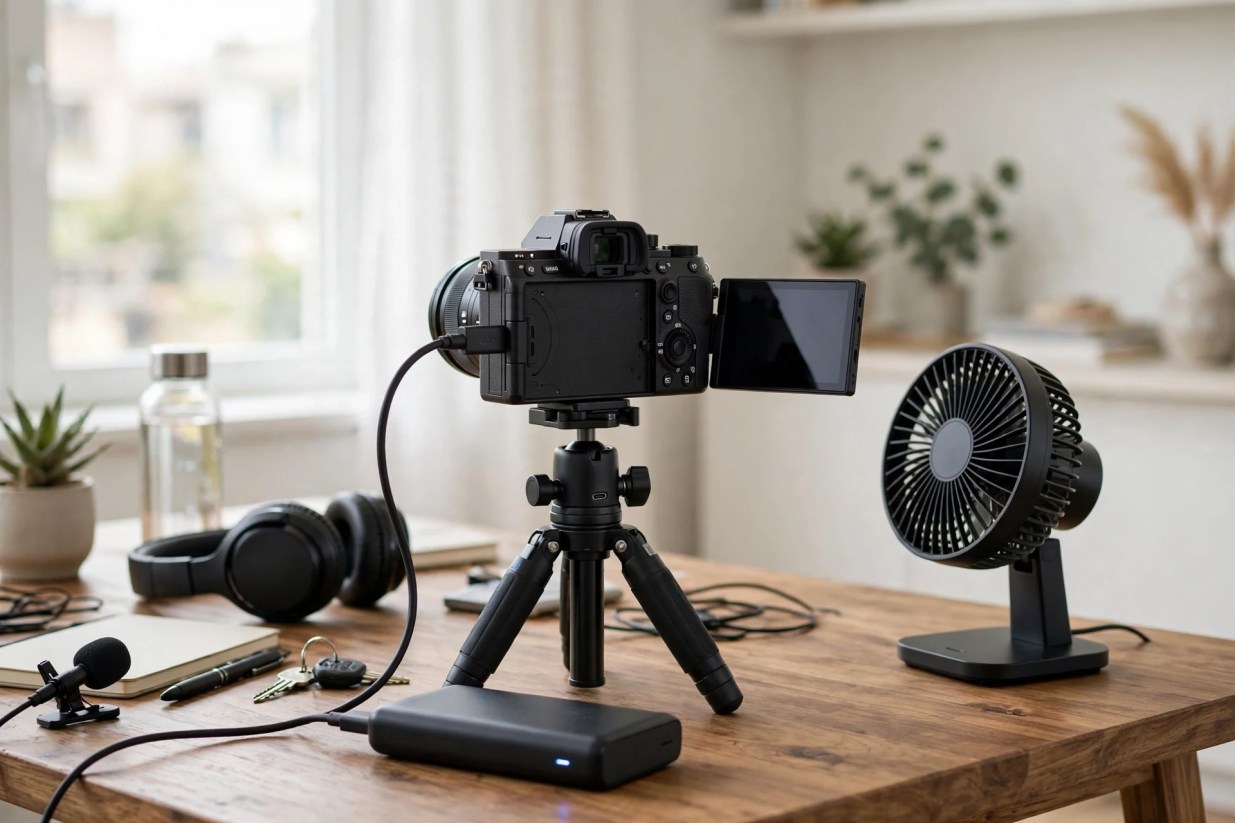
The screen trick is the simplest fix here, and it is free. On many vlogging cameras the rear screen folds flat against the back panel, over one of the warmest parts of the body. Swung out to the side or flipped forward, it leaves that panel exposed to air, free to shed heat. If you normally film with the screen flat, try your next long test with it opened out. If a fully articulated screen matters to you for this reason, our guide to the best vlogging camera with a flip screen explains the main designs.
Power is the second lever. A battery inside the body adds heat as it discharges. Powering the camera from outside moves part of the problem out:
- Dummy battery (DC coupler). This runs the camera from a wall outlet or large external battery. Internal battery heat is gone, but the processor and sensor still make heat, so it extends recording time without ending overheating.
- USB-C power. Many recent cameras can run or top up from USB-C power while recording, though details differ by model. A camera that is also charging its internal battery while recording can gain heat from charging, so for long sessions a dummy battery, or direct USB-C running power if your model supports it, is usually cleaner. Check your manual.
- Simple habits. Use a fresh, cool battery rather than one that sat in the sun. Between takes, opening the battery door in a clean, dry place lets trapped heat out. If you carry spare batteries, rotate them across a long day so each pack gets time to cool; a tired older battery also tends to run hotter than a fresh genuine one.
Airflow is the third lever. Small external cooling fans made for cameras mount behind the body and blow air across the back panel. As a category, they can help during long indoor sessions, especially with the screen opened out. They add bulk, need power, and fan noise matters if your microphone sits close to the camera, so test the audio first. Outdoors, shade is your fan: drape a light colored cloth over the body between takes, and never leave the camera in direct sun.
Planning a hot day or a long talking head session
Planning beats settings on a genuinely hot day. Shoot long pieces in shade or in the coolest part of the day, build real breaks into the session, and rotate bodies if you have a spare.
For outdoor vlogging, treat heat like light: plan around it. Film long, static pieces early or late in the day, and keep midday for short clips that let the camera rest between bursts. Pick shade for any setup that runs longer than a few minutes. A slightly different angle that lets you finish beats the perfect angle and a camera that stops twice. Our guide on how to start a travel vlog covers planning a shoot day on the move, and heat belongs on that checklist.
- Arrive cool. Carry the camera in shade, not in a hot car or a black bag in the sun. Let a hot body cool down before you start.
- Set up light. Frame and test in a light mode. Switch to a heavy mode only when you are ready to record.
- Work in blocks. Film in planned blocks with short breaks. Power down, open the screen out, move the camera into shade, and let the temperature fall.
- Rotate if you can. Alternate between two bodies on long sessions: one records while the other cools. Even a basic second body can carry a wide shot while your main camera rests.
- Protect the key piece. If a shutdown feels possible, record the most important section first.
Long indoor talking head sessions follow the same logic. Cool the room if you can, open the screen out, run external power, and split a long script into sections with pauses between them. Viewers cannot see the joins if your position and framing stay steady. If a warning appears mid section, finish the sentence, stop cleanly, and let the camera cool fully.
Livestreams are the hardest version of the long session, because there are no natural breaks and the camera often sits under lights for hours. Run the same play: the lightest mode that still looks right at stream resolution, external power, screen open, and airflow if your audio allows it. Test for longer than the planned stream, because a camera that survives 40 minutes can still stop at 70. Our guide to the best cameras for streaming covers bodies chosen with long sessions in mind.
Action cameras and phones follow the same physics in smaller bodies. On an action camera, the big levers are a lower frame rate and a lower stabilization level for static shots. Movement is your friend there: airflow from walking or riding cools the body, while a static camera baking in the sun is the worst case it will ever face.
When the warning appears mid take
Use the warning time well. Finish the point if you can, note where you stopped, check the clip you just shot survived, and let the camera cool properly instead of restarting it in hope.
The temperature icon usually appears before the shutdown, and those minutes decide whether the take is an inconvenience or a lost afternoon. Most vloggers lose footage to panic, not to heat: a rushed restart, a clip nobody checked, a restart point nobody noted.
- Finish the thought. If the icon appears mid sentence, wrap up the point in a few seconds and stop cleanly rather than cutting off mid word. You get a tidy edit point for free.
- Mark the place. Say the topic you reached out loud before you stop, or jot it in your phone notes. Restarts that begin with ten minutes of guessing waste the cool down you just earned.
- Check the last clip. Play back the end of the file. Cameras normally save the recording before they shut down, but confirm the clip is intact and complete before you build the rest of the video on it.
- Switch bodies, do not just wait. If the piece matters, carry on with a phone or a second camera while the main body cools. A slightly different angle beats a long silence, and your audience will accept it if the audio stays consistent.
- Cool fully before the restart. A quick restart buys only a few minutes, and each retry tends to run shorter than the one before, because the body is still hot inside. One honest cool down is faster overall than five hopeful restarts.
Treat the stop as information as well as interruption. Note the mode, the room or weather, and how long the camera ran. Two or three notes tell you your camera’s real limit, which is the only limit worth planning around.
Cooling tricks that backfire, and other myths
The risky advice is the folk remedy kind. Ice, freezers, and frozen packs invite condensation inside the body, and no accessory cancels a recording mode that is simply too heavy for the day.
Overheating threads fill up with shortcuts. Some are harmless; a few can damage the camera they are meant to save. The ones worth retiring:
- Ice, the fridge, or a frozen gel pack against the body. Rapid chilling of a hot camera can draw moisture out of the air inside the body and onto the sensor and lens elements. That condensation risk is why camera makers advise passive cooling: power off, shade, moving air, time. A cool room is fine. A cold shock is not.
- A fan will fix it. A fan helps at the margins, indoors, in a sensible mode. It cannot offset 4K120 in direct sun, because the heat is being made faster than moving air can carry it away. Mode first, fan second.
- One shutdown means the camera is damaged. The shutdown is the protection system doing its job, and a single heat stop is not a death sentence for a healthy camera. Living at the limit every day is unkind to batteries over time, but the correct response to a first shutdown is a lighter workload, not a repair quote.
- If I keep restarting, I can push through. You cannot negotiate with the limit. Each restart from a hot body runs shorter than the last, and a shutdown that lands mid sentence can cost you the end of the take you were protecting. Stop once, cool fully, restart once.
Overheating or an actual fault: how to tell
Normal overheating follows a pattern: heavy modes, warm conditions, a long run, then recovery after cooling. A fault breaks that pattern.
A healthy camera that overheats is predictable, even when it is annoying. It runs for a decent stretch first, warms gradually and fairly evenly, and shows a warning icon before the shutdown. After a break switched off somewhere cool, it records normally again. That camera does not have a repair bill. It has a workload problem, and the earlier sections are the fix.
Pay attention when the pattern breaks:
- Shutdowns within a few minutes, in a cool room, in a light mode. A camera that cannot manage a short 1080p clip indoors is not struggling with workload.
- One very hot spot. General warmth is normal. A single small area that gets painfully hot while the rest of the body stays cool points to something wrong inside.
- Error codes that are not about temperature. Card errors, system errors, freezing, restarts, or corrupted files need attention, not a fan.
- A battery that swells, smells, or gets hot on its own. Stop using it, do not charge it, and replace it with a genuine one.
- A sudden change. A camera that recorded happily for months and now shuts down quickly in the same conditions is worth a service check.
Before you book a repair, run one clean test: genuine battery, a recommended card formatted in the camera, 4K30 or 1080p, wireless off, a cool room, screen open. Note how long it runs. If it fails, follow the manufacturer support route.
Overheating questions, answered
Short answers to the questions vloggers ask most when a camera keeps stopping mid take.
Why does my camera shut down while I am recording?
Its internal temperature reached the limit the manufacturer set, and the camera turned itself off to protect the sensor, processor, and battery. Lower the recording load, open the screen out, turn wireless off, and let the body cool fully before recording again.
What is the fastest camera overheating fix?
Drop the recording mode. Moving from 4K60 or 4K120 to 4K30 for long takes, or to 1080p, cuts the work the processor does every second, and that work is the main source of heat. You can switch back to heavy modes for short clips.
Does 4K120 overheat a camera faster than 4K30?
Yes, generally. At 120 frames a second the sensor and processor handle four times as many frames as at 30, plus compression for each one. These modes are meant for short clips. Behavior varies by model, so check your manual.
Should I set Auto Power Off Temperature to high?
Only for tripod based recording, and only with its caveat. The high setting lets the body get hotter before it stops, and manufacturers warn against prolonged skin contact because of the risk of low temperature burns. Mount the camera and keep hands off.
Does opening the flip screen really help?
On many models, yes. A screen folded flat covers the back panel, one of the surfaces the body uses to shed heat. Swinging it out exposes that panel to air. The benefit varies by design, so test your camera both ways.
Will a dummy battery stop my camera overheating?
It helps, but it does not solve it. A dummy battery removes internal battery heat and gives long run time from an outlet or large battery. The sensor and processor still heat up in demanding modes, so pair it with a lighter mode.
Can a slow memory card cause overheating?
It can add to the problem. A card too slow for your mode can keep the buffer working harder and longer, adding strain and heat. Use a card that meets the rating your manual specifies. A faster card alone will not fix heat from a heavy mode.
Do external camera cooling fans work?
As a category, they can extend recording time indoors by blowing air across the back of the body, especially with the screen opened out. They add bulk, need power, and can be picked up by a nearby microphone, so test before a real session.
How should I cool a camera down after a warning?
Stop recording, switch off, open the screen out, and move the camera into shade or a cooler room. Opening the battery door in a clean, dry place helps. Do not put the camera in a fridge, and do not pack it away while hot.
When is overheating a sign of a real fault?
When the pattern stops making sense: shutdowns within minutes in a cool room in a light mode, one small spot much hotter than the rest of the body, error codes that are not about temperature, corrupted files, or a swelling battery. Run a simple 1080p test, note the result, and contact manufacturer support if it still fails.
Keep exploring
Overheating gets easier once the rest of your setup works with you. These guides cover the settings, screens, and shoot planning that play a part.