
Last updated: October 2026
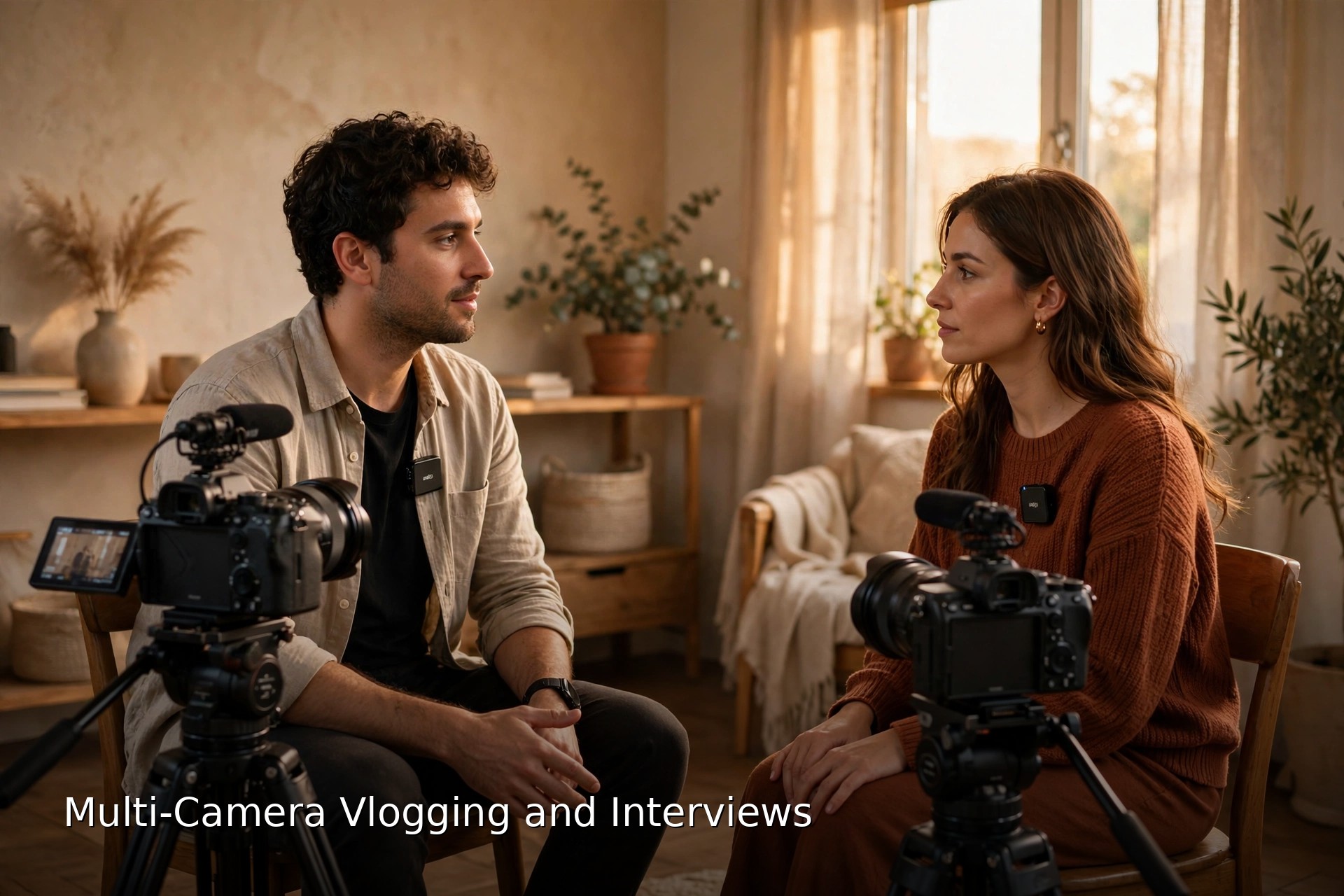
A second camera makes an interview feel like a real show instead of a recorded video call. It hides your edits, catches reactions, and gives a flat conversation somewhere to go. It also doubles the ways things can drift apart: two sets of settings, two colours, two clocks. A good multi camera setup is mostly decided before anyone sits down. This guide covers the job each camera does, the settings that have to match, how syncing works in the edit, and how to cut and colour two angles so the viewer never thinks about any of it.
The short version
- Give every camera one job. A wide master that never stops, a close up on the main speaker, and a second angle for the guest or reactions.
- Match the boring settings. Same frame rate, shutter following the usual rule, locked manual white balance, manual exposure, and matching or neutral picture profiles.
- Record scratch audio on every camera, clap once in view of all of them, and let waveform sync do the heavy lifting.
- Correct each camera separately first, in the order exposure, white balance, then saturation, and only then share one look.
- One good mic is enough if it sits close to the main speaker or between two people. Scratch audio is for sync, never the final track.
On this page
- Give every camera a job before you press record
- Match the settings across both bodies
- Syncing in the edit, from clap to timecode
- Cutting between angles without the jar
- Matching colour between different cameras
- One good mic, two people, no panic
- A simple two camera setup when you film yourself
- Multi camera questions, answered
- Keep exploring
Give every camera a job before you press record
Decide the role of each camera before the shoot. The wide master records the whole scene without stopping, the close up carries the main speaker, and a second angle covers the guest or reactions. Angles without a job become hours of useless footage.
Start with the wide shot, often called the master. It frames both people and runs from the first word to the last. Never stop it to check the other camera, and never reframe it mid conversation. The master is your safety net: every stumble, long pause, and edit you want to hide can be covered by cutting back to it.
The close up is where the emotion lives. Put it on whoever carries the video: the guest in an interview, you in a solo piece. It shows the pause before an honest answer in a way a wide shot never will. A third angle, if you have one, belongs to the other person, catching nods, laughter, and reactions. Some of the best moments in an interview edit are not the answer, but the face of the person hearing it.
Keep all the cameras on the same side of the conversation. Picture an invisible line running between the two chairs. Cameras on one side of that line keep everyone looking in consistent directions on screen. Cross it and your guest appears to swap sides and look the wrong way; viewers feel it even if they cannot name it. If this becomes a regular show, planning how to start a video podcast is the natural next step, because the shooting habits are identical.
One more job belongs to no camera: someone has to watch the recording. Check in the first minute that every camera shows a record light and moving audio levels. A second angle that recorded nothing is worse than none, because you lit the whole shoot around a shot that does not exist.
Match the settings across both bodies
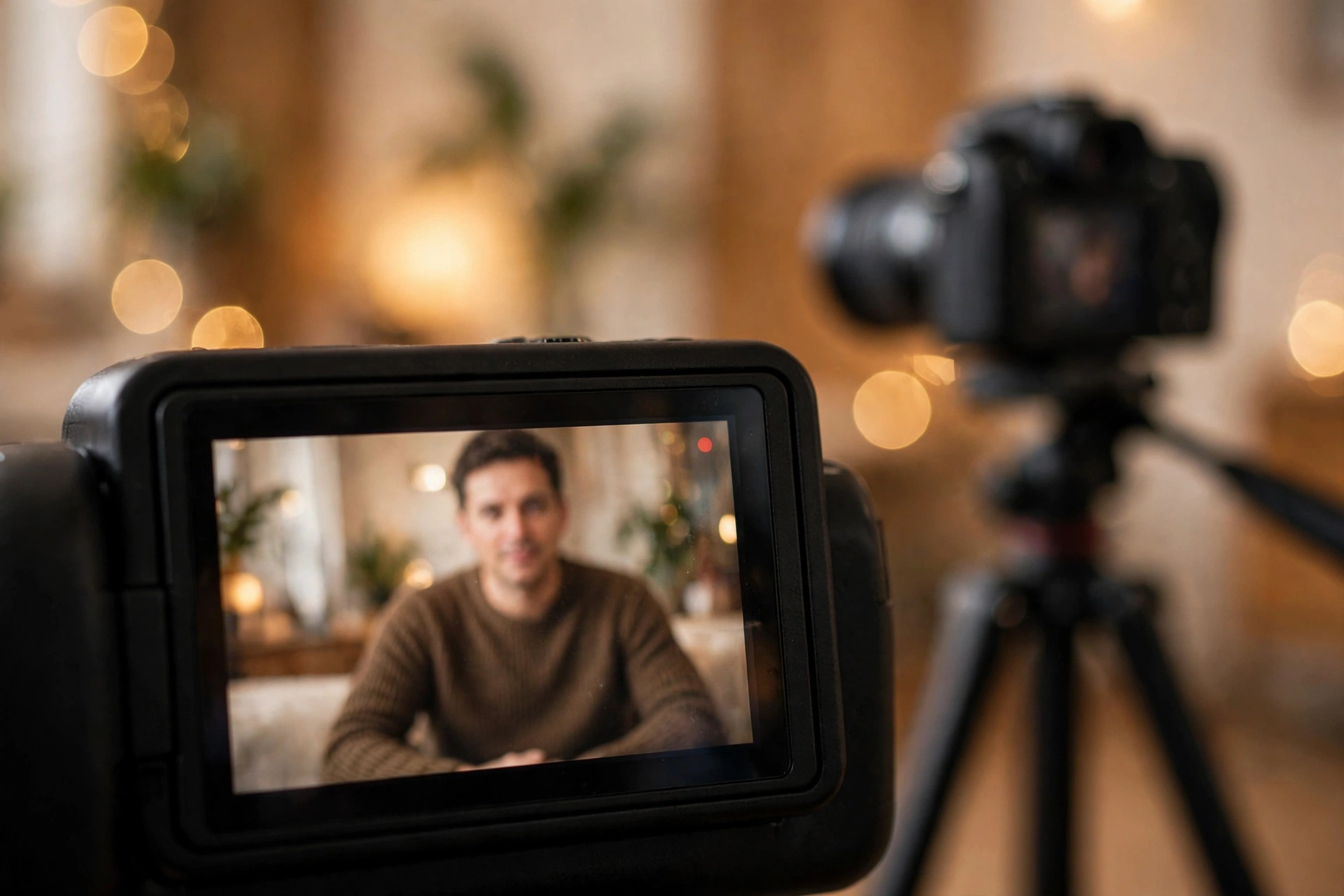
Set both cameras to the same frame rate, follow the shutter rule on each, lock white balance manually to the same value, expose manually, and use matching or neutral picture profiles. Auto anything on one camera guarantees the two angles drift apart mid take.
Frame rate comes first, because it is the one mismatch your editor cannot truly fix. If one camera records at 25 fps and the other at 30 fps, sync drifts and motion looks different across every cut. Pick the frame rate for the finished video and set every camera to it. Shutter follows the standard rule on each body: roughly double the frame rate, so 1/50 at 25 fps or 1/60 at 30 fps, keeping motion blur the same from both angles. The full reasoning sits in our vlogging camera settings explained guide.
White balance is where mismatched cameras announce themselves. Leave one camera on auto and it will drift warmer or cooler as a cloud crosses the window, while the locked camera stays put, and every cut jumps in colour. Set a manual Kelvin value, or a custom reading, and dial the same number into both bodies. It will not produce identical colour across brands, and that is fine. A fixed difference is easy to correct. A wandering one is not.
Exposure goes manual for the same reason. An auto camera brightens when your guest leans into a dark jacket and darkens when they lean out, and the pulsing gives the game away. Set exposure for the room, then leave it. For picture profiles, matching profiles from the same maker are ideal. Across brands, choose the flattest, most neutral profile each camera offers. Pairing one camera’s vivid mode with the other’s flat log profile just volunteers you for an extra hour of correction.
- Same frame rate everywhere, including a phone used as a second angle.
- Shutter near double the frame rate on each camera, not just the main one.
- One manual white balance value, typed into every body before recording.
- Manual exposure, set for the room and then left alone.
- Neutral or matching profiles, so correction starts from similar ground.
Syncing in the edit, from clap to timecode
Sync works because every camera records the same sounds. Turn on scratch audio everywhere, clap once where all cameras can see and hear it, then use waveform auto sync in Premiere Pro, Final Cut Pro, or DaVinci Resolve. Timecode is faster if your gear supports it, and manual alignment is the fallback that always works.
The whole system rests on one humble habit: every camera records its own microphone, even though that audio will never be heard in the finished video. That scratch track is the fingerprint the software matches. It does not need to sound good, just like the same room, so check that no camera has its mic input turned down or set to an empty external input. A silent clip cannot be auto synced, full stop.
Give the software a landmark as well. Once every camera is rolling, step where all of them can see you and clap once, sharply. A clap shows as a clean spike on every waveform and as two hands meeting in every picture. Do it at the start of every take. If you restart one camera mid interview to swap a card, clap again. Future you, staring at forty clips at midnight, sends thanks.
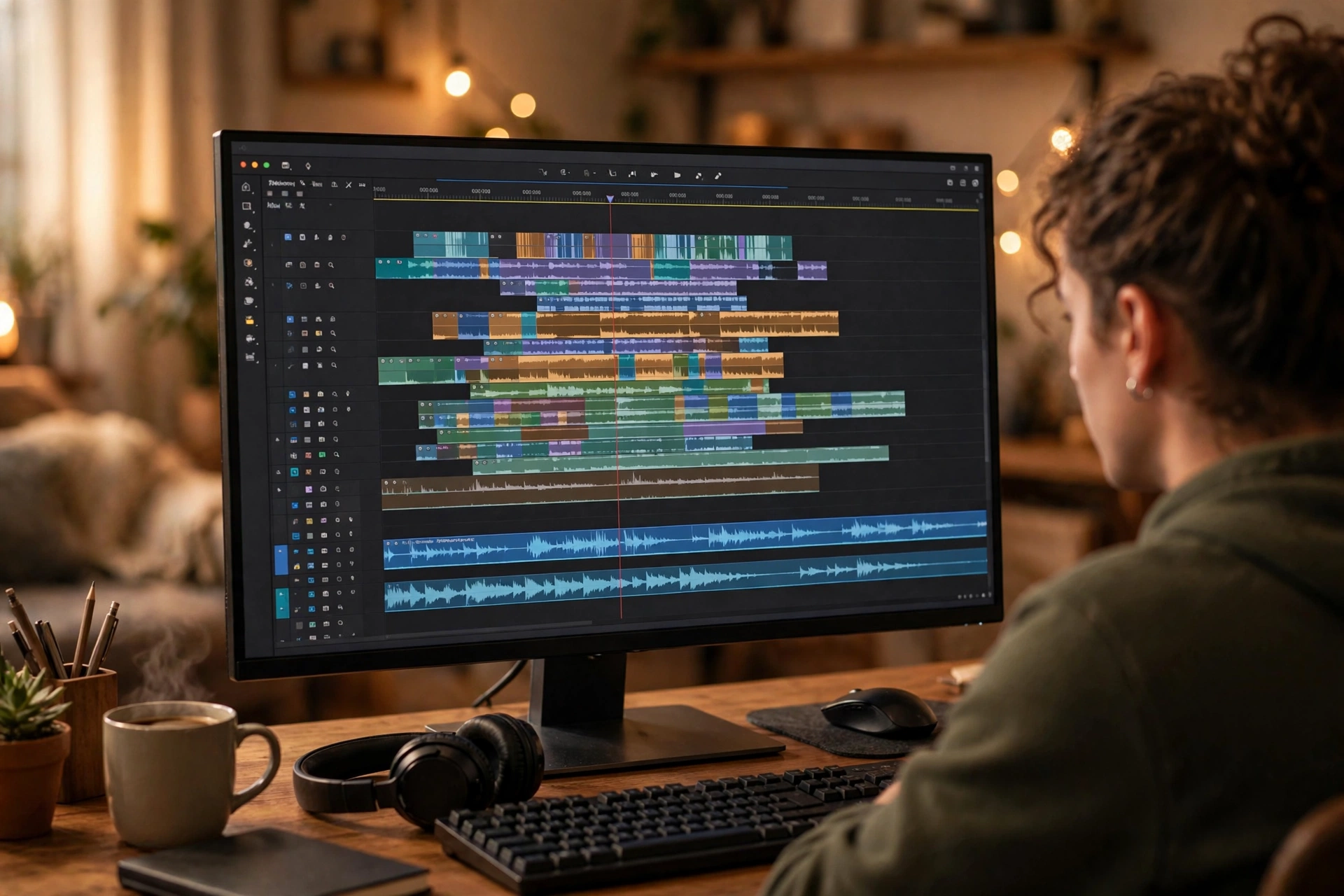
In the edit, the routine is similar everywhere. Premiere Pro creates a multi camera source sequence with audio as the sync point. Final Cut Pro builds a multicam clip synced by waveform. DaVinci Resolve creates a multicam clip the same way, or aligns clips by waveform from the media pool. Keep files in separate folders per camera before importing, A camera and B camera; tidy bins make sync take minutes.
Timecode is the grown up version. Small sync boxes feed every camera the same running clock, a process called jam syncing: connect each device to the master clock, let it take the time, then disconnect and shoot. Clips then line up by their numbers instantly, no waveform analysis, no clap. It earns its keep on long shoots, three or more cameras, or a separate audio recorder. For a two camera vlog, the clap does the same job for free.
When auto sync fails, work down this list. First, check the failed clip has audible scratch audio; a quiet room and a distant second camera are the usual cause. Second, sync manually: stack it above the master, align the clap spikes in both waveforms, then listen back. An echo means you are a frame or two out; nudge until it disappears. Third, if the start syncs and the end drifts, suspect a frame rate mismatch or a phone clip at a variable frame rate, and convert that clip to constant frame rate first. Manual sync is slow, but it has never once been impossible.
Cutting between angles without the jar
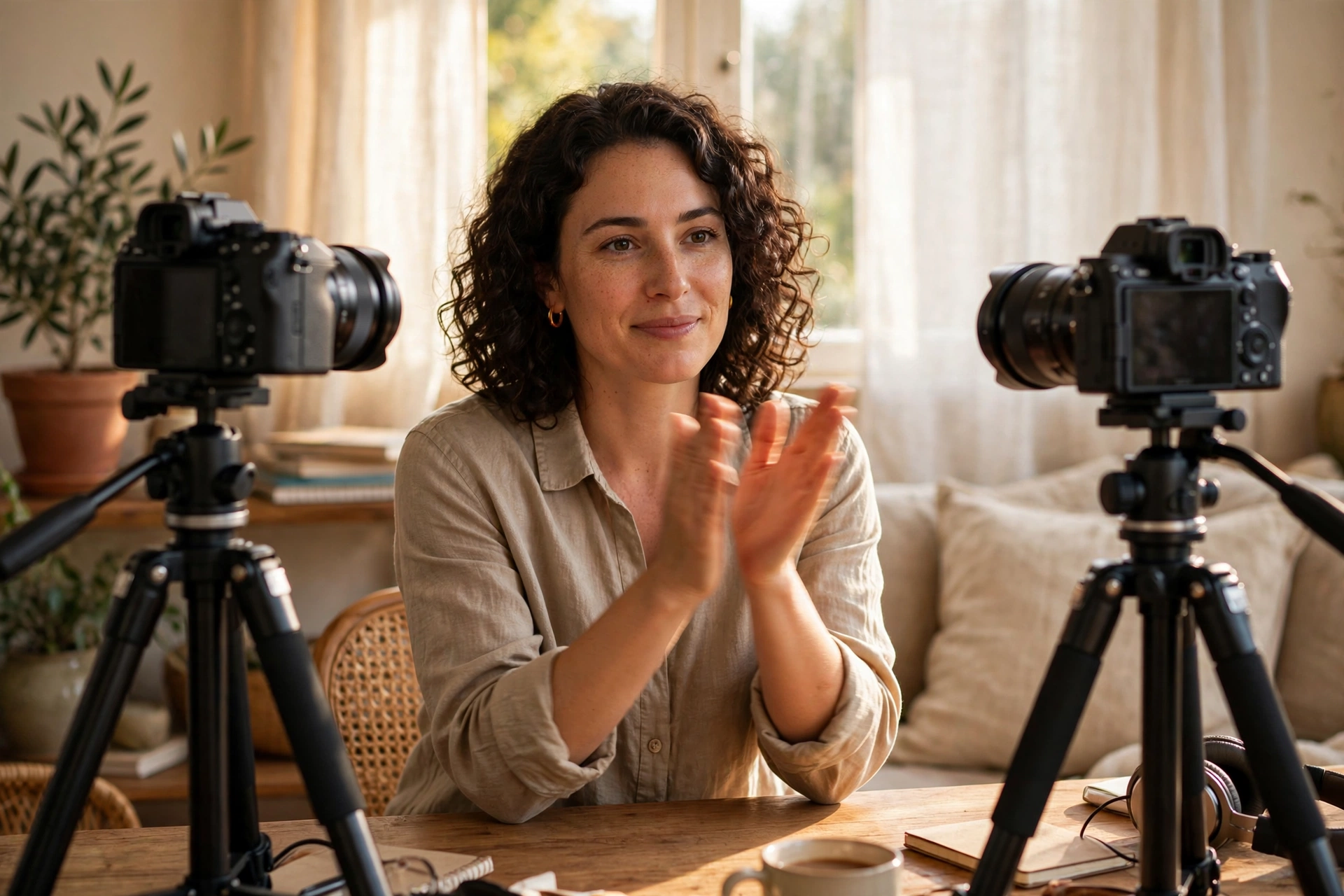
Smooth cuts happen on movement or on a beat in the speech, between angles that differ enough to look deliberate. Cut when a head turns, a hand gestures, or a sentence lands, keep the change in angle clear, and use reaction shots to cover the edits you do not want seen.
The oldest trick is to cut on movement. If your guest raises a hand or turns toward the other chair, cut mid motion and the viewer’s eye follows the movement, not the edit. Speech beats work the same way: a sentence ending, a laugh, a pause before an important admission. Cutting mid word to a near identical framing is what makes multicam edits feel twitchy, and it is nearly always a choice, not a necessity.
Mind the size of the jump. Editors talk about a 30 degree rule, which in plain terms means the second camera should sit far enough from the first, roughly 30 degrees or more around the subject, or change the shot size clearly, wide to close up. Follow it and a cut reads as a new viewpoint. Break it, cutting between two almost identical framings, and the subject seems to hop in their chair: the jump cut feel every creator knows from single camera edits. If your angles are too similar, the honest fix is reframing one of them next time, tighter or wider, rather than fighting it in every edit.
Reaction shots are your cover and your seasoning. Cutting to the listener lets you remove a cough, a repeated sentence, or three minutes of rambling from the speaker’s audio while the picture stays graceful. Use reactions where they are real and roughly where they happened. Stringing a laugh from minute twenty under a joke at minute five is the kind of edit viewers catch more often than creators think.
Pace matters too. Open wide, settle into the close up for the substance, and return to the wide when the topic changes. A cut every two seconds exhausts people; no cut for six minutes wastes the second camera. Let strong moments hold on one face longer than feels comfortable. That hold is usually what viewers remember.
Matching colour between different cameras
Film a grey card or colour chart in the same light at the start, then correct each camera on its own before adding any shared look. Work in a fixed order: exposure first, white balance second, saturation last. Two different brands can match closely enough that no viewer ever notices.
Your best matching tool costs almost nothing. Before the interview, hold a grey card, or a colour chart if you have one, where the subject will sit, in the same light, and record a few seconds of it on every camera. In the edit, white balance each clip until the card reads neutral grey, and faces usually follow it most of the way home. No card? Plain white paper beats nothing, and a white shirt beats paper.
Order is everything, and it is the same order a full color grading guide gives for single camera work: exposure, then white balance, then saturation. Match brightness first, comparing faces on the waveform if your editor shows one. Then fix white balance using the card. Only then touch saturation, because saturation differences look enormous before the other two are right and shrink to a small nudge after. Chasing saturation first is how you spend an hour going in circles.
Keep the corrections per camera. Build one correction for the A camera clips and a separate one for the B camera clips, save each as a preset for that body, and apply any creative look only after both, as a shared layer across the timeline. A look over unmatched cameras paints the same colour over two different mistakes. Corrected separately first, it lands evenly, and your next shoot starts from your presets, not from zero.
Now the permission slip: close enough is genuinely fine, most of the time. Viewers accept small differences because real rooms do it naturally; a face nearer the window really is a touch cooler. What they notice is a lurch: skin changing colour family at every cut. If skin tones and brightness agree and nothing jumps, stop. Chasing a perfect match can eat an evening your next video needed more.
One good mic, two people, no panic
With one good microphone, put it on the person the video is about, or boom it between the two speakers from just out of frame. Every camera still records its own scratch audio for sync, but that scratch track is a tool for the edit, never the sound of the finished video.
Decide whose voice matters most. In most vlog interviews, that is the guest. Clip your one wireless mic on them, or point your one shotgun mic at them, and accept that your questions will sound a little more distant. Viewers forgive a softer question far more readily than a muffled answer. If both voices carry the video equally, boom the mic instead: mount it above and between the two chairs, angled down, just out of the wide shot. Two people at a similar distance from one well placed mic sound surprisingly even.
Distance is the whole game. A decent mic at arm’s length beats a superb mic across the room, because echo grows with distance and no editor removes it well. Get the mic close, leave headroom for laughter, and record a few seconds of the quiet room before you start. Then the unglamorous checks: phone on silent, fridge hum noticed now, and a thirty second test recording heard on headphones, both voices, both cameras rolling.
Keep the tracks’ roles straight in the edit. The good mic is the only track the audience hears. Camera tracks exist to sync the angles, and once synced they get muted or deleted. A scratch track left open under the main audio adds a faint echo that makes a clean recording sound like a bathroom. When the multicam clip is built, choose the one good source and mute everything else on purpose.
A simple two camera setup when you film yourself
Film yourself with your main camera as the close up and a phone or older camera locked off wide as the second angle. Match frame rate and white balance, clap once for sync, and talk to the main lens. If a second camera is not practical, honest punch ins from one high resolution clip do a similar job.
Solo creators get most of the benefit from the simplest version. Your main camera takes the framing you already use. The second camera, a phone on a small tripod or last year’s camera, sits off to one side, wide enough to show you and the room. That angle covers your edits, shows your hands when you hold something up, and rescues you when the main camera stops or fills a card without telling you. The wide shot turns that disaster into a stylistic choice.
Run the same discipline as an interview shoot, because the editor, also you, deserves it. Same frame rate on both, and check the phone especially, since phones love defaulting to settings you did not choose. Lock its exposure and focus, or it will hunt while you talk. Lock white balance on both, and clap once on camera. Our guide to filming yourself with talking head tips covers framing and eyeline for the main shot, and all of it still applies. Talk to the main lens, and play to the second only when you mean to.
That second body does not need to be a shopping expedition. A phone you own is a legitimate B camera, and our roundup of the best mirrorless cameras for vlogging only matters if the channel already earns its keep. The honest alternative: record in 4K, deliver in 1080p, and punch in, reframing the same clip tighter for emphasis and wider for context. It is not a second viewpoint, and reaction shots are impossible, but it covers edits cleanly and costs nothing.
Multi camera questions, answered
Quick answers to the questions creators ask most about shooting, syncing, and matching two or more cameras.
What is a multi camera setup for vlogging?
Recording the same moment with two or more cameras at once: typically a wide master shot plus a close up, sometimes a second close up for a guest. The angles are synced in the edit so you can cut between them, hide edits, and show reactions.
Do both cameras need to be the same model?
No. Matching models make colour matching easier, but different cameras work well if you set the same frame rate, lock white balance manually on both, use neutral profiles, and correct each camera separately in the edit. A phone makes a perfectly usable second angle.
How do you sync two cameras without timecode?
Record scratch audio on every camera and clap once in view of all of them after they are rolling. In Premiere Pro, Final Cut Pro, or DaVinci Resolve, build a multicam clip and sync by audio waveform. The clap spike gives you a manual backup point if auto sync struggles.
Why does my multicam audio sound echoey?
Almost always because a camera scratch track is still audible under the main microphone track. Scratch audio exists only to sync the angles. Once synced, mute or remove every camera track and let the one good mic carry the whole video.
What frame rate should I use for a two camera interview?
The frame rate of your finished video, commonly 25 or 30 fps, set identically on every camera including a phone. Mixed frame rates are the main cause of sync drift on long takes and of motion looking different across cuts.
How do I match colour between two different cameras?
Record a grey card or colour chart in the scene light on both cameras. In the edit, correct each camera separately in this order: exposure, white balance using the card, then saturation. Add any shared look only after both corrections, and judge the result by skin tones.
What do I do when auto sync fails in my editor?
Check the problem clip has audible scratch audio, then sync manually: stack the clips, align the clap spikes on the waveforms, and nudge until playback has no echo. If sync drifts over a long take, convert phone footage to a constant frame rate and check both cameras used the same frame rate.
Where should I put a single microphone for two people?
On the main speaker if one voice matters most, usually the guest. If both voices matter equally, boom the mic above and between the two chairs, just out of the wide shot, at a similar distance from each person. Closeness matters more than the mic itself.
What is the 30 degree rule in multicam editing?
In plain terms, your second camera should view the subject from a clearly different position, roughly 30 degrees or more away from the first, or frame a clearly different shot size. Cutting between near identical angles makes the subject appear to jump in place.
Can I fake a two camera setup with one camera?
Partly. Record in 4K and deliver in 1080p, then punch in to a tighter framing for emphasis and stay wide for context. It covers edits and adds rhythm to solo talking head videos, but it cannot give you a genuine second viewpoint or a reaction shot.
Keep exploring
Multi camera work leans on your core settings and your main camera choice. These guides cover both.