
Last updated: October 2026
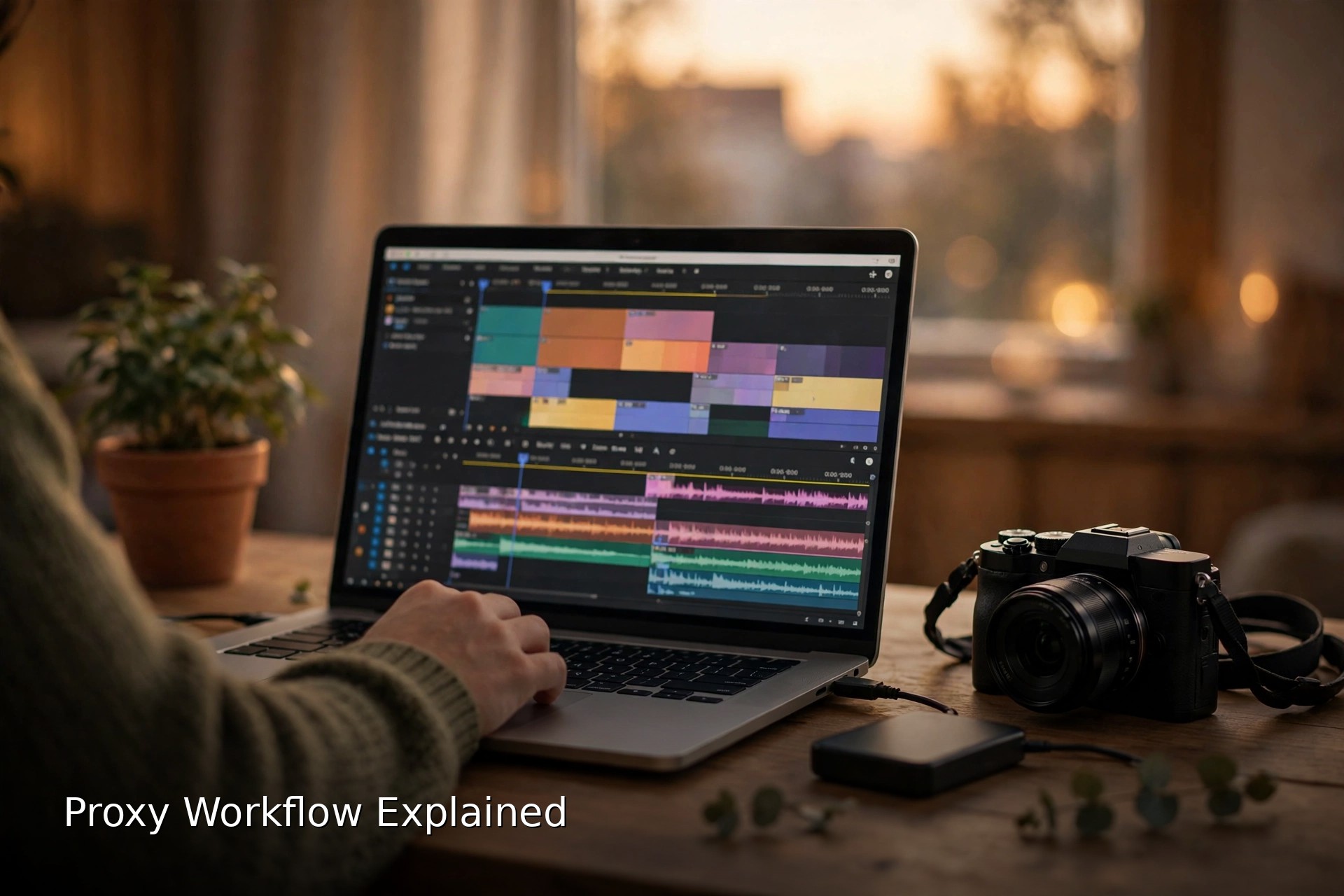
Your camera shoots beautiful 4K. Your laptop hates it. The playhead stutters, the fan spins up, and scrubbing through a take feels like stirring concrete. Modern vlogging cameras record in codecs built to make small files, not happy editors. The proxy workflow is the standard escape: your editor makes lightweight stand-in copies of every clip, you cut with those, and before export it swaps the full quality originals back in. This guide explains the whole loop in plain terms, editor by editor, with the real storage and time costs and the traps that bite vloggers.
The short version
- A proxy is a stand-in copy. Same clip, lower resolution, friendly codec. Your originals never change.
- Half resolution is the default. 1080p proxies for 4K footage suit most machines; quarter resolution rescues weak ones.
- Create them on import. After that the workflow is two toggles: proxies on to edit, off to finish.
- Relink before export and prove it with a 10 second test render.
- Proxies are disposable, originals are sacred. One folder for proxies, deleted after delivery.
On this page
- What a proxy actually is
- When proxies are worth it, and when they are not
- Resolution and codec: the two choices that matter
- Creating proxies in Premiere Pro
- Creating proxies in DaVinci Resolve
- Creating proxies in Final Cut Pro
- Creating proxies in CapCut
- Swapping back: relinking originals before export
- What proxies cost in storage and time
- Proxy pitfalls that bite vloggers
- A folder system that keeps proxies tidy
- Proxy questions, answered
- Keep exploring
What a proxy actually is
A proxy is a smaller, easier copy of a camera file with the same duration, frame rate and timecode. Your editor plays the proxy while you cut, then swaps back to the original for grading and export. The final video is rendered from the originals, so export quality is untouched.
To see why proxies exist, look at what a 4K camera file asks of a computer. Vlogging cameras record in long-GOP codecs like HEVC and H.264, which store most frames as differences from their neighbours to keep files small. Showing any single frame means rebuilding it from its neighbours, and scrubbing means doing that rebuild dozens of times a second. Add 4K60, a second camera angle, or a few effects, and a modest laptop falls behind.
A proxy removes the problem at the source. It is the same shot rendered at lower resolution in a codec where every frame stands alone or nearly does, so the computer can jump to any frame cheaply. The editor keeps the pairing by filename and timecode and treats the two files as one clip with two bodies. Every cut, effect and caption belongs to the clip, not the file, so toggling between proxy and original loses nothing. Think of it as editing with a photocopy while the original document stays in the drawer, then pulling the original out for the final print.
When proxies are worth it, and when they are not
Proxies are worth it when full quality playback stutters: 4K HEVC footage, 4K60 B-roll, multicam shoots, or any timeline on an older or thin laptop. Skip them for short 1080p projects or when your machine already plays the busiest part of your timeline smoothly, because creating proxies costs conversion time and disk space.
Do the 30 second test before committing. Play the most demanding stretch of your timeline at full playback quality, with the effects you normally use. If frames drop and the playhead lurches, proxies will change your life. If it plays clean, they will only cost you time. Lowering the playback resolution in the viewer is a halfway step worth trying first; it helps viewing, but the editor still decodes the heavy codec underneath, which is why it so often disappoints.
One shortcut deserves a mention: several current Sony, Panasonic and Canon bodies can record a small companion proxy file alongside each 4K clip in camera. That removes the conversion wait completely. Check your camera’s manual, because the modes that disable it are exactly the fun ones on some models, including high frame rate and all-intra recording. And keep perspective: proxies fix playback stutter specifically. If your whole edit feels slow for other reasons, our guide to editing vlogs faster covers the organization and routine side.
Resolution and codec: the two choices that matter
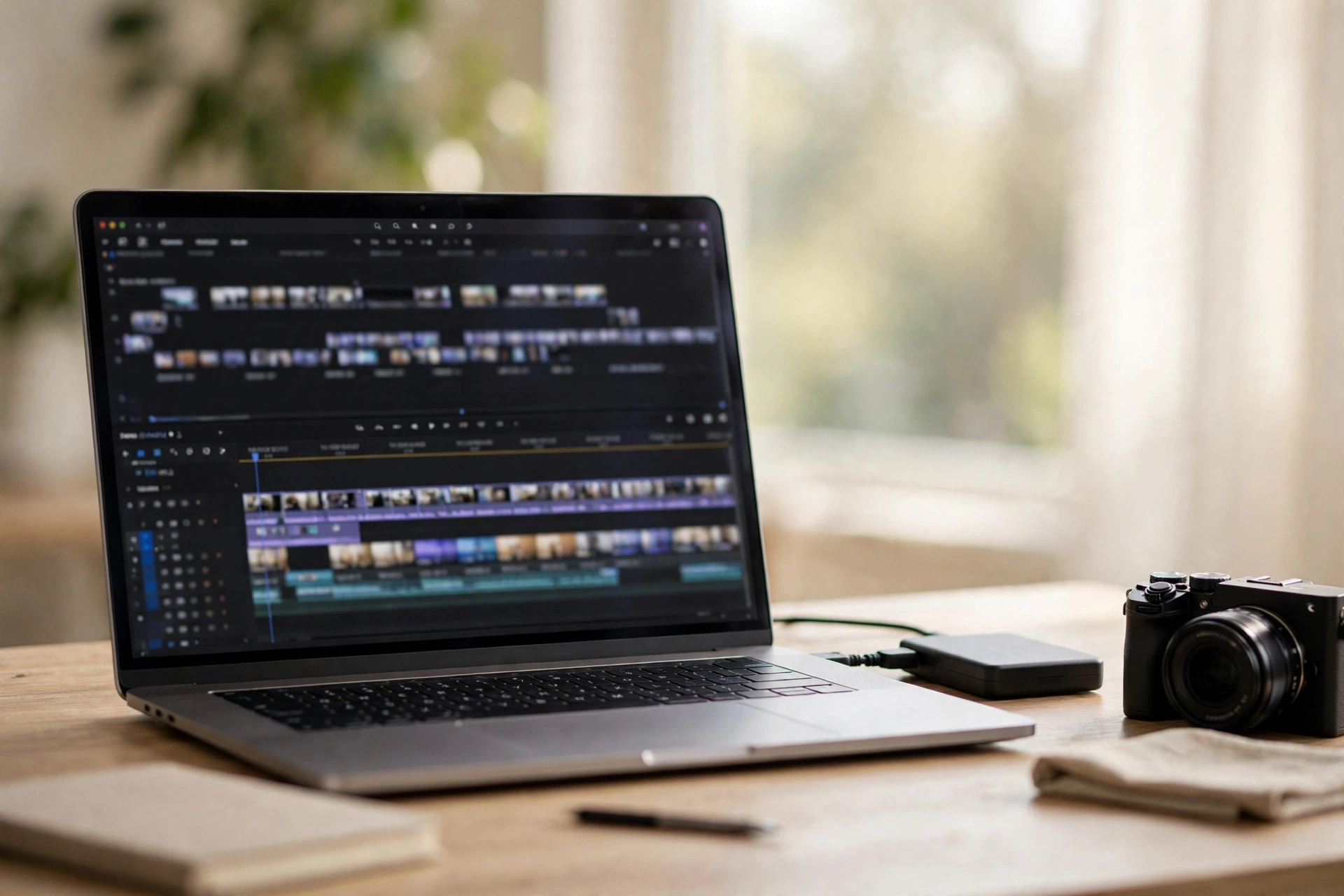
Start with half resolution: 1080p proxies for 4K footage. Drop to quarter resolution, 540p, only if the machine still struggles. For codec, ProRes Proxy plays smoothest and takes the most space; H.264 proxies are smallest but make the CPU work harder and, in Premiere Pro, carry only two audio channels.
Resolution is a comfort choice, not a quality one, because the editor scales the proxy to fit your timeline either way. Half resolution looks respectable on a laptop screen and keeps text and focus checks plausible. Quarter resolution looks soft but cuts beautifully on weak hardware; just remember that focus, noise and fine detail cannot be judged on it. Whatever you choose, the proxy’s frame rate and aspect ratio must match the original exactly, a point the pitfalls section returns to.
| Proxy codec | Playback feel | Relative size | Watch out |
|---|---|---|---|
| ProRes Proxy | Smoothest, very easy to decode | Largest | Disk space on long shoots |
| H.264 | Good on newer CPUs, choppier on old ones | Smallest | Two audio channels in Premiere presets |
| DNxHR LB | Smooth, Windows friendly | Medium | Mainly a Resolve and Windows path |
The audio row in that table hides the most common proxy failure on the internet. If your camera records more than two audio channels, common on bodies that capture four channel audio, Premiere’s H.264 proxy presets cannot carry them, and the proxies simply refuse to attach. The fix is not a reinstall or a forum ritual: choose ProRes Proxy or DNxHR LB for those clips, whose containers hold all the channels.
Creating proxies in Premiere Pro
Select your clips in the Project panel, right-click, choose Proxy, then Create Proxies, pick a format preset, and keep the destination set to next to the original media in a Proxy folder. Media Encoder renders them in the background. The Toggle Proxies button under the Program Monitor switches them on and off.
The cleaner route is to make proxies during import so you never think about it again. In the Import window or Media Browser, switch on Ingest and Create Proxies and choose your preset; every clip arrives with its stand-in already cooking in Media Encoder. For footage already in a project, the right-click path above does the same job after the fact, and Proxy, Attach Proxies links up proxies that were made somewhere else, for instance by your camera.
Two interface details matter. The Toggle Proxies button may need adding to the Program Monitor’s button bar from the plus icon; when it glows blue, you are cutting with proxies. And a small proxy badge on clips in the Project panel shows which ones have stand-ins attached. Premiere exports from the originals automatically in its own export window; if you send renders to Media Encoder instead, confirm the Use Proxies option in the preset is off, because that queue respects it.
Creating proxies in DaVinci Resolve
In the Media Pool, select your clips, right-click, and choose Generate Proxy Media, then pick a resolution and format. Turn them on in the Playback menu with Use Proxy Media If Available, and use Relink Proxy Media if the proxy folder ever moves.
Resolve causes one specific confusion worth clearing up, because it has two systems with similar names. Optimized Media is a full resolution transcode that only changes the codec to something easier to decode. Proxy Media is the true stand-in: lower resolution, much lighter. They live in different places and do different jobs. There is also Timeline Proxy Mode in the Playback menu, which lowers the timeline’s display resolution and is not file proxies at all. For a struggling laptop editing vlog footage, Proxy Media is the one you want.
Generation settings, resolution fractions and codec, can be set as project defaults under Project Settings, Master Settings, or chosen per batch in the Generate Proxy Media dialog. To finish a project, switch off Use Proxy Media If Available, and optimized media too if you used it, so the grade and the export are looking at the originals. If a grade looks different the moment you switch, that is the system working: you were judging color on a small file.

Creating proxies in Final Cut Pro
On import, tick Create Proxy Media in the Transcoding section and choose ProRes Proxy or H.264 at 50 percent frame size. For clips already in the library, select them and use File, Transcode Media. The View menu in the Viewer switches playback between Original or Optimized and Proxy.
Final Cut’s real advantage is visibility. The playback mode sits in the Viewer’s View menu, so which version you are watching is never a mystery, and switching takes one click. Proxy creation can also be set to happen automatically for large media through the same transcoding controls. When the edit is done, set Media Playback back to Original or Optimized before sharing; if a library was moved between drives, File, Relink Files, Original Media re-points the project at the camera files.
Creating proxies in CapCut
CapCut on desktop keeps proxies simple: turn on the proxy option in the project settings, or right-click a clip in the media panel and create its proxy. CapCut builds small stand-ins automatically, marks them with a badge, and uses the originals when you export.
The honest differences from the bigger editors: there is no codec choice, no resolution choice, and the files live inside CapCut’s own storage rather than a folder you manage. For a solo vlogger editing on one laptop, that simplicity is genuinely fine, and CapCut is a strong free option overall, as our free editing software for vlogging guide sets out. The limits show up when a project moves between computers or an editor needs control; expect to rebuild proxies after a move rather than carry them along.
Swapping back: relinking originals before export
Before export, turn proxies off or set your editor to prefer originals, confirm no clip still shows a proxy badge, then render a 10 second test export containing fine detail and a face, and watch it at full size. A soft test means a relink failed somewhere; a sharp one means you are clear to export.
The swap itself is one action per editor: the Toggle Proxies button off in Premiere, Use Proxy Media If Available off in Resolve, Media Playback set to Original in Final Cut, and automatic in CapCut. What deserves your attention is the inspection after the swap. Scrub through the sections where proxies hide sins: speed ramps, reframed shots, stabilized clips, and anything you punched into. A classic failure is a shot that comes back slightly wrongly scaled, because the proxy’s smaller dimensions were interpreted as the real frame somewhere in the chain; the test export catches it in seconds.
Also confirm that missing originals show as offline media rather than quietly rendering from a proxy. Every editor in this guide prefers originals at export when it can find them; the danger is a drive unplugged or a folder renamed, which is a file discipline problem, not an export one. The export settings themselves, bitrates, resolutions and upload choices, are a separate topic covered by our best export settings for YouTube guide.
What proxies cost in storage and time
Proxies trade disk space and conversion time for smooth playback. Expect H.264 proxies at roughly a tenth of the original size, ProRes Proxy nearer a third to a half of a compressed original, and conversion on a modest laptop to run at something like 20 to 60 minutes per hour of 4K footage.
| Per hour of 4K footage | Typical size |
|---|---|
| Original, HEVC at 100 Mbps | About 45 GB |
| Original, H.264 at 80 Mbps | About 36 GB |
| ProRes Proxy at 1080p | About 15 to 20 GB |
| H.264 proxy at 1080p | About 4 to 7 GB |
| H.264 proxy at 540p | About 2 to 3 GB |
Put in vlog terms: a single 4K clip of around 130 MB typically becomes an H.264 proxy of roughly 20 MB, small enough that a day of shooting fits on the laptop’s internal drive while the originals stay on an external disk. The time cost is real but schedulable. Start the conversion at import and organize, label and select while it runs; or set it going over lunch, or overnight before a travel day. What you should not do is sit and watch the progress bar, because that is the one workflow guaranteed to make proxies feel slow.
Proxy pitfalls that bite vloggers
Most proxy disasters come from five things: proxies made at the wrong aspect ratio, a frame rate that does not match, audio channel mismatches that block attaching, renamed or moved originals, and judging focus or noise on a small file. All five are cheap to prevent and annoying to unpick.
- Wrong aspect ratio. Vertical 9:16 footage and anamorphic clips proxied at a standard 16:9 shape come back stretched. Check one clip at full size right after creation, before you build a timeline on it.
- Frame rate mismatch. A 59.94p original needs a 59.94p proxy. Mismatched rates cause audio drift and failed attaches, and the error messages rarely say so plainly.
- Audio channels. In Premiere, H.264 proxy presets carry two audio channels; originals with more will refuse to attach. Use ProRes Proxy or DNxHR LB for those clips.
- Renamed or moved originals. The editor finds originals by name and location. Rename after the project is finished, not during it.
- Judging quality on proxies. Focus, noise and sharpening cannot be assessed on a half or quarter size file. Check critical shots on the originals.
- Deleting the wrong folder. Proxies are disposable; originals are not. The folders must never have similar names.
A folder system that keeps proxies tidy
Give every project the same skeleton: dated Originals subfolders you never touch, one Proxies folder, and separate homes for Audio, Graphics, Project files and Exports. Pick the editor’s default proxy location or your own folder, never both, and delete the proxy folder once the video is published and archived.
- 01 Originals: card copies in dated folders, exactly as they came off the camera.
- 02 Proxies: every stand-in, and nothing else.
- 03 Audio: music, voiceovers and sound effects.
- 04 Graphics: thumbnails, overlays and stills.
- 05 Project: the project file or library, plus your notes.
- 06 Exports: test renders and final uploads.
Two rules make the system work. First, proxies live in exactly one place: either the subfolder your editor creates beside the originals, which is the default in Premiere and Resolve, or your 02 folder if you set custom locations. Mixed systems are how files get lost. Second, originals are never renamed, moved or deleted mid project, and they follow your backup routine before any card is formatted; that side of the discipline is covered in our guide to how to back up video footage. When a video ships, archive the project file and the master export, then delete the proxy folder and reclaim the space with a clear conscience.
Proxy questions, answered
Short answers to the questions vloggers ask most about proxy quality, sizes, attach failures and deleting files.
Do proxies reduce my final video quality?
No, as long as you relink or switch back to the originals before export. The proxy is only a working copy used while editing; the export renders from the full resolution camera files. The one real risk is forgetting the swap, which a 10 second test export catches.
What proxy resolution should I use for 4K footage?
Half resolution, 1080p, is the right default for most machines and most vlogs. Drop to quarter resolution, 540p, if playback still stutters; cutting stays smooth and only the preview looks soft. Judge focus and noise on the originals either way.
Should I choose ProRes Proxy or H.264 for proxies?
Choose ProRes Proxy when smooth playback matters most and you have the disk space; it decodes with very little CPU effort. Choose H.264 when space or moving files between machines matters more, knowing it makes the CPU work harder. If your camera records more than two audio channels, use ProRes Proxy in Premiere either way.
How long does it take to create proxies?
On a modest laptop, roughly 20 to 60 minutes per hour of 4K footage, depending on the codec and the machine. Start the conversion at import and organize while it runs, or leave it over lunch. Cameras that record companion proxies in camera skip the wait entirely.
How much storage do proxies take?
An hour of 4K HEVC originals is about 45 GB. H.264 proxies of the same hour run about 4 to 7 GB at 1080p and 2 to 3 GB at 540p; ProRes Proxy at 1080p takes about 15 to 20 GB. Deleting the proxy folder after delivery reclaims all of it.
Why will my proxies not attach in Premiere Pro?
The usual causes are an audio channel mismatch, because H.264 proxy presets carry two channels while your originals carry more, a frame rate mismatch, or originals that were renamed or moved after the proxies were made. Match the codec to the channel count, keep frame rates identical, and keep file names stable.
Are proxies the same as optimized media?
No. Optimized media, in Resolve and Final Cut, is a full resolution transcode into an easier codec; it fixes decoding but not size. A proxy is a smaller, lower resolution stand-in. They are separate systems, and for a struggling laptop the proxy is the one that transforms playback.
Can I edit with proxies on a laptop and finish on a desktop?
Yes, that is one of the workflow’s best uses. Keep the folder structure identical on both machines, carry the project file and the proxy folder, and relink to the originals on the desktop for grading and export. Identical names and paths make the relink a non-event.
Can I delete proxies after the video is published?
Yes. Proxies can always be regenerated from the originals, so once the video is published and the project and master export are archived, delete the proxy folder freely. Never delete originals on the same logic; they are the only copy of the footage.
Does CapCut support a proxy workflow?
Yes, in a simplified form. CapCut on desktop can build proxies automatically from its project settings or per clip, and it exports from the originals. What it does not offer is control over codec, resolution or storage location, which only matters if you move projects between machines.
Keep exploring
Proxies fix the playback problem. These guides cover the rest of a smooth editing life: speed across the whole edit, and the free software worth cutting in.