
Last updated: October 2026
Every vlogger eventually meets the same sick feeling: a card that will not mount, a drive that clicks instead of spinning up, a folder showing zero files where a full shoot day should be. Footage cannot be re-run. The light has gone, the location has changed, the moment was the moment. A backup system is the difference between that feeling and a shrug. This guide covers the one system worth copying: the 3-2-1 rule, adapted to how vloggers actually shoot, plus the ingest routine, folder layout and failure drill behind it.
The short version
- Three copies of everything that matters. Working drive, backup drive, and one copy somewhere else.
- The card is not a copy. It is the original until two verified copies exist somewhere else.
- Copy the same day you shoot. One dated folder per shoot, the same layout inside every time.
- Verify before you format. Checksum if you can, file counts and a spot-play at minimum, then format in camera.
- Cloud is the off-site leg, not the working drive. Uploading 4K is measured in hours, so local copies come first.
On this page
- The 3-2-1 rule, translated for a shoot day
- Ingest: the ten minutes that protect the whole shoot
- Folders and names that still make sense in six months
- Two types of storage: the step people quietly fake
- Cloud versus local: where the off-site copy should live
- The pipeline: four stages, each with one job
- Verify the copy before anything gets formatted
- The day it fails: a calm first hour for cards and drives
- Archive or delete: the discipline that keeps drives affordable
- Backup questions, answered
- Keep exploring
The 3-2-1 rule, translated for a shoot day
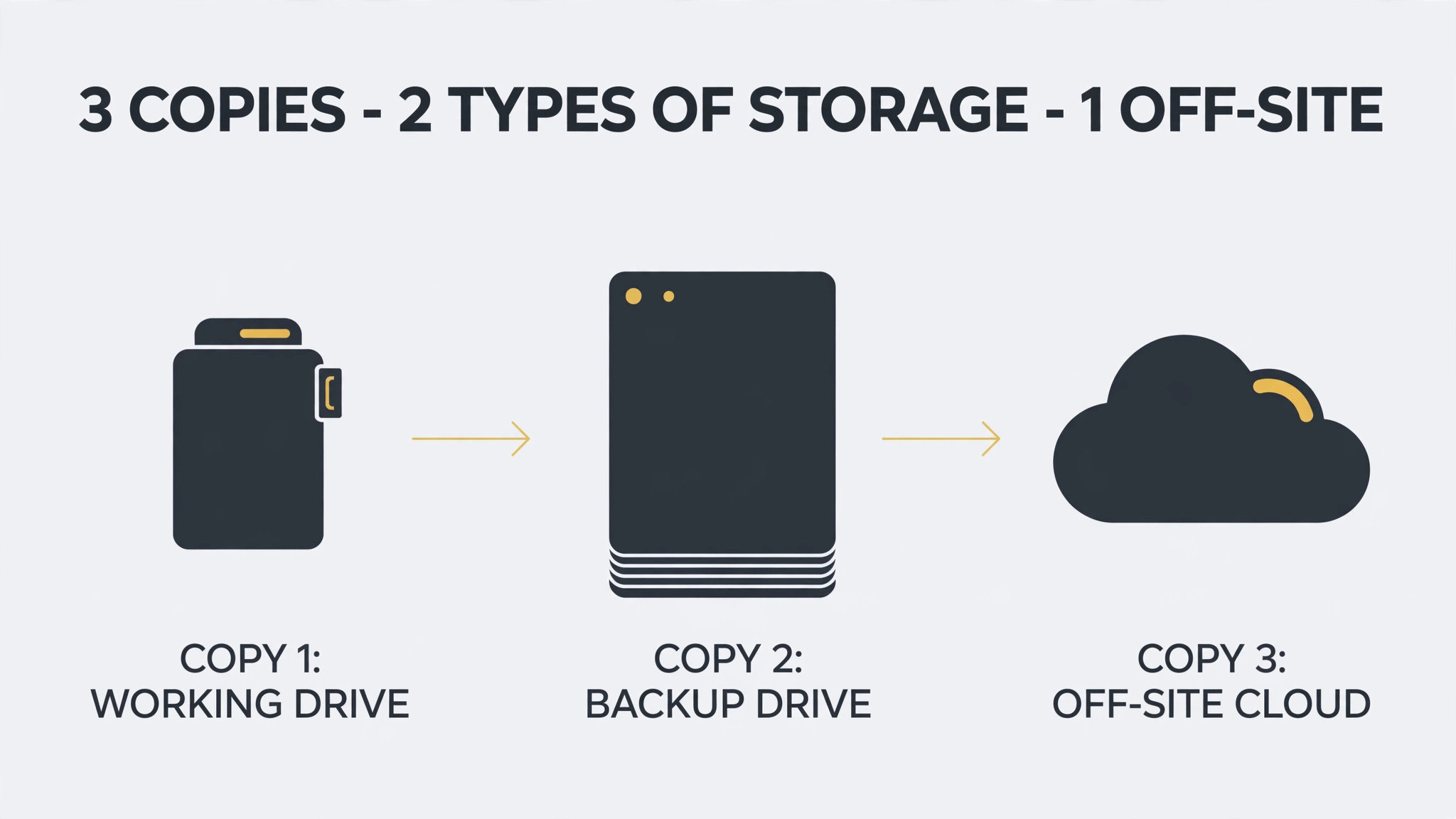
Keep three copies of your footage, stored on two different types of media, with one copy living off-site. For most vloggers that means a fast working drive for editing, a large hard drive as the local backup, and a cloud copy or a drive kept at another address as the off-site leg.
The rule comes from IT backup practice, and each number earns its place. One copy is a single point of failure: drives die, cards corrupt, laptops get stolen. Two copies are better, but two copies on the same desk can still die together, to theft, a spill, a surge or a fire. The third copy in a different building breaks that link.
A copy means the whole shoot, not the highlights. Raw clips, separate audio, the project file and the final export. The video sitting on YouTube is not a backup: the platform serves a compressed version, and the raw footage and project behind it exist only where you kept them. If you ever need to re-edit, re-export or prove ownership, the copies are all you have.
Scale is the honest objection. At 100 Mbps your camera records about 45 GB an hour; at 200 Mbps, about 90 GB. A two-hour shoot day is 90 to 180 GB, and three copies make it 270 to 540 GB. How much a day weighs depends on the settings you choose: see our guide to vlogging camera settings explained. Storage is the cheapest line in the production; the reshoot is the expensive fallback, and usually not available at all.
Ingest: the ten minutes that protect the whole shoot
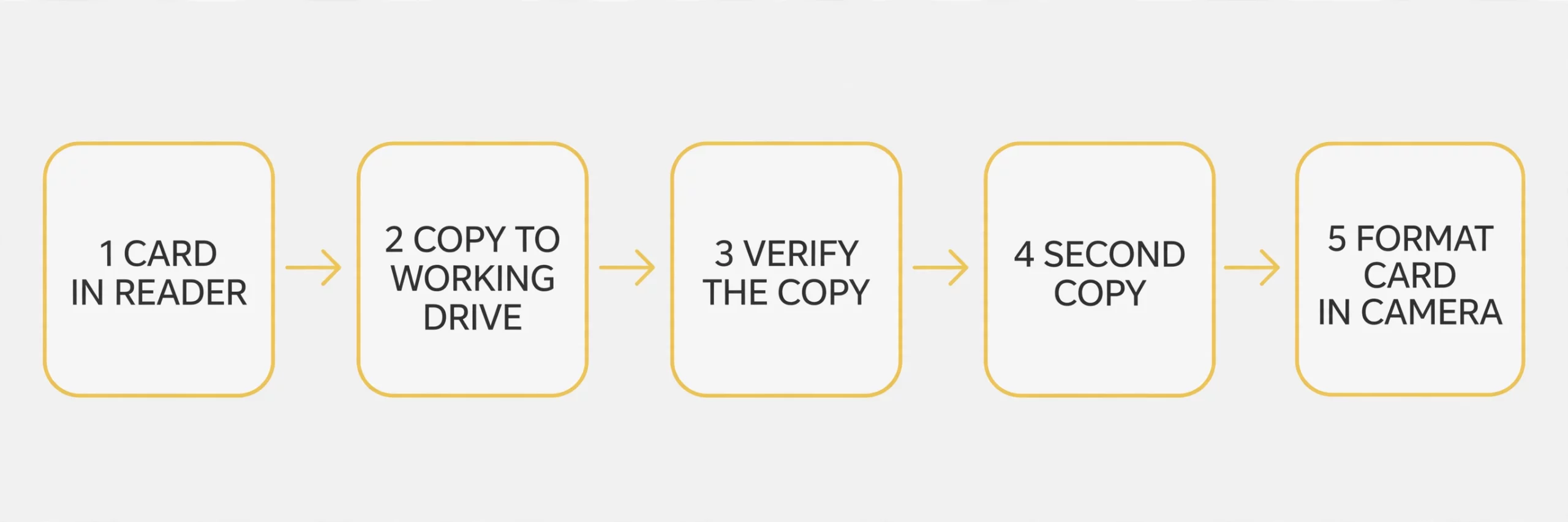
Ingest is copying the card to your working drive on the same day you shoot, into that shoot’s own dated folder, before editing or anything else. One card at a time, the whole card copied, and nothing ever edited straight off the card. The ten minutes are hands-on work; copies and uploads run on their own.
- Copy the entire card into the shoot folder’s raw subfolder, every clip, including the ones you are sure failed. Judging takes happen at the edit, not during a midnight copy. On multi-card days, mark each copied card with tape on the case or in a separate pouch, so a full card never goes back into the camera looking empty.
- Verify that copy before anything else moves: file count and total size matching the card, and the first, middle and last clips playing.
- Run the second copy to the backup drive, verify it the same way, and start the cloud upload if that is your off-site leg.
- Only now format the card, in the camera. A card formatted one step earlier is a disaster with good intentions.
Two habits carry the routine. Never edit from the card or from your only copy: editors write cache and render files around your footage, and a card pulled mid-session is a classic way to corrupt a project. Treat travel days as higher risk, not lower: cards get lost and bags get left. Our guide on how to start a travel vlog covers shooting away from home; its backup half is a nightly copy to a laptop, plus a portable drive in a different bag.
On the road, the copies sleep apart
Away from home, placement is the routine: every copy lives somewhere different, so one lost bag cannot take the day with it. During the day, shot cards ride in a hard case on your person, never loose in the bag that gets left in the car. At night, copy the card to the laptop, which becomes the working copy, and on to a portable drive, which is the second copy. The laptop and the drive then sleep apart: one in the bag you carry, one left in the room, in a different bag or the safe. The card itself stays unformatted in its case, marked as copied, until both copies check out. On a multi-day trip, copy each day’s cards every night, so no night ends with a single card holding the only copy of a whole day, and rotate through your cards instead of reusing the first one each morning, so the days spread across cards. When you get home, finish the third copy: upload the shoot to your off-site leg, cloud or a drive in a different building, so the 3-2-1 set is complete.
Folders and names that still make sense in six months
Use one folder per shoot, named date first and content second, like 2026-10-09_coast-road-vlog. Inside it, keep the same four subfolders every time for a simple one-camera shoot: raw footage, audio, project and exports. Any shoot from any month then has exactly the same shape.
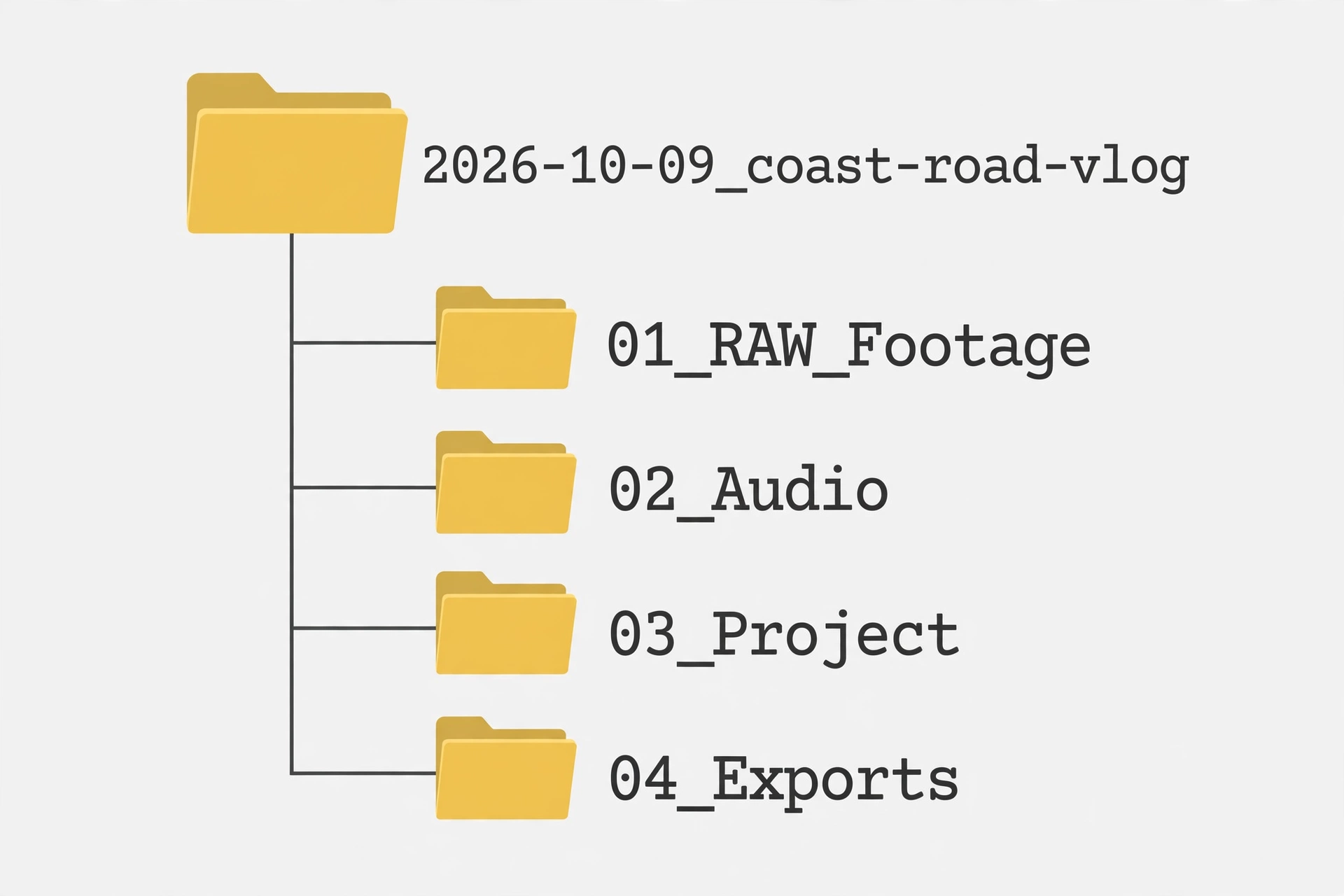
Dates first because computers sort them for free: a year of shoots lines up in order on its own. Content words second, because “the one with the market and the rain” is how you will actually search for it. Inside, the numbers keep the order fixed: 01_RAW_Footage holds the untouched card copy, 02_Audio holds recorder files and music, 03_Project holds the project and graphics, 04_Exports holds finished renders.
Put the meaning in folder names, not clip names. Leave the camera’s clip names untouched inside the raw folder: projects remember clips by name and path, and renamed originals are how media goes offline mid-project. For a shortlist, make a selects subfolder of copies, or flag clips inside the editor. A fixed layout also pays you back in editing speed. That is the first habit in our guide to how to edit vlogs faster.
The expanded tree: the same shape, filled in
The four folders above cover a simple one-camera shoot. Here is the expanded layout for a two-camera day and a growing channel, ready to copy exactly: graphics move out of the project folder into their own, and exports shift down one number to make room.
- 2026-10-09_coast-road-vlog: the shoot folder itself, date first, content words second, so a year of shoots sorts itself.
- 01_RAW_Footage: the untouched card copies, nothing renamed, nothing deleted.
- A-Cam: the main camera’s card, copied whole.
- B-Cam: the second camera’s card, kept apart so two cards that both start at clip 0001 never collide or overwrite.
- Selects: shortlisted clips copied from the card copies, renamed freely for the edit.
- 02_Audio: recorder files, voiceovers and the music licensed for this video.
- 03_Project: the editor’s project file and its autosaves, the route back into the edit.
- 04_Graphics: thumbnails, title cards, stills and caption files. It earns its own folder the day graphics stop being a single file inside the project folder.
- 05_Exports: finished renders, split into Final for the published master and Shorts for vertical cuts pulled from it.
- 01_RAW_Footage: the untouched card copies, nothing renamed, nothing deleted.
One level up, keep an Archive folder on the backup drive beside the current shoots. A finished project moves there whole, shoot folder and all, which is the monthly move covered in the archive section below. Nothing in the tree is decorative: every folder answers the question of where a thing goes before you have to ask it mid-edit.
What gets renamed, and what never does
The naming pattern is date first, content second, camera third, and it applies to folders and copies. Raw originals are the one thing never renamed, for the reason given above: editors find clips by name and path.
Three before-and-after pairs show the pattern at work. Before: a card copied to a desktop folder called “Oct stuff”, its clips a wall of C0001, C0002, C0003. After: the folder is 2026-10-09_coast-road-vlog, the card sits inside it at 01_RAW_Footage/A-Cam, and every clip keeps the name the camera gave it. The findability lives in the folders, not the files.
Before: two cameras on one shoot, both numbering their clips from 0001, copied into a single folder where the second card’s clips overwrite or tangle with the first. After: A-Cam and B-Cam folders inside the raw folder, each holding a complete, untouched card. Same clips, same names, no collisions.
Before: an export saved to the desktop as final_v3_REAL.mp4, meaningless a month later and on any other machine. After: 2026-10-09_coast-road-vlog_master.mp4 inside 05_Exports/Final, in the expanded layout. Exports and selects copies are the files you rename freely, because nothing references them by name; give them the date and the shoot name so the file explains itself wherever it ends up, on a sponsor’s drive or in a message thread a year from now.
The six-month test
A folder system earns its keep on one test: a half-remembered clip takes under a minute to find. Take a real search: the clip where you unboxed the new microphone, some time last spring. You remember roughly when, and roughly what. Open the year’s shoot folders. The dates sort, so your eyes only travel across March, April and May, and the content words do the rest: one folder name carries the mic shoot. Inside, the shape is the same as every other shoot, so you go straight to the raw footage or to the selects, and the project file in 03_Project reopens the edit with that moment already on the timeline. No drive roulette, no opening ten projects.
What keeps it true is a ten-minute weekly habit, small enough to survive busy weeks. Once a week, check the shoots you filmed since the last pass: every shoot folder follows the date and content pattern, the content words are the ones you would actually type into a search six months from now, and nothing is still sitting in a downloads folder or on the desktop under a camera’s folder name. Memory is freshest the week of the shoot; a word added then is the word that finds the clip later.
Two types of storage: the step people quietly fake
The 2 in 3-2-1 means two different kinds of storage, for example a solid state drive and a spinning hard drive, or local drives and the cloud. Two folders on one drive, or two partitions of the same SSD, are still one piece of hardware and count as one.
Different media fail in different ways, which is the point. An SSD usually dies electronically, often with no warning and no recovery. A spinning hard drive wears mechanically, more slowly and often with noise. A bad batch, a shared power supply or one drop can take out two identical drives bought the same day. Mixing types, ages and brands spreads the risk so one failure mode cannot reach every copy.
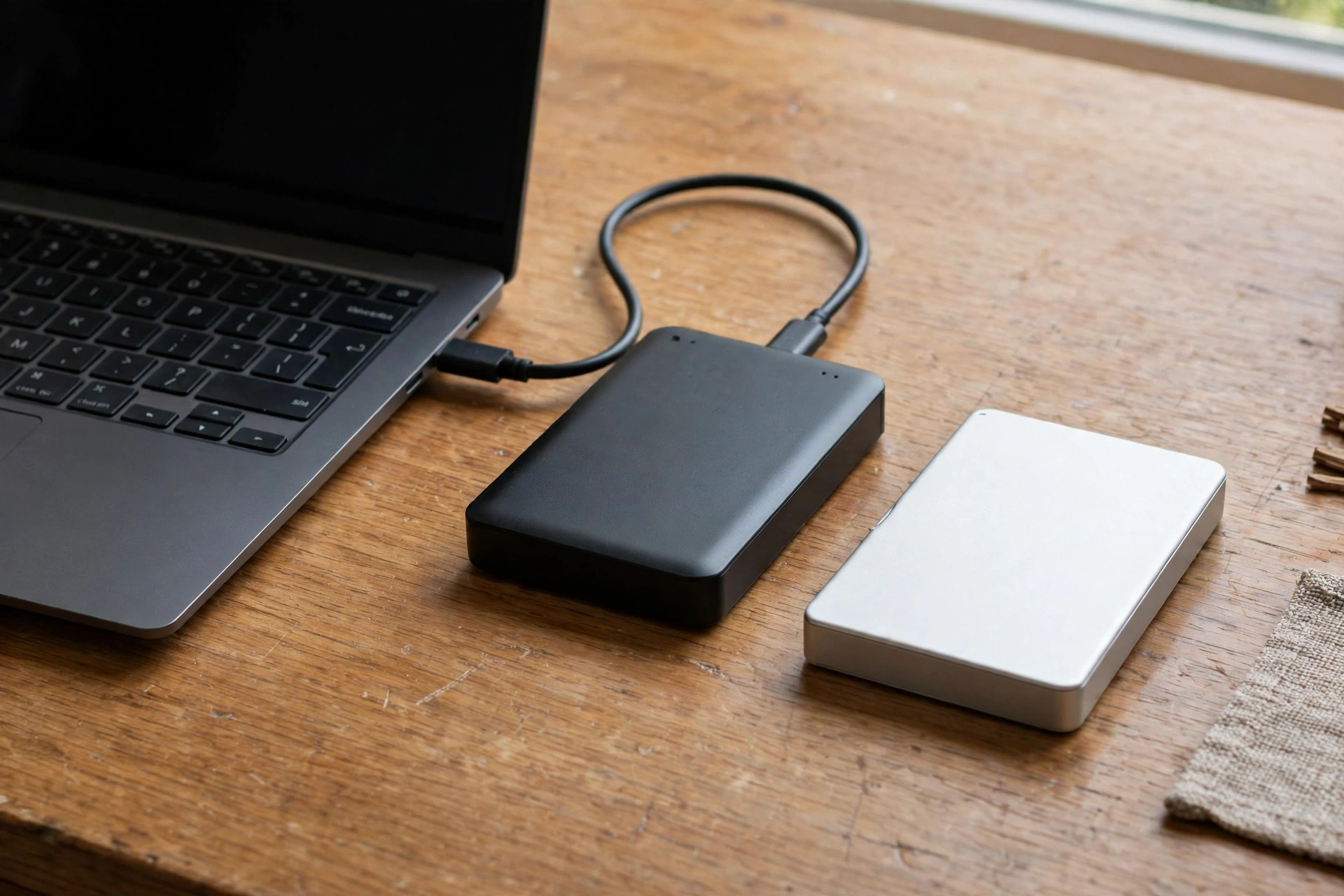
A pairing that works for most channels: a fast SSD as the working drive, sized for a handful of current projects, and a much larger hard drive as the backup that only wakes up to receive copies. What matters is that no single box, cable or bag holds everything. A backup drive that travels in the same camera bag as the laptop protects you against drive failure only. Theft and loss take both, which is exactly what the off-site copy exists for. One trap worth naming: a RAID or NAS box is still one device in one place. Mirroring survives a dead drive inside the box, not deletion, theft or the box itself failing, so it can hold a copy but never be the whole system.
Cloud versus local: where the off-site copy should live
For most vloggers the off-site copy belongs in the cloud, because it updates on its own and sits in a data center far from your desk. A backup drive kept at a relative’s house, a work locker or a studio does the same job, as long as you actually rotate it.
| Working SSD | Local backup HDD | Cloud storage | |
|---|---|---|---|
| Job | Editing and current projects | Full local mirror of everything | Off-site disaster copy |
| Speed | Fast enough to edit 4K directly | Fast for copies, rarely edited from | Limited by your upload speed |
| Cost pattern | Priciest per terabyte | Cheapest per terabyte | Ongoing subscription |
| Weakness | Small, fills up fast | Sits in the same building as the original | Needs internet, slow to restore from |
Do the upload maths first. Sending 100 GB over a 20 Mbps upload takes roughly 11 hours; at 50 Mbps, about four and a half. So cloud works as an overnight drip that catches up while you sleep, not as the copy you wait on before formatting a card. Restores run the same maths in reverse: pulling a 2 TB archive back down a home connection takes days, which is why the local backup stays the first resort and the cloud is the copy for fires, floods and theft.
Tools named only as examples, because any of them beats a system you never run: set-and-forget services such as Backblaze quietly mirror a whole computer and its drives, while a Drive or Dropbox folder suits current projects. The practical answer for 4K is local-first: two fast local copies on the day, cloud as the third leg finishing overnight, or a drive at another address if your upload speed makes even that unrealistic.
The pipeline: four stages, each with one job
Footage moves through four stages: card, editing drive, archive, cloud. Each stage holds footage for its own job, and no stage is a backup of the stage before it. The copies that protect you are the ones you make at each handoff, under the 3-2-1 rule above.
Think of the pipeline as a line, not a pile. The card holds the original until ingest. The editing drive holds current projects while you cut them. The archive holds finished projects once they leave the working drive. The cloud holds the off-site leg, finishing overnight while the local copies already exist. A stage doing two jobs is the warning sign: if the only copy of a shoot sits on the editing drive, the editing drive is pretending to be the backup, and a single failure takes the shoot with it. Every handoff in the line needs its own verified copies, which is why the ingest routine and the verify rule above apply at each move, not only at the first one.
The four stages, in order
Stage one is the card, and the card is the original, not a copy. That rule from the short version above governs the whole pipeline: nothing gets formatted until two verified copies exist elsewhere. Stage two is the editing drive, a fast SSD holding current projects only, sized for a handful of edits at a time. Stage three is the archive, finished projects moved whole off the working drive, onto a large hard drive or a NAS. Stage four is the cloud, the off-site leg, whose upload starts at ingest and catches up overnight, running alongside the local stages rather than after them. The archive section below covers the monthly move into stage three, and the cloud section above covers why the cloud leg catches up overnight instead of holding up the format. What the pipeline adds is the order and the boundary: footage flows from the card to the editing drive and then to the archive, while the cloud leg runs alongside from ingest day, and each stage hands off to the next instead of doubling as the last one’s backup. The local backup drive made at ingest sits alongside this line: it is the second copy the ingest routine creates, held apart from the working drive, and it is not a stage footage moves through. An archive move is a copy, not a relocation: placing a finished project in the archive adds the archive copy, the working copy then leaves the working drive in the monthly tidy, and the backup copy stays where it is.
Card discipline: the right card, labeled, rotated
Start with the card’s video speed class, matched to the camera’s bitrate, not to the headline read speed on the packet. V30 guarantees at least 30 MB/s of sustained write, enough for bitrates up to about 240 Mbps. V60 covers up to about 480 Mbps, and V90 covers the fastest modes. A card that drops frames is usually a card below the bitrate, not a camera fault, and no ingest routine rescues footage that was never written cleanly. Which cards deserve trust in the first place is covered in our SD cards for vlogging explained guide.
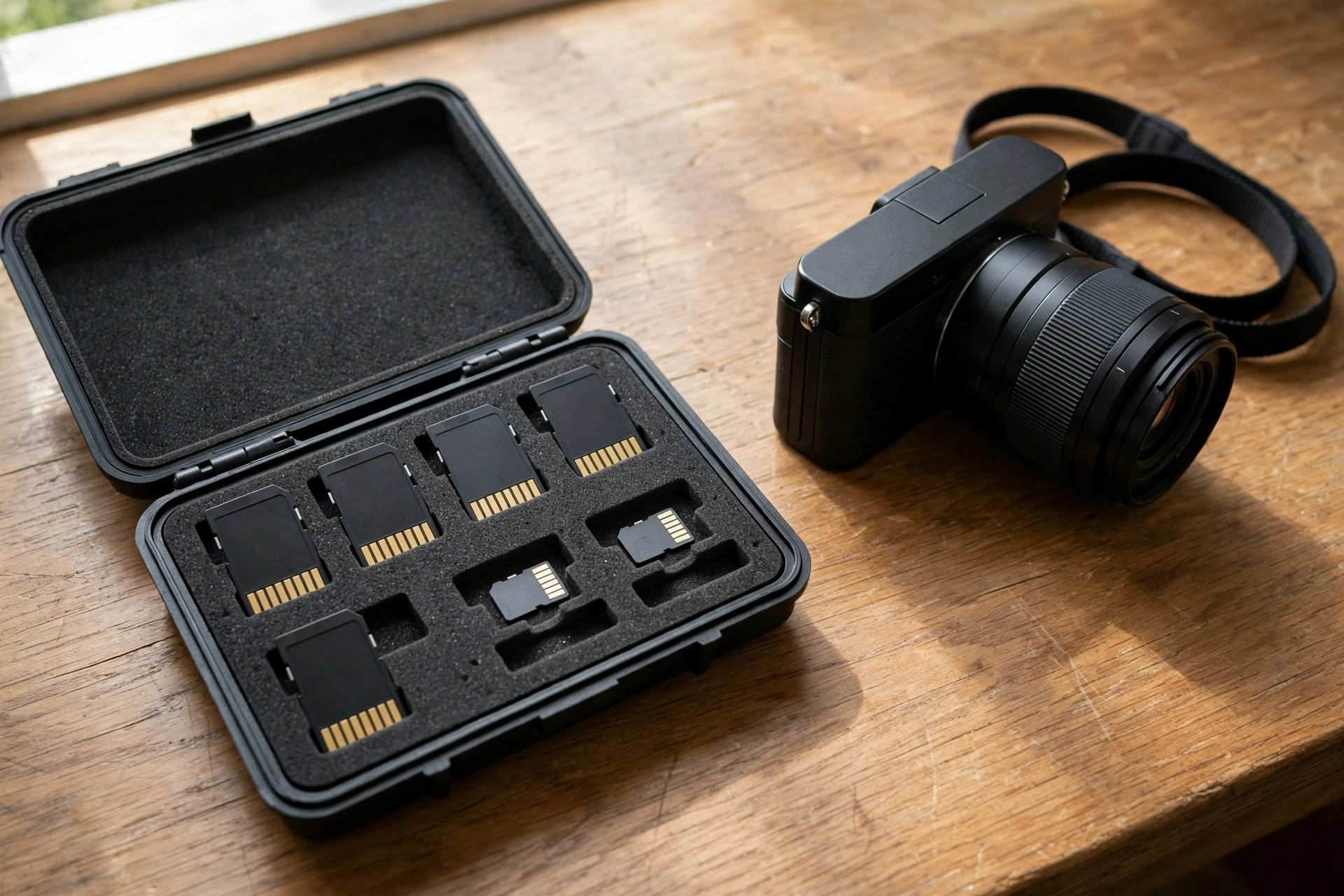
If the camera has two slots, mirror writes the same clip to both cards at once. That is a second original inside the camera, useful on a paid shoot, but it is not a verified copy. With mirrored cards, run the ingest routine on one card; the mirror card stays unformatted as the spare until two verified copies exist elsewhere, and only then are both cards formatted. Overflow, the other dual-slot mode, simply fills one card and then the other, and buys no safety at all.
Number every card, on the case or on a small label, and keep the number with the shoot. The dated folder carries the shoot name, and the card number in a note ties a card to the shoots it held, which is what lets you trust a card, find a shoot, and retire a card with a known history. Rotate through cards instead of reusing the first one each morning, so no card accumulates several un-ingested shoot days, and no single card ever holds the only copy of a whole day overnight. The failure section’s rule stands for cards too: a card that glitches once is retired, not demoted to less important days.
The editing drive: sustained speed, proxies, and NAS masters
Editing cares about sustained speed, not the benchmark number on the box. Benchmarks measure short bursts on an empty drive; a working drive that is nearly full, or a drive that slows as it fills, stutters on a timeline the benchmark never showed. Keep headroom on the working drive, for the project, for cache and render files, and for the next shoot before the last one moves out. Check the port as well as the drive: a fast NVMe drive behind a 5 Gbps USB port edits at the port’s speed, not the drive’s, and the fix is a faster port, not a faster drive.
When the masters live on a NAS, edit lightweight proxies on the local drive and relink to the masters for export. The proxy edit stays fast over an ordinary network, and the export still reads the full-quality masters, so nothing in the finished video is proxy quality. The project file travels inside the shoot folder with the footage, under the rule the folders section above already sets, so the proxy project and the masters meet again cleanly at export time.
When a NAS earns its place
A NAS earns its place when the archive outgrows comfortable single-drive size, when a second machine in the house also edits or backs up, when nightly jobs are worth automating, or when the household needs shared access to the same archive. A solo vlogger with one machine and a tidy archive does not need one: direct drives are simpler, cheaper, and one less device to keep updated. Buy the NAS for a job you already have, not for a setup you might grow into.
Do the network maths before you plan to edit across it. A 1 GbE link moves about 125 MB/s at best, closer to 110 MB/s in practice, which is plenty for copies and proxy editing, and tight for multi-stream 4K. A 2.5 GbE link lifts that to roughly 300 MB/s. A 10 GbE link removes the network as the limit, but only when the cable, the switch port, and the machine’s port all match; one slow link in the chain sets the speed for everything behind it. Wi-Fi is a copy path, not an edit path: fine for overnight uploads, not for scrubbing a timeline.
Two NAS terms worth separating. An SSD pool is an all-SSD volume: fast, pricey, and it holds data. An SSD cache is a small SSD in front of spinning disks that speeds up hot data: it holds no data of its own and protects nothing, so a cache failure loses speed, not footage, and a cache is never a copy. And the storage-types section above already states the limit that governs both: a RAID or NAS box is still one device in one place, so it can hold a copy but never be the whole system.
Sync is not backup
Run this test on any tool you count as a copy: delete a file on one device. If it disappears everywhere, that is sync, not backup. Sync mirrors deletions, corruption, and ransomware to every connected device, fast and faithfully. Backup keeps versions and a point-in-time copy you can return to after a bad delete or a bad edit.
Drive and Dropbox style folders are sync by default. They count as a working copy or a share, not as the backup leg, unless version history is on and you have tested restoring an older version. Set-and-forget tools that keep versions are backup, which is the property to check before counting any mirror as a copy. The rule for the off-site leg is simple: it must survive a bad delete on your desk. If it cannot, it is not the off-site leg.
Capacity maths and upgrade triggers
Work out the archive size before it surprises you. Hours shot per month, times GB per hour, times months you keep, gives one copy. The bitrate figures above give the middle number: 45 to 90 GB per hour at 100 to 200 Mbps. Four hours a month at 45 GB an hour is 180 GB a month, about 2.2 TB a year for one copy, and about 6.5 TB across all three. The triple total sizes the whole system, while the archive drive itself is sized on the one-copy figure.
Four triggers say upgrade, each before the failure they prevent. The working drive regularly sits above about 80% full, which is a drive that slows and leaves no room to work. The archive drive is within one month of full at your current shooting rate. The cloud upload never catches up between shoots, which means the off-site leg is a promise rather than a copy: fix it with a faster upload, a smaller cloud set, or a rotated off-site drive. A second machine joins the household, which reopens the NAS question above.
Separate from the triggers, one standing habit checks the whole pipeline: plug each archive drive in, confirm it mounts, and actually restore one old project from it, because a pipeline never restored from is a hope, not a backup.
Verify the copy before anything gets formatted
A copy is not finished when the progress bar reaches the end. It is finished when it has been checked: a checksum comparison for certainty, or at minimum matching file counts and total size, plus a spot-play of the first, middle and last clips.
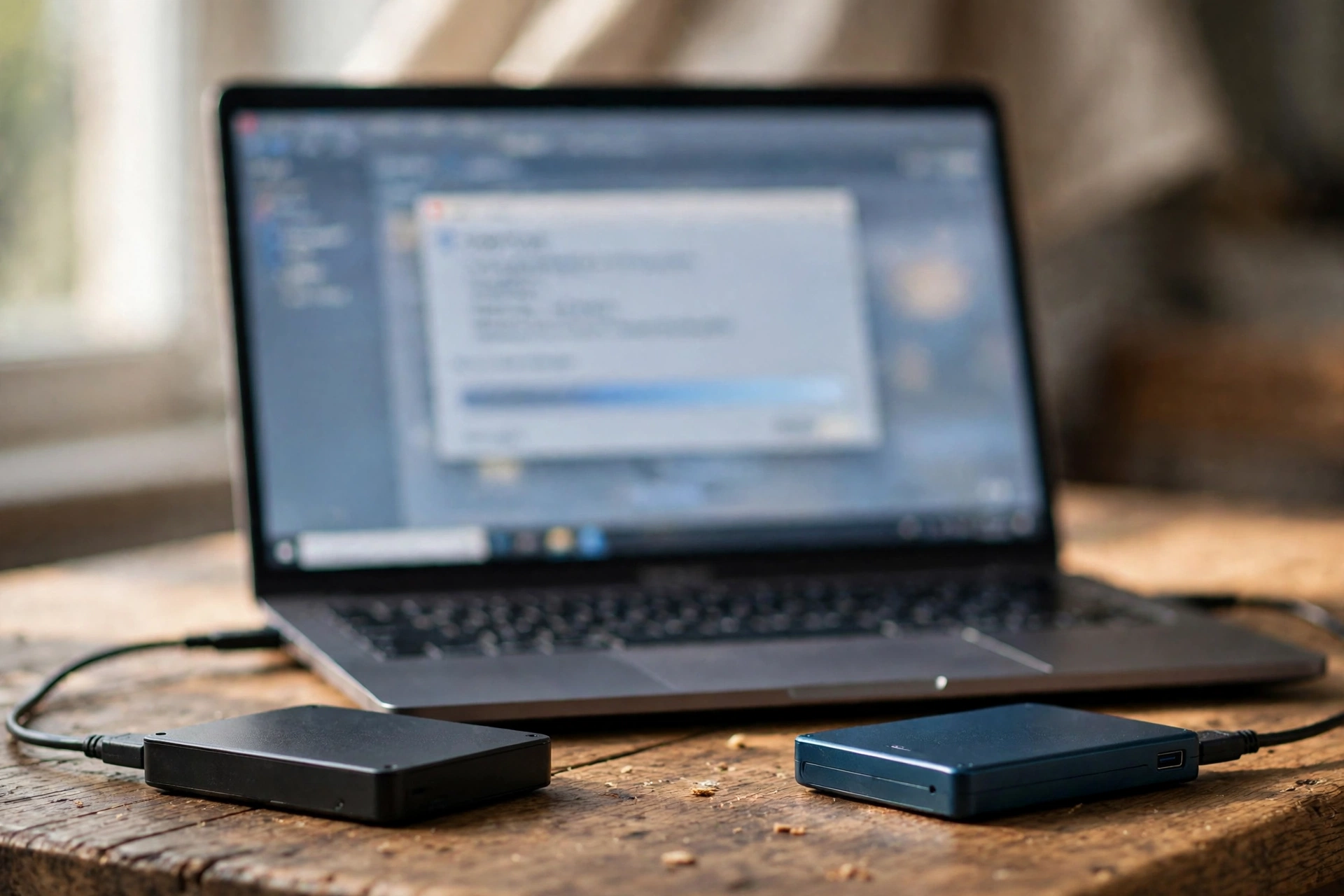
Copies fail quietly. An interrupted transfer, a tired cable or a glitching reader can leave a clip truncated while the folder looks complete. A checksum is a fingerprint of the data itself: if the copy’s fingerprint matches the original’s, the bytes are identical. Dedicated ingest tools, such as Hedge (now OffShoot) or ShotPut Pro, verify as they copy. Free tools get you most of the way: FreeFileSync compares folder contents, and TeraCopy can verify the copies it makes.
The two-minute version, when you skip checksums: compare total size and file count against the card, then spot-play the first, middle and last clips. Do it for every shoot: nobody knows which shoot was important until later. Only a verified copy earns the format. Which cards deserve that trust in the first place, and how to spot a counterfeit before it eats a shoot, is covered in our SD cards for vlogging explained guide. Formatting before the copy is verified is the one mistake in this system that cannot be undone.
The day it fails: a calm first hour for cards and drives
Stop writing to the failing device immediately. Every new file written to it can overwrite the footage you are trying to save. Then check your other copies first, because if the 3-2-1 system was running, the failure is an errand, not an emergency.
- If two other copies exist, breathe. The system just paid for itself. Replace the failed device, rebuild the missing copy from a survivor, and carry on. Never keep using a card or drive that has glitched once.
- If the failing device holds the only copy, set it aside untouched. Do not format it. Do not accept the camera or computer’s offer to repair it. Do not keep plugging it in to check on it.
- Recovery software reads, it never writes. Tools such as PhotoRec, Disk Drill or R-Studio scan the device and write recovered files to a different drive. Writing recovered files back onto the same card or drive is the classic way to destroy what was left.
- Clicking, beeping or grinding from a hard drive is mechanical damage. Software cannot fix it, and repeated power-ups grind the surfaces worse. That is a job for a recovery lab, worth its cost only when no other copy exists.
- Afterwards, note what failed and when, and retire the device. A card or drive with one failure on its record does not get demoted to less important days; once the camera is rolling, there are none.
Notice where most lost-footage stories actually end: not at the failure, which is often survivable, but at the panicked format or repair prompt clicked in the first five minutes. The calm first hour is the skill, and the 3-2-1 system exists to make that calm affordable.
Archive or delete: the discipline that keeps drives affordable
Keep the raw footage, the project file and the final export for anything published or impossible to reshoot. Delete duplicates, dead takes and test clips once the video is live and settled, and move finished projects off the working drive into the archive as part of a monthly tidy.
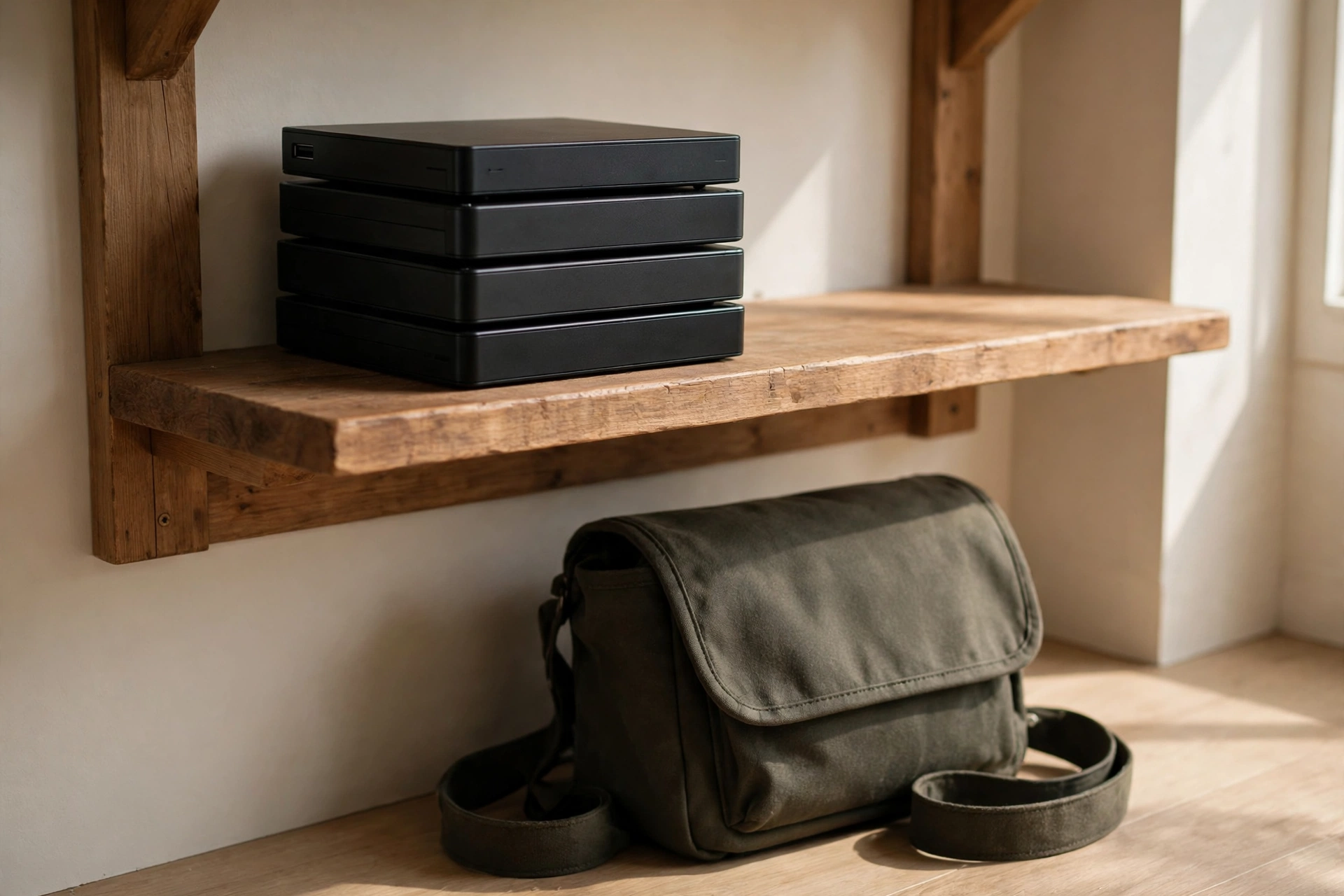
The working drive is a desk, not a warehouse. Current projects live on it; finished ones move out to the backup drive, into the Archive folder there. Always keep the project file with the footage: it is tiny next to the video, and it is the only route to re-editing, fixing a mistake, or pulling a vertical cut from an old vlog next year. An export alone cannot take you back.
What can go: near-identical takes once the edit has chosen, blurred and mis-framed clips, lens-cap masterpieces, test recordings. What never goes: the only copy of anything you cannot shoot again, first videos, family events, a place that has since changed, even if the video performed badly. Some footage is priceless in the plain sense: no money buys it back.
Finish with labels and an index. Write the contents and date range on each archive drive itself, and keep one simple index file, a text note or a spreadsheet, listing which projects sit on which drive, and keep a copy of it in the cloud folder. An archive you cannot search is just an attic with cables. Once or twice a year, plug each archive drive in, confirm it mounts, and actually restore one old project from it in the editor. A backup you have never restored from is a hope, not a backup.
Backup questions, answered
Short answers to the backup questions vloggers ask most, all following one rule: no card gets formatted while it holds the only copy of anything.
What is the 3-2-1 backup rule for video footage?
Keep three copies of your footage, on two different types of storage, with one copy off-site. For a vlogger that is typically a working drive for editing, a backup drive at home, and a cloud copy or a drive kept at another address.
Does my memory card count as one of the three copies?
No. The card is the original, and the most fragile one: small and losable. It only stops mattering once two verified copies exist elsewhere, and that is the moment it is safe to format.
How much storage does a vlogger actually need?
At 100 to 200 Mbps, an hour of 4K is 45 to 90 GB, and three copies triple whatever you shoot. Most channels run a working SSD and a multi-terabyte hard drive as the backup, and delete dead takes to stay lean.
Is cloud backup enough on its own?
No. Upload speeds make same-day cloud copies of 4K footage unrealistic: 100 GB takes roughly 11 hours at 20 Mbps up. Restoring terabytes is just as slow. Cloud is the off-site leg of a local-first system, not a replacement for two local copies.
What is a checksum, and do I need one?
A checksum is a fingerprint of your files. If the copy’s fingerprint matches the card’s, the copy is byte for byte identical. It catches transfers that silently truncate a clip. Use a copy tool with a verify option, or at least compare file counts and spot-play the first, middle and last clips.
When can I format my memory card?
After two verified copies of its contents exist on other devices, and not one moment before. Format it in the camera, so the card starts the next shoot clean, in the exact format the camera expects.
My hard drive is clicking. Can the footage be saved?
Clicking means mechanical damage. Stop powering it up: each attempt can make things worse, and software cannot help. A recovery lab is the only route, worth the cost only when that drive holds footage with no other copy.
Should I back up the editing project file as well?
Yes. The project file is small compared with the footage, and it is the only way to re-edit, correct a mistake or cut a new version later. Keep project and final export in the same shoot folder as the raw clips, so every copy carries everything.
How often should I back up my footage?
The first two copies happen the same day you shoot, as part of ingest. The cloud copy can run overnight or on a schedule. The real rule is about order, not frequency: copying always comes before formatting and editing.
Can I delete raw footage once the video is published?
Dead takes, duplicates and test clips can go once the video is live and settled. Keep the raw footage, project file and export for anything published or you cannot reshoot: a reshoot is usually impossible, which makes kept footage the cheaper option.
Keep exploring
These guides cover the kit that records the footage, the edit that shapes it and the channel it feeds.