
Last updated: October 2026
Going live is the easy part. Staying live, looking sharp, and sounding clean for an hour while you talk, demo a product, and answer chat is a production job. This guide covers that layer: OBS scenes for a vlog format, which encoder to pick, the bitrate numbers YouTube wants for live ingestion, a tidy audio chain, two camera switching, and backups for when something fails. New to going live entirely? Start with the basics in how to livestream on YouTube, then come back here.
The short version
- Build six scenes and stop. Starting soon, main camera, screen or demo, guest or second camera, be right back, and ending.
- Use the GPU encoder. NVENC on NVIDIA cards and QuickSync on Intel chips encode on dedicated hardware, so your CPU stays free.
- Bitrate follows YouTube’s live table, not its upload table. For 1080p30 with H.264 that means 5 to 14 Mbps, well inside your tested upload speed.
- Fix audio in order: clean input first, then noise suppression, compressor, and limiter.
- Record locally while you stream and keep a phone ready as backup internet. A dropped stream with a local recording is an inconvenience, not a lost video.
On this page
- Six scenes are enough: design your OBS layout
- Encoder choice: let the graphics card do the work
- Bitrate: use YouTube’s live numbers, not the upload numbers
- The live audio chain: clean in, gentle processing
- Lighting and camera: the live look is mostly light
- Two cameras: switching on speech beats
- Backups: local recording, spare internet, and a drop plan
- The pre-live checklist
- Live production questions, answered
- Keep exploring
Six scenes are enough: design your OBS layout
Build a small, fixed set of scenes in OBS: starting soon, main camera, screen or demo, guest or second camera, be right back, and ending. Use nested scenes so one camera fix updates every scene that uses it.
Most vlogger streams fail on clutter, not on missing features. Twenty scenes built over six months, half of them named “Scene 2 copy,” means you will click the wrong one while talking. Six scenes cover a normal stream. Starting soon holds viewers while chat gathers: a simple graphic and music low underneath works fine. Main camera is home base: you, full frame. Screen or demo shows a product, a browser, or your timeline, usually with your camera shrunk into a corner. Guest or second camera handles an interview feed or another angle. Be right back covers breaks without dead air, and the ending scene gives the stream a deliberate close.
Two habits keep this set manageable. First, use nested scenes: build one scene containing just your camera with its crop exactly right, then add that scene as a source inside your main, demo, and guest scenes. Change the camera once and every scene updates. Second, name sources by job, not by device. “Main mic” still makes sense in a year; “USB device 3” does not. Put hotkeys on the scenes you switch between most, so your hands stay on the desk.
A camera with clean HDMI output built for streaming makes the main scene far easier to run, which is why our roundup of the best cameras for streaming weighs continuous output and autofocus as heavily as image quality.
Encoder choice: let the graphics card do the work
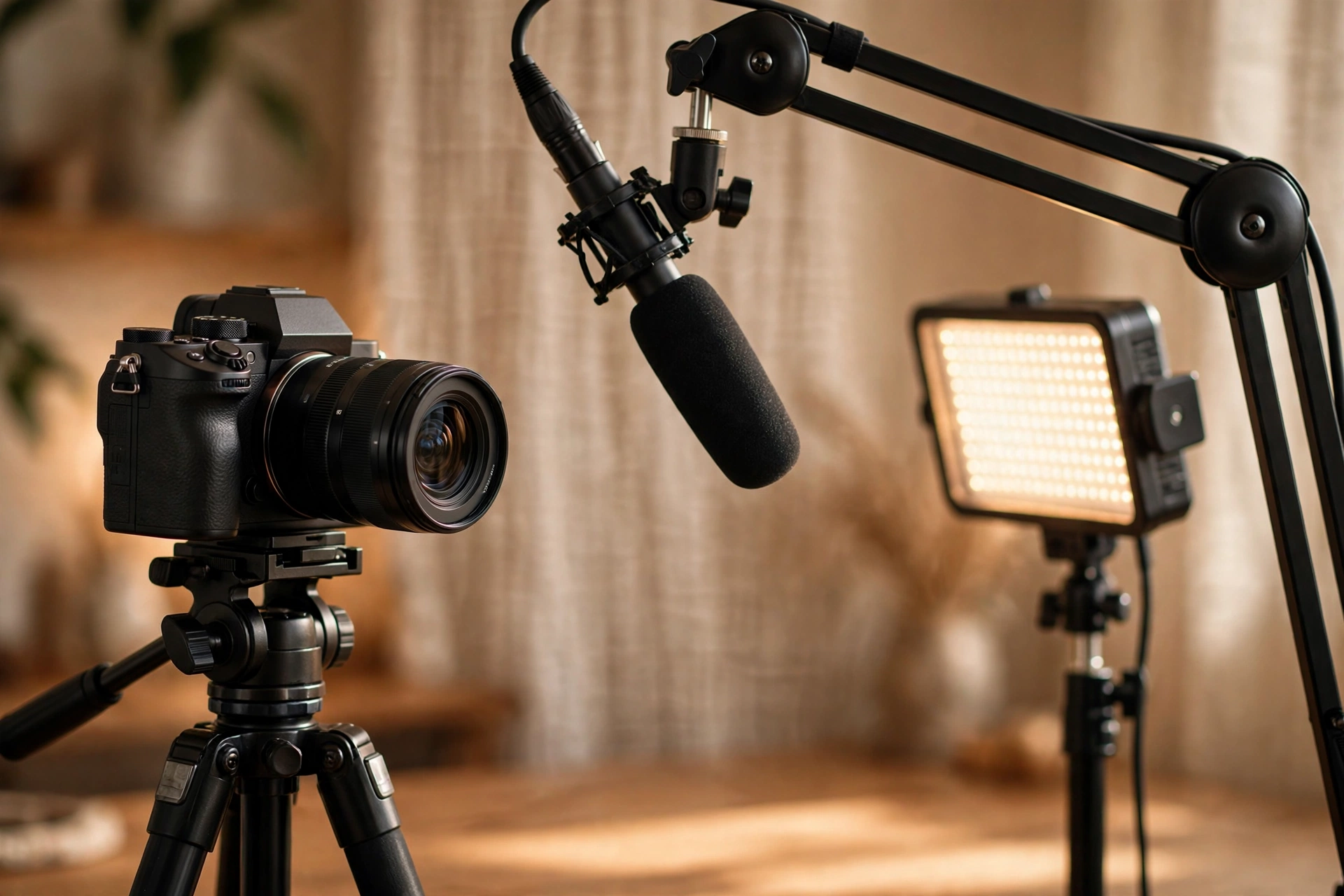
An encoder compresses your video in real time so it can travel up your internet connection. Most vloggers should use a hardware encoder: NVENC with an NVIDIA graphics card, QuickSync with an Intel chip that has integrated graphics. Use x264 software encoding only on a strong CPU with nothing else heavy to do.
Your camera produces far more data than your upload connection can carry, so something has to shrink it, live, without falling behind. That something is the encoder, and where it runs matters more than any other OBS setting.
NVENC is a dedicated encoding chip built into NVIDIA graphics cards. It does this one job on its own silicon and barely touches the rest of the system, which is why it is the default for anyone with an NVIDIA card. QuickSync plays the same role on Intel processors with integrated graphics, encoding efficiently even on modest laptops. Both produce quality viewers cannot tell apart from software encoding at YouTube live bitrates, especially for a talking head setup.
x264 is the software option: your main CPU does the math. At slower presets it can squeeze slightly better quality from a low bitrate, which is why game streamers with spare CPU cores still use it. The cost is real, though. A vlogger’s PC is usually also running a browser, chat, a recording, and maybe a guest call, and handing the CPU the encoding job as well invites dropped frames. The practical rule: if your machine offers NVENC or QuickSync, pick it, choose the quality preset, and spend the CPU you saved on a higher quality local recording. Drop to x264 only if there is no hardware encoder, and then use a fast preset and 720p or 1080p30.
One more setting rides along with the encoder: rate control. Set it to CBR, constant bitrate, for streaming. YouTube asks for CBR because its ingest servers are built for a steady, predictable flow. Variable bitrate belongs in local recordings.
Bitrate: use YouTube’s live numbers, not the upload numbers
YouTube publishes separate bitrate tables for live ingestion and for uploads, and they are not the same numbers. For live H.264 streams it recommends 14 Mbps at 1080p30 and 17 Mbps at 1080p60. Pair that with CBR, a keyframe interval of 2 seconds, AAC audio at 128 Kbps, and a stream that uses only part of your tested upload speed.
This is the mistake that quietly degrades a lot of vlog streams. A creator searches for YouTube bitrate, lands on the upload recommendations meant for finished video files, and either starves the live stream or pushes more data than the connection can sustain. Live ingestion is a different table. The figures below come from YouTube’s own live encoder guidance, checked in October 2026.
| Resolution and frame rate | H.264 bitrate range (minimum to recommended) |
|---|---|
| 2160p at 60 fps (4K) | 14 to 50 Mbps |
| 2160p at 30 fps (4K) | 11 to 42 Mbps |
| 1440p at 60 fps | 8 to 34 Mbps |
| 1440p at 30 fps | 7 to 21 Mbps |
| 1080p at 60 fps | 6 to 17 Mbps |
| 1080p at 30 fps | 5 to 14 Mbps |
| 720p at 60 fps | 3 to 8 Mbps |
| 720p at 30 fps | 3 to 8 Mbps |
| 480p at 30 fps | 0.4 to 4 Mbps |
Most vloggers should live in the middle rows. A talking head or interview stream gains almost nothing from 60 frames per second, so 1080p30 in the 10 to 14 Mbps area looks clean and stays stable. Reserve 1080p60 for fast movement, like a workshop build or a game, and treat 1440p and 2160p as upgrades to make only after a whole stream at a lower resolution has run without a dropped frame.
If your encoder and connection support the newer AV1 or H.265 codecs, YouTube’s recommended live bitrates drop, because those codecs do more with less: 10 Mbps at 1080p30, 12 Mbps at 1080p60, 15 Mbps at 1440p30, 30 Mbps at 2160p30, and 35 Mbps at 2160p60. H.264 remains the safe default. Whichever codec you send, keep the supporting settings aligned with YouTube’s guidance: CBR, a keyframe interval of 2 seconds and never more than 4, AAC audio at 128 Kbps in stereo, a 44.1 kHz sample rate, Rec. 709 color for SDR, and RTMPS where offered.
Finally, the headroom rule, which matters more than the table. Run an upload speed test, wired and at the time of day you plan to stream, then set your total stream bitrate, video plus audio, to no more than about two thirds of the sustained figure you measured. On a connection that tests at 20 Mbps up, a 12 Mbps stream leaves room for dips. On one that tests at 10 Mbps up, drop to 720p at around 6 Mbps. Viewers forgive a slightly softer picture. They do not forgive a stream that freezes every minute.
The live audio chain: clean in, gentle processing
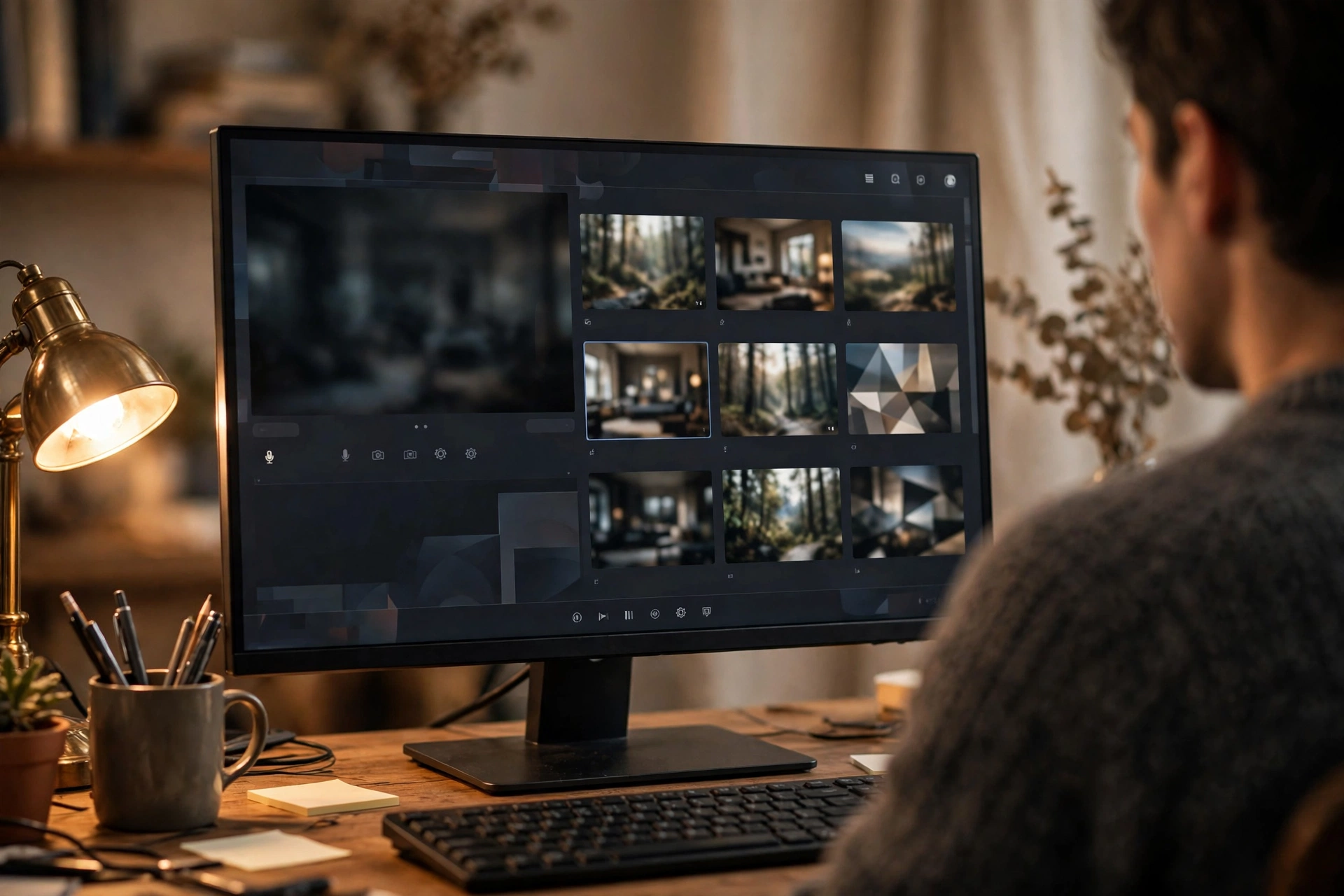
Run your microphone through an interface or a good USB connection, get the level right at the source, then add OBS filters in order: noise suppression, a compressor to even out your volume, and a limiter as a safety net. Monitor through headphones plugged into the interface to avoid echo.
Viewers leave bad audio faster than bad video, and live audio cannot be fixed in the edit. The chain starts before OBS. A microphone close to your mouth, roughly a hand span away, with gain set so your normal voice peaks well below clipping, beats any filter stack. With an XLR microphone into an interface, set the gain on the interface and leave the OBS input level alone. Record a thirty second test at real speaking volume, including one laugh and one quiet aside, because that range is what the filters have to handle.
In OBS, add filters to the microphone source in this order of thinking. Noise suppression goes first: it pulls down steady background sound like a fan or computer hum. Use the lightest setting that still cleans the room; pushed hard, suppression eats the ends of words. The compressor comes second, turning down the loud parts automatically so a laugh does not blast and a quiet point does not vanish. The limiter goes last as a guardrail, hard stopping the signal below clipping to catch the one shout the compressor missed.
Monitoring causes more live disasters than any filter. If your voice plays back through speakers, or through the stream output with a delay, you will hear yourself twice and your speech will tangle. Monitor through headphones connected to your audio interface if it has direct monitoring, which passes your voice to your ears with no delay, and keep OBS monitoring off for the microphone. Last, check lip sync. A camera arriving over USB or a capture device can lag behind the microphone. Clap once on camera during your test; if sound and picture disagree, add a matching audio delay in the OBS advanced audio properties, in small steps, until they land together. Write the number down.
Lighting and camera: the live look is mostly light
For live video, one key light in front of you and slightly to one side, raised just above eye level and angled down, does more for the picture than any camera upgrade. Set the camera at eye level, lock exposure and white balance so they cannot drift, and feed OBS a clean HDMI or USB signal with no camera menus on it.
A live camera has no edit to rescue it, so the light has to be right in the room. Put your key light where it flatters a face: in front of you, off to one side by roughly forty five degrees, a little higher than your eyes, angled down gently. A large, soft source close to you reads better than a small, harsh one across the room, because soft light hides the compression artifacts live video always adds. Dim any bright window or lamp behind you; a camera exposing for a bright background will leave your face dark.
Camera position is simpler than people make it. Eye level, or a touch above, framing your head and shoulders for the main scene. Looking down at a laptop camera makes viewers feel talked down to. Lock the settings that wander: manual white balance matched to your key light, and exposure fixed once the light is set, so holding up a pale product does not send the brightness hunting. A camera that outputs clean HDMI, with no focus boxes or menu text on the feed, gives OBS exactly the picture you framed. USB webcam mode works too; just confirm the resolution it delivers that way.
Two cameras: switching on speech beats
A second camera, usually a wider or closer angle of the same desk, makes a solo stream feel produced. Bring each camera into OBS through its own capture card or USB connection, match their white balance and exposure, and switch on natural speech beats: at the end of a point, when you move to a demo, or when a guest starts talking.
The classic two camera setup is a main shot at eye level plus a second angle with a job: a closer crop for emphasis, a top down view of the desk for demos, or a wide shot. Each camera needs its own path into the computer, a USB connection or a capture card per HDMI feed. Our guide to the best capture cards covers what the resolution and latency specs on those cards mean here. Give each camera its own scene using the nesting approach from earlier.
Match the cameras before you go live, not during. Set both to the same manual white balance value, expose them so your face reads at a similar brightness in each, and check the cut between them on a test recording. A switch that jumps in color pulls attention every time. Then switch with intent: finish a point on the main camera, cut to the close angle as you start the next one, cut top down when your hands start demonstrating something, and cut to the guest a breath after they begin speaking, not mid word. A change every twenty to sixty seconds, tied to what you are saying, is the pace viewers read as professional without noticing why.
Backups: local recording, spare internet, and a drop plan
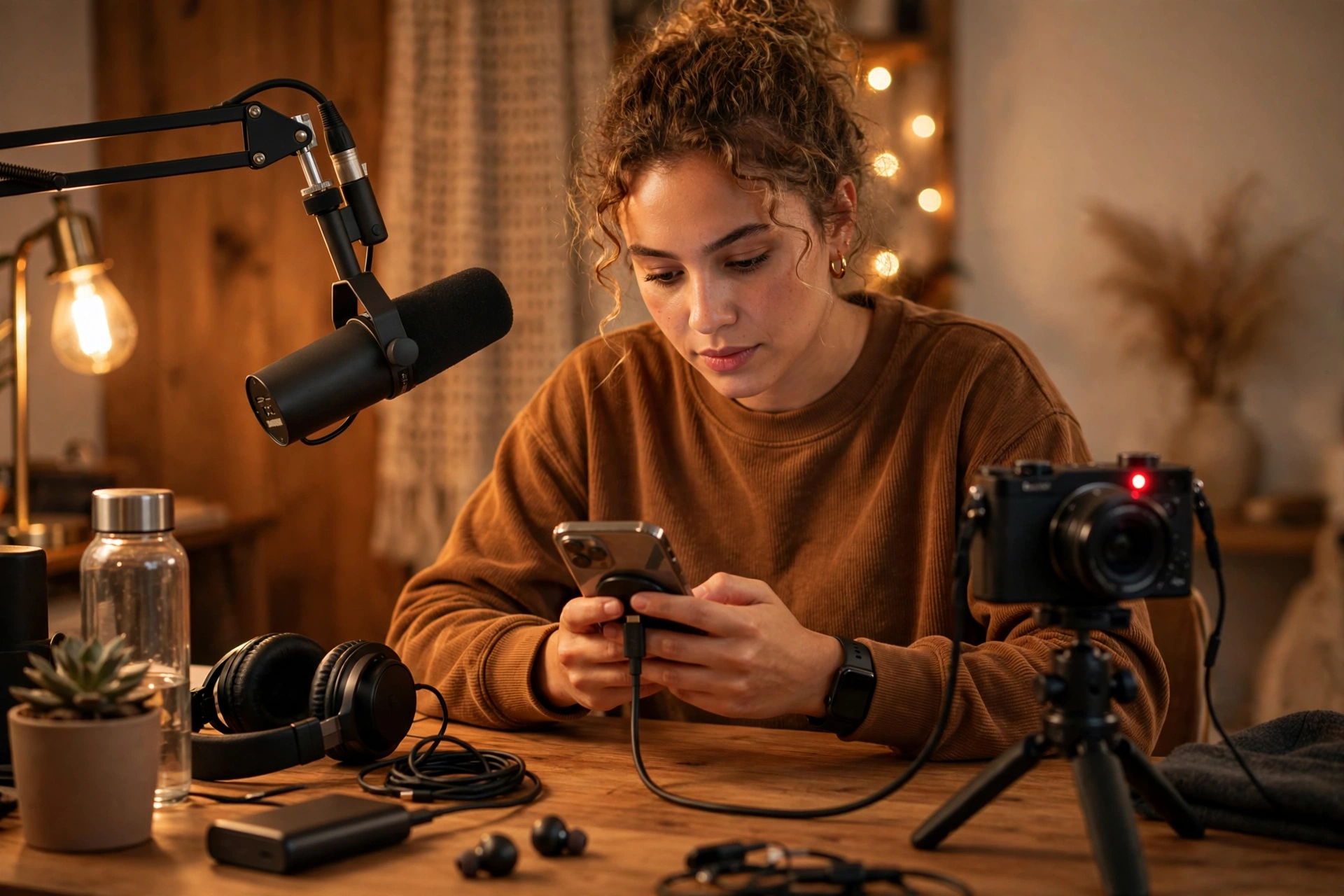
Press record in OBS at the same time you press stream, using separate, higher quality recording settings, so a clean local copy exists whatever happens. Keep a phone ready to tether as backup internet, and decide in advance what you will do after a drop: wait, switch connection, or restart and post the local recording later.
The local recording is the highest value backup and the cheapest. The recording output in OBS has its own settings, separate from the stream, so record at a higher quality than you send live; the stream is constrained by upload speed, the recording only by disk. Use a quality based rate control rather than the stream’s CBR, and record to a format that survives a crash, then remux to MP4 afterwards if your editor wants MP4. If the stream dies at minute forty, you still own a clean video you can upload as a normal vlog.
Internet backup is the second layer. The realistic options for a home studio are a phone tether over USB, which is more stable than a WiFi hotspot, or a bonding service or router that combines your main connection with a mobile one so a failure switches over without dropping the stream. Bonding costs money; tethering costs nothing and takes thirty seconds, but you have to do it mid stream while talking, so practice the switch once during a private test. Know the data cost too: an hour at 12 Mbps uses several gigabytes, so the tether is a bridge, not a plan for the whole month.
Then the drop plan itself. When the connection fails, OBS shows dropped frames climbing and the bitrate falling to zero. Keep talking for a few seconds, because brief dips often recover and YouTube holds the stream open for a reconnect. If it does not recover, switch to your be right back scene, which buys you calm minutes to swap to the tether and restart. If the stream cannot be saved, end it cleanly, tell viewers what happened, and publish the local recording.
The pre-live checklist
Run the same short checklist before every stream: test watched back, audio and lip sync confirmed, bitrate and encoder set, local record armed, backup internet within reach, phone silenced. Ten minutes of routine prevents nearly every live failure.
- Do a private test. Stream unlisted or record for two minutes at full energy, then watch it back on a phone, checking framing, focus, and exposure.
- Check audio properly. Listen to the test on headphones: normal voice, one loud laugh, one quiet line. No hum, no echo, and the clap test for lip sync if anything changed.
- Confirm the output settings. Hardware encoder selected, CBR on, bitrate inside the headroom rule, keyframe interval at 2 seconds.
- Arm the local recording and confirm disk space for at least twice the planned stream length.
- Stage the backups. Phone charged, tether cable plugged in, be right back scene one click away.
- Clear the desk and the desktop. Water within reach, notifications off, phone on silent, chat and any guest link open.
- Set the room. Key light on and positioned, background tidy, door closed.
None of this is glamorous, and that is the point. Live production is a routine you run the same way every time, so your attention stays free for the one part that cannot be systematized: talking to the people who showed up.
Live production questions, answered
Short answers to the questions vloggers ask most about OBS settings for streaming, encoders, and bitrate.
What are the best OBS settings for streaming on YouTube?
Use advanced output mode with a hardware encoder (NVENC or QuickSync), CBR, a keyframe interval of 2 seconds, and a bitrate from YouTube’s live table: 5 to 14 Mbps covers 1080p30 with H.264. Set AAC audio at 128 Kbps and keep total bitrate near two thirds of your tested upload speed.
Should I use NVENC, QuickSync, or x264?
Use NVENC with an NVIDIA graphics card and QuickSync with an Intel chip that has integrated graphics. Both encode on dedicated hardware and leave your CPU free. Choose x264 only on a strong CPU with little else running.
What bitrate do I need for 1080p live streaming?
YouTube’s live guidance for H.264 puts 1080p30 between a 5 Mbps minimum and a 14 Mbps recommendation, and 1080p60 between 6 and 17 Mbps. A steady 10 Mbps stream beats an unstable 14 Mbps one.
Why does my stream drop frames even with fast internet?
Usually because the bitrate sits too close to your real sustained upload speed, which dips under load. Test wired, at the time you stream, and set the stream to about two thirds of that result. WiFi is the other common culprit; a cable fixes more streams than any setting.
How many scenes should I have in OBS?
Six cover most vlogger streams: starting soon, main camera, screen or demo, guest or second camera, be right back, and ending. Build the camera once as a nested scene and reuse it. More scenes usually means clutter you will misclick while talking.
What OBS audio filters should I use on my microphone?
Three, in order: noise suppression for steady room noise, a compressor to even out loud and quiet moments, and a limiter last as a guard against clipping. Keep each gentle. A close microphone position and correct gain matter more than any filter.
How do I fix lip sync in OBS?
Record a test and clap once on camera. If the sound lands before or after the picture, add a sync offset to the microphone in the OBS advanced audio properties, in small steps, until they match. Recheck whenever you change how the camera connects.
Can I record and stream at the same time in OBS?
Yes, and you should. OBS has separate recording settings, so you can stream at a connection friendly bitrate while recording locally at higher quality. The local copy is your insurance if the stream drops.
What should I do when my stream drops mid broadcast?
Keep talking for a few seconds, since short dips often recover and YouTube holds the stream open for a reconnect. If it stays down, switch to your be right back scene, move to a backup connection such as a USB phone tether, and restart.
Is 720p good enough for a vlog stream?
Yes. A well lit 720p stream at 3 to 8 Mbps with clean audio looks more professional than a struggling 1080p stream that drops frames, and most viewers watch on phones, where the difference is small. Upgrade only after a full stream at the lower setting runs cleanly.
Keep exploring
The gear behind these scenes is covered in two of our buying guides.