
Last updated: November 2026
The MacBook Pro 14 with the M5 Pro chip is the best laptop for video editing for most vloggers in 2026: it decodes every camera codec in hardware, reads your SD cards without a dongle, and exports while you write the title and description. If your budget is tighter, the MacBook Air 15 cuts the same 4K footage for less, and Windows creators are properly served by the Lenovo Yoga Pro 9i.
A vlogger’s laptop works a different shift from everyone else’s. You shoot in the morning, ingest a card over coffee, cut between other jobs, grade in whatever light the room gives you, and publish the same day. Generic laptop lists barely touch that day. They rank machines by gaming frame rates, they argue about chips that were replaced a year ago, and almost none of them mention the card reader, which is the first thing you touch after every shoot.
This guide is built around the shoot, edit, publish cycle instead. Every pick below is a current model, checked against the manufacturer’s own spec sheet in October 2026, and judged on the things that decide a vlogging day: hardware decoding for your camera’s codec, memory that keeps a timeline responsive, a screen you can grade on, an honest weight for travel, and how fast footage gets off your cards and onto the timeline. If you are still choosing the camera itself, start with our guide to the best vlogging cameras and come back here for the machine that edits what it shoots.
As an Amazon Associate I earn from qualifying purchases. When you buy through links on this page, we may earn a commission at no extra cost to you.
⚡ Quick Picks
- 🏆 Apple MacBook Pro 14-inch (M5 Pro): best overall for vloggers
- 💰 Apple MacBook Air 15-inch (M5): best value
- 🪟 Lenovo Yoga Pro 9i 16″ (83L00001US): best Windows option
- ✈️ ASUS ROG Zephyrus G14 (GA403UM): best lightweight travel
- 🖥️ Razer Blade 18 (2026): best big-screen desktop replacement
On this page
- The 5 laptops compared
- New in November: two more MacBook Pros
- Our picks in detail
- How much laptop does a vlogger actually need?
- Ingest: card readers and offload speed
- Memory and storage, in plain terms
- Codecs: the spec nobody explains
- Multicam and proxies: power or workflow?
- Screens you can grade on
- FAQs
- The bottom line
- Keep exploring
The 5 laptops compared
Short answer: the two Macs win on codec hardware and battery, the Yoga Pro 9i wins on screen brightness, the Zephyrus G14 wins on weight, and the Blade 18 wins on raw power. The table puts the differences that matter to a vlogger side by side, including the card reader most comparison tables leave out.
| Laptop | Chip and graphics | Memory | Storage | Display | Card reader | Weight | Check price |
|---|---|---|---|---|---|---|---|
| MacBook Pro 14 (M5 Pro) | M5 Pro, 16-core GPU | 24GB | 1TB | 14.2″ XDR, 120Hz | SDXC | 1.60 kg | Check Price |
| MacBook Air 15 (M5) | M5, 10-core GPU | 16GB | 512GB | 15.3″ Liquid Retina | None | 1.51 kg | Check Price |
| Lenovo Yoga Pro 9i | Ultra 9 285H, RTX 5060 | 32GB | 1TB | 16″ 3.2K OLED touch, 120Hz | SD | 1.93 kg | Check Price |
| ASUS ROG Zephyrus G14 | Ryzen 9 270, RTX 5060 | 16GB | 2TB | 14″ 2.8K OLED, 120Hz | microSD (UHS-II) | 1.50 kg | Check Price |
| Razer Blade 18 (2026) | Core Ultra 9 290HX Plus, RTX 5090 | 32GB | 2TB | 18″ UHD+ 240Hz | UHS-II SD | 3.20 kg | Check Price |
New in November: two more MacBook Pros to know about
Short answer: Apple announced two new MacBook Pros in late October 2026, both on sale from November 6. One is a touchscreen version of the MacBook Pro in this guide, with the same chips and a better screen. The other is a new entry-level Pro with the M6 chip. The five picks below still stand; these are options to check before you buy.
The bigger news is the touchscreen model. Apple calls its screen PROLED XDR: a tandem OLED panel with up to 2000 nits of peak brightness for HDR and SDR, colour covering P3 and Adobe RGB, touch support, and the Dynamic Island from the iPhone. It comes in 14-inch and 16-inch sizes with the same M5 Pro and M5 Max chips as the standard models, in a thinner and lighter body, with the 14-inch model weighing about 3 pounds. Because the chips are the same, editing speed is the same as the standard MacBook Pro card below. The difference is the screen and the cost. If you grade on the laptop screen, this is now the best grading screen Apple sells. If you grade on an external monitor, the standard model does the same work for less.
The second new model is a 14-inch MacBook Pro with the new M6 chip, a 12-core CPU and 12-core GPU, up to 24 hours of battery, and 16GB of memory with 1TB of storage as standard. It is the new entry point to the Pro line. The 16GB of memory is the floor for editing rather than the comfortable zone, so it suits single-camera 4K work rather than regular multicam. Buy it if the Pro line was just out of reach; step up to 24GB or more if multicam is your weekly format.
None of this changes the five picks in this guide. It changes what to check before you pay: if you buy in November, look at the two new Macs first, then buy the machine that fits your screen, your memory needs and your carry.
Our picks in detail
Short answer: buy the MacBook Pro 14 if you want one machine that does everything well, the Air 15 if your edits are single-camera 4K, the Yoga Pro 9i if you live in Windows, the Zephyrus G14 if you edit on the road, and the Blade 18 if your desk is where the channel really happens.
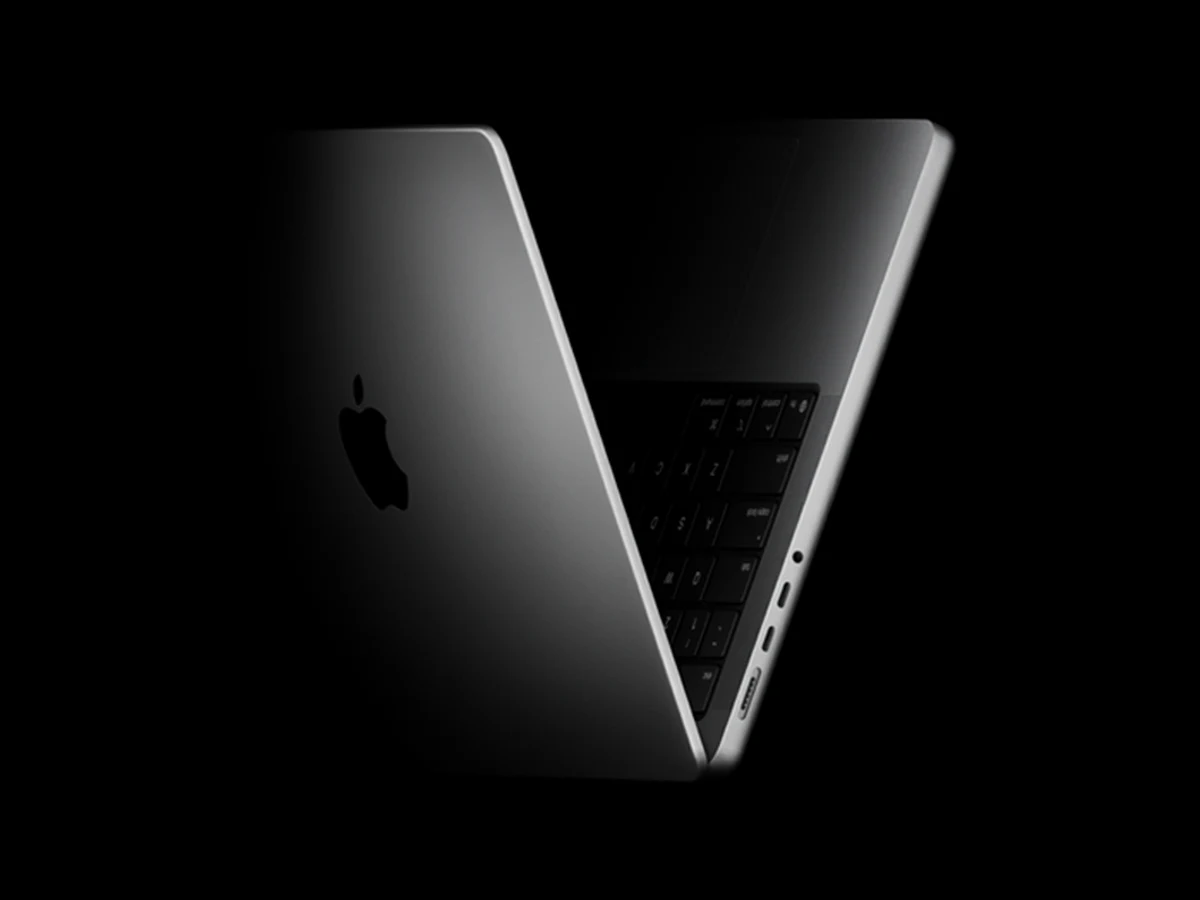
Photo: Apple
Key specs
🏆 Best overall for vloggers
1. Apple MacBook Pro 14-inch (M5 Pro)
The MacBook Pro 14 with M5 Pro is the easiest laptop to recommend to a vlogger: hardware decoding for every codec a camera records, a built-in SDXC slot, a screen you can trust for colour, and the battery to edit a full day away from a socket. Our pick is the 24GB memory, 1TB storage configuration in Space Black.
The M5 Pro’s media engine is the heart of it. The compressed formats mirrorless cameras record, H.264 and HEVC, plus ProRes and even ProRes RAW, are handled by dedicated hardware rather than the main processor, so a timeline of 10-bit 4:2:2 footage plays back like it was shot on a phone. The 24GB of unified memory in this configuration keeps a 4K multicam project, a browser full of tabs, and your thumbnail tools open at once without the machine swapping to disk, and the 307GB/s memory bandwidth feeds the chip fast enough that scrubbing feels instant.
Daily life is where it pulls away from the field. The SDXC slot means the card comes out of the camera and goes straight into the laptop, no reader to lose in a hotel room. Three Thunderbolt 5 ports take your fastest external drives and a desk dock at once. The Liquid Retina XDR screen runs at 1000 nits sustained, so grading in a bright cafe stays honest, and Apple rates the battery at up to 22 hours of video streaming, which in editing terms means a travel day of cuts and exports without hunting for a socket. At 1.60 kg it is not the lightest laptop here, but it is the one with the fewest asterisks.
Two honest limits. Memory and storage are fixed at purchase on every Mac, so the configuration you choose is the configuration you keep; that is why this pick starts at 24GB and 1TB rather than the smaller base options. And a 14.2-inch screen is tight for a sprawling timeline with scopes open, so desk editors will want an external monitor for long sessions.
One update: Apple announced a touchscreen version of this same machine in late October 2026, with a tandem OLED screen and the same M5 Pro and M5 Max chips, on sale from November 6. The specifications on this card describe the standard model, which stays on sale. The new-models section above sets out the difference.
Technical features
- Apple M5 Pro chip: 15-core CPU (5 super cores and 10 performance cores) and 16-core GPU
- Media engine: hardware H.264, HEVC, ProRes and ProRes RAW acceleration, AV1 decode, ProRes encode and decode engine
- 24GB unified memory (this pick), 307GB/s memory bandwidth
- 1TB SSD storage
- 14.2-inch Liquid Retina XDR display, 3024×1964, 1000 nits sustained and 1600 nits peak (HDR), ProMotion up to 120Hz, P3 wide colour
- SDXC card slot, HDMI port, 3x Thunderbolt 5 (USB-C), MagSafe 3, headphone jack
- 72.4Wh battery, up to 22 hours video streaming (Apple figure)
- 1.55 x 31.26 x 22.12 cm, 1.60 kg (3.5 lb), Space Black
What we like
- Hardware decoding for every vlogging codec, including ProRes RAW
- Built-in SDXC reader ends dongle hunting
- Thunderbolt 5 for the fastest external SSDs and docks
- Bright XDR screen grades honestly in any room
- Battery lasts a full travel editing day
Watch out for
- Memory and storage cannot be upgraded later
- 14.2-inch screen feels tight on big timelines
- Heavier than the Air for daily carry
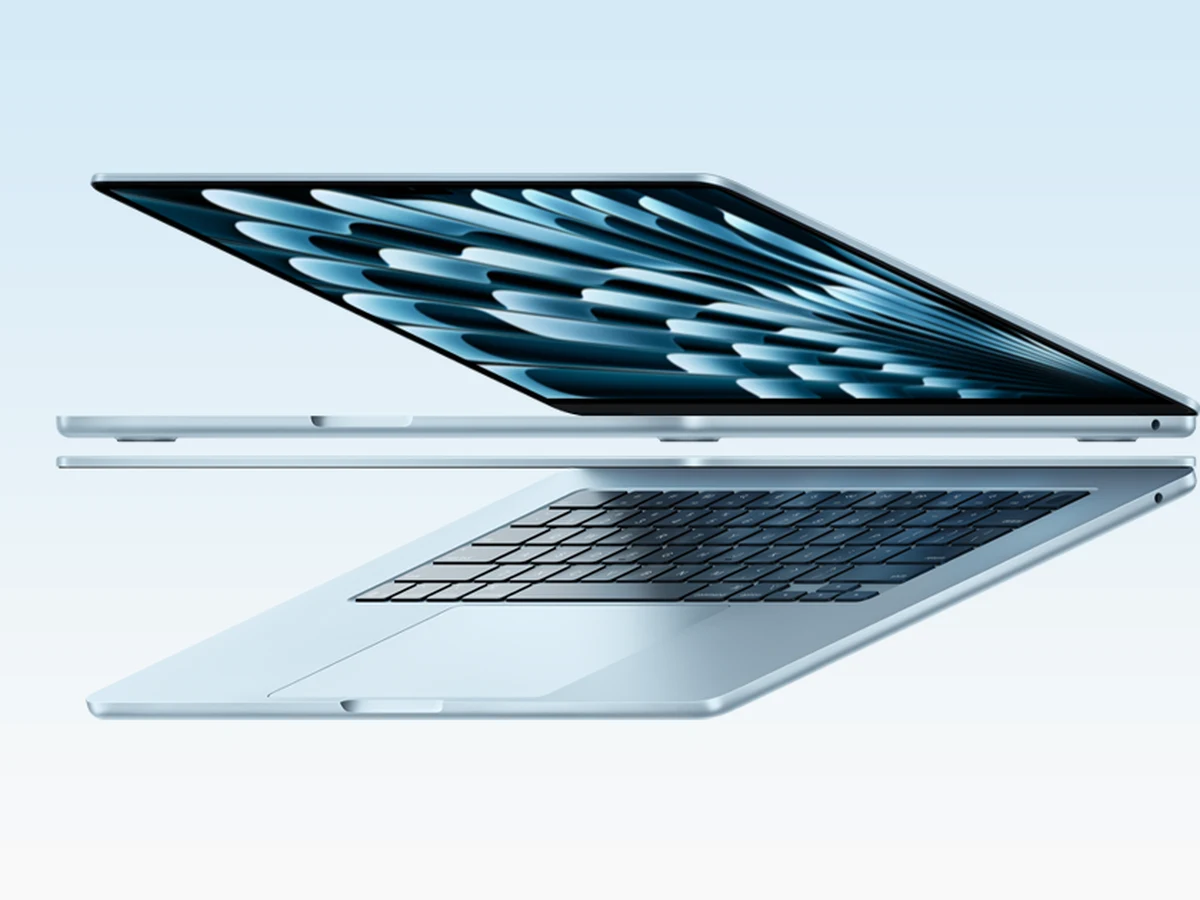
Photo: Apple
Key specs
💰 Best value
2. Apple MacBook Air 15-inch (M5)
The MacBook Air 15 is the value pick because it shares the MacBook Pro’s most important editing hardware, the media engine, in a thinner, lighter, cheaper machine. For single-camera 4K vlogs it is genuinely all the laptop most channels need. Our pick is the 16GB, 512GB configuration in Sky Blue.
The surprise with the Air is how little the editing experience drops. The base M5 carries the same hardware decoders as the Pro chip, so 4K HEVC and ProRes timelines play smoothly, and the 15.3-inch screen gives your timeline room to breathe in a way the 13-inch model never quite does. Apple builds the Air with a silent, fanless design, and for cafe editing that silence is a real pleasure: no fan noise in the recording booth corner of a coffee shop, and nothing to distract you while you cut.
The trade-offs are clear-eyed ones. There is no card reader, so a small USB-C reader lives in your bag permanently. The 16GB of memory in this configuration is comfortable for one camera angle and sensible effects, but a three-camera podcast cut will push it into slower territory, and memory cannot be added later. Long exports also take longer than in the Pro, because a fanless machine manages heat by pacing itself. None of that matters for a Tuesday vlog shot on one camera, which is exactly why the Air earns its place: it spends your money on screen and portability instead of power you may never call on.
Technical features
- Apple M5 chip: 10-core CPU and 10-core GPU
- Media engine: hardware H.264, HEVC, ProRes and ProRes RAW acceleration, AV1 decode
- 16GB unified memory (this pick), 153GB/s memory bandwidth
- 512GB SSD storage
- 15.3-inch Liquid Retina display, 2880×1864, 500 nits, P3 wide colour
- 2x Thunderbolt 4 (USB-C), MagSafe 3, headphone jack (no card reader)
- 66.5Wh battery, up to 18 hours video streaming (Apple figure)
- 1.15 x 34.04 x 23.76 cm, 1.51 kg (3.3 lb), Sky Blue, silent fanless design
What we like
- Same codec hardware as the Pro models
- Big 15.3-inch screen in a 1.51 kg body
- Silent in cafes, libraries and booths
- Strong battery for its size
Watch out for
- No SD card reader, an adapter is essential
- 16GB memory is the ceiling in this configuration
- Long exports run slower than the Pro
- Only two USB-C ports
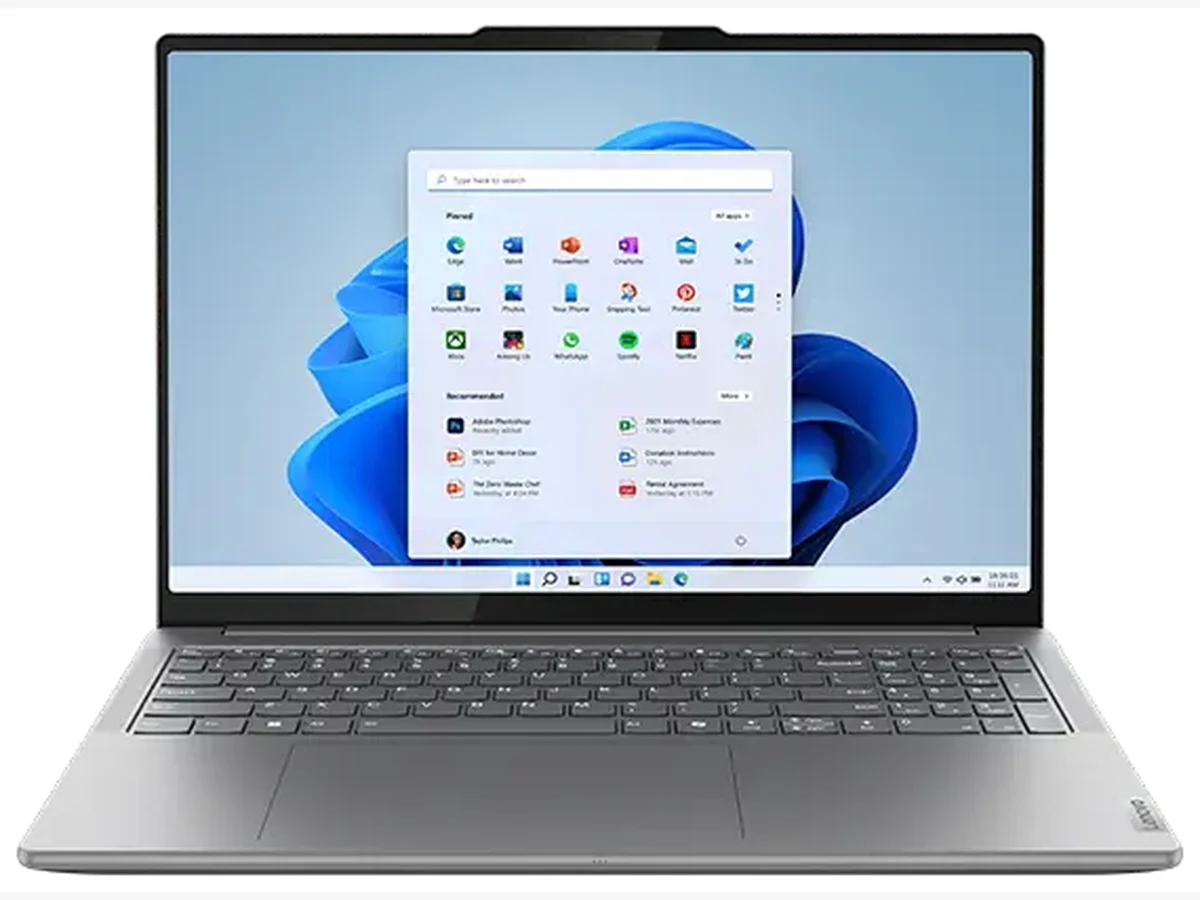
Photo: Lenovo
Key specs
🪟 Best Windows option
3. Lenovo Yoga Pro 9i 16-inch (83L00001US)
The Yoga Pro 9i is the Windows pick because Lenovo built it for creators rather than gamers: 32GB of memory as standard, a 1000-nit tandem OLED you can grade on in bright rooms, a full-size SD reader that takes mirrorless cards directly, and an RTX 5060 for effects and fast exports. Our pick is the Intel Core Ultra 9 285H configuration with the RTX 5060, 32GB of memory and 1TB of storage.
Start with the screen, because it is the best one on a Windows laptop in this guide. The 16-inch 3.2K tandem OLED reaches 1000 nits, covers 100% of DCI-P3 and Adobe RGB, and carries touch, so the grade you sign off is the grade viewers get, even in a sunlit cafe. The full-size SD reader is the detail vloggers feel every day: the card goes straight from the camera to the laptop with no dongle. Inside, the RTX 5060 gives Premiere Pro and DaVinci Resolve the GPU acceleration they lean on for effects, noise reduction and fast NVENC exports, and 32GB of memory means a multicam timeline with a browser and a thumbnail canvas open beside it stays composed.
Two cautions. Memory is soldered, so buy the size you need: 32GB here is the comfortable zone for most channels, and it cannot grow later. And at 1.93 kg it is heavier than the travel pick, which is the honest trade for a 16-inch screen this bright. Check the exact spec line before buying: this recommendation is for the 32GB, RTX 5060 model described here.
Technical features
- Intel Core Ultra 9 285H processor, 16 cores, up to 5.4 GHz, AI Boost NPU
- NVIDIA GeForce RTX 5060 Laptop GPU, 8GB GDDR7
- 32GB LPDDR5X-8400 memory on board (soldered)
- 1TB M.2 NVMe PCIe 4.0 SSD
- 16.0-inch 3.2K (3200×2000) Tandem OLED touchscreen, 120Hz, 1000 nits, 100% DCI-P3, 100% Adobe RGB, HDR 1000 True Black
- Full-size SD card reader, 2x Thunderbolt 4 / USB4 Type-C, 2x USB-A, HDMI 2.1
- Wi-Fi 7, Bluetooth 5.4, 5MP IR webcam with privacy shutter
- 84Wh battery, 36.27 x 25.37 x 1.79 cm, 1.93 kg (4.25 lb)
What we like
- 1000-nit tandem OLED, the brightest screen here
- Full-size SD reader takes mirrorless cards directly
- 32GB of memory and RTX 5060 for multicam and effects
- Thunderbolt 4 and HDMI for a desk setup
Watch out for
- Memory is soldered, buy the size you need
- 1.93 kg is heavier than the travel pick
- Single 1TB drive, keep an archive habit
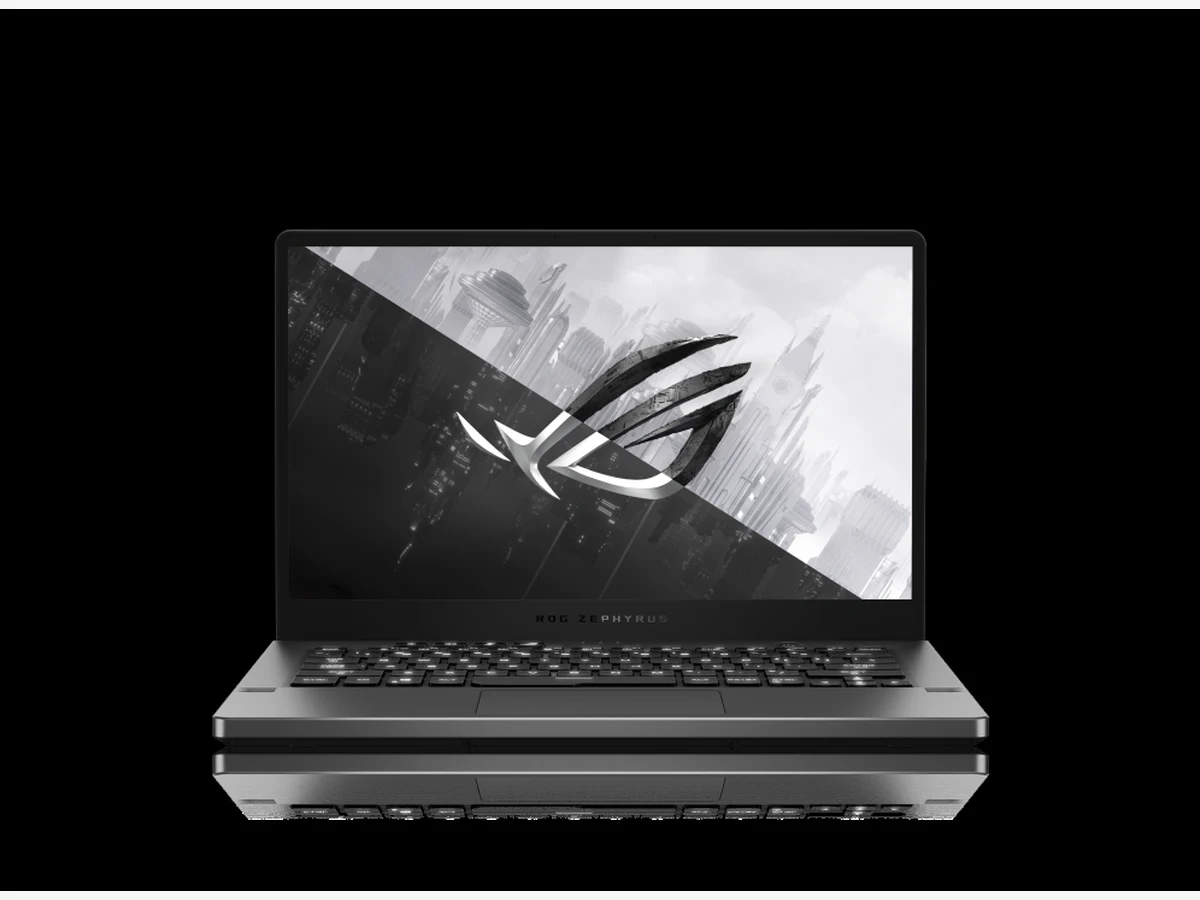
Photo: ASUS
Key specs
✈️ Best lightweight travel
4. ASUS ROG Zephyrus G14 (GA403UM)
The Zephyrus G14 is the travel pick: 1.50 kg, a 14-inch OLED you can grade on, a real RTX 5060 for effects and fast exports, and a 2TB drive that holds a season of projects. It is the machine for creators whose studio is a different city every week.
The spec that matters for travel is the weight, and at 1.50 kg this is the lightest laptop in the guide. The 14-inch 2.8K OLED covers 100% of DCI-P3 at 120Hz, so colour work on the road is honest work. The RTX 5060 is the difference from the last travel pick: effects, noise reduction and NVENC exports run on dedicated hardware instead of integrated graphics. The 2TB drive means a season of footage lives on the machine, and the microSD (UHS-II) reader takes action camera cards straight in with no adapter.
Know its shape before you buy. It is sold as a gaming laptop, so the keyboard lighting and gaming badges are garnish you pay for and never use for editing. The 16GB of memory is the floor for editing rather than the comfortable zone: fine for single-camera 4K and light multicam, but heavy effects stacks belong on the Yoga Pro 9i or the MacBook Pro. Full-size SD cards from a mirrorless camera do not fit the microSD slot, so hybrid shooters carry a small reader after all. Judged as what it is, the lightest serious editing laptop in this guide, it has no real rival.
Technical features
- AMD Ryzen 9 270 processor, 8 cores, up to 5.2 GHz, XDNA NPU up to 16 TOPS
- NVIDIA GeForce RTX 5060 Laptop GPU, 8GB GDDR7, MUX switch
- 16GB LPDDR5X memory on board (soldered)
- 2TB PCIe 4.0 NVMe M.2 SSD
- 14.0-inch 2.8K (2880×1800) OLED, 120Hz, 500 nits, 100% DCI-P3, ROG Nebula display
- microSD (UHS-II) card reader, USB4 Type-C, USB 3.2 Type-C, USB-A, HDMI 2.1
- Wi-Fi 7, Bluetooth, backlit keyboard, IR webcam
- 73Wh battery, 31.1 x 22.0 x 1.59 cm, 1.50 kg (3.31 lb)
What we like
- Lightest laptop here at 1.50 kg
- Real RTX 5060 for effects and fast exports
- 2TB drive holds a season of projects
- Accurate OLED screen you can grade on
Watch out for
- 16GB of memory is the floor, not the comfortable zone
- microSD only, full-size SD needs an adapter
- Sold as a gaming laptop, with gaming extras editing never uses
- Memory is soldered, 16GB here is fixed
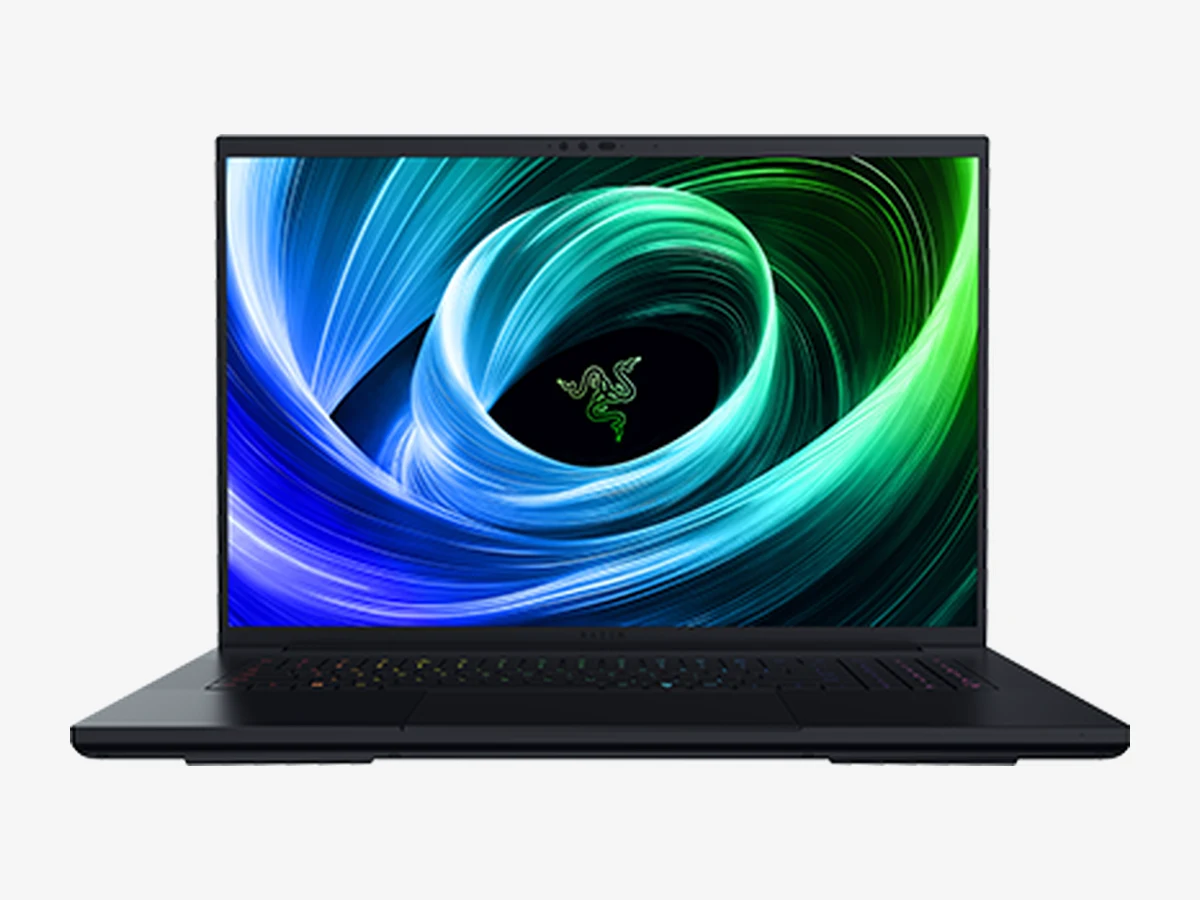
Photo: Razer
Key specs
🖥️ Best big-screen desktop replacement
5. Razer Blade 18 (2026)
The Blade 18 is the desk anchor of this guide: an 18-inch, Calman Verified screen, the RTX 5090 for effects and exports, a UHS-II card reader, wired Ethernet, and memory and storage you can upgrade yourself. Our pick is the RTX 5090 configuration with 32GB of memory and a 2TB drive.
Everything about this machine is scaled for the heavy end of vlogging. A four-camera 4K podcast, a 6K timeline with noise reduction, a render queue running while you cut tomorrow’s video: the 24-core Intel processor and the RTX 5090, with 24GB of graphics memory, take that workload without asking you to build proxies first. The dual-mode display is the other half of the appeal. In UHD+ mode it is a huge, colour-accurate grading screen that covers 100% of DCI-P3; the high-refresh FHD+ mode exists for games, and for editing you will simply never use it, which is fine.
What keeps it in this guide despite its gaming roots is the creator plumbing around the edges: a UHS-II SD reader for fast ingest, Thunderbolt 5 and 4, HDMI 2.1, and 2.5Gb Ethernet for pulling footage from network storage at real speed. Channels that also stream will appreciate how naturally it pairs with the gear in our best capture cards guide. Memory sits in two standard slots and there is a second SSD bay, so the machine grows with the channel instead of being replaced by it.
The costs are physical. At 3.20 kg before its power supply, the Blade 18 travels by car rather than by carry-on, and its battery is for moving between rooms, not for editing off-grid. Under a full render the fans make themselves known. Buy it as the studio machine it is, and it is superb; buy it as a travel laptop and you will resent it by the second airport.
Technical features
- Intel Core Ultra 9 290HX Plus processor, 24 cores, up to 5.5 GHz
- NVIDIA GeForce RTX 5090 Laptop GPU, 24GB GDDR7, up to 175W
- 32GB DDR5-6400 memory in two SO-DIMM slots (upgradeable to 128GB)
- 2TB PCIe Gen 4 NVMe SSD, two M.2 slots (up to 8TB total)
- 18-inch dual-mode display: UHD+ 3840×2400 at 240Hz or FHD+ 1920×1200 at 440Hz, 600 nits, 100% DCI-P3, Calman Verified
- Thunderbolt 5 and Thunderbolt 4 ports, HDMI 2.1, UHS-II SD card reader, 2.5Gb Ethernet, USB-A ports
- 99Wh battery with fast charging, 5MP IR webcam with privacy shutter, six-speaker THX audio
- CNC aluminium body, 399.96 x 275.4 mm, 3.20 kg (7.06 lb)
What we like
- RTX 5090 power for multicam, effects and fast exports
- Huge 18-inch screen, Calman Verified for grading
- Memory and storage upgradeable in minutes
- UHS-II reader and 2.5Gb Ethernet for fast ingest
Watch out for
- 3.20 kg plus power supply is a car boot laptop
- Battery suits room to room moves, not field editing
- Fans are audible under full render load
- You pay for gaming features editing never uses
How much laptop does a vlogger actually need?
Short answer: less than the adverts claim, but in different places. A single-camera 4K channel runs happily on the MacBook Air; the money that matters goes to memory, storage and screen accuracy, not to the biggest graphics card or the highest refresh rate.
Work backwards from your timeline. If your videos are one camera, 4K, with captions, a colour pass and music, every laptop in this guide is comfortably powerful, and the cheapest of them will not be the reason a video is late. Step up when your workflow steps up: a second camera angle doubles the decoding work, multicam podcasts multiply it again, and effects like noise reduction, stabilisation and AI transcription are what actually eat processing power. That is the honest ladder: Air for one camera, Pro or Yoga Pro 9i for regular multicam and effects, Blade 18 for a studio that treats editing as its main job.
Just as useful is knowing what to deprioritise. Screen refresh rate above 120Hz does nothing for editing; your footage is 24, 30 or 60 frames per second however fast the panel blinks. Gaming badges, keyboard lighting and headline benchmark scores sell laptops to gamers, and you pay for them without ever cashing them in. Thinness past the point of easy one-hand carry matters less than a second SSD slot. Spend first on memory you cannot add later, storage that fits your archive habits, a screen you can grade on, and a reader that matches your cards. Everything else is garnish.
Ingest: card readers and offload speed
Short answer: the reader is the most underrated spec on the laptop. A built-in slot that matches your cards saves minutes on every single shoot, and the reader types in this guide differ widely in speed.
Every shoot starts the same way: a card full of footage and a clock already running. With a built-in reader, ingest is one motion. With a dongle, it is a search through a bag, and eventually a forgotten reader and a lost evening. The readers in this guide span the whole range. The Blade 18’s UHS-II reader is the practical sweet spot for mirrorless shooters, and the Yoga Pro 9i’s full-size SD slot reads the same cards without a dongle. The MacBook Pro’s SDXC slot reads the same full-size cards at standard speeds, which still beats a dongle for pure convenience. The Zephyrus G14 flips the logic: its microSD (UHS-II) slot is made for action cameras, whose cards slide straight in. And the MacBook Air, alone here, has no slot at all, so budget for a good USB-C reader and keep it in the camera bag.
Two habits matter more than raw speed. First, match the reader to the cards you actually own; our guide to SD cards for vlogging explains the speed classes your camera writes at, and a faster reader only helps if the card can feed it. Second, offload and verify before you format anything: copy the card, check the file count and total size against the card, and only then put the card back in the camera. The fastest reader in the world cannot rescue a workflow that formats first and checks later.
Memory and storage, in plain terms
Short answer: 16GB edits a simple 4K vlog, 24GB to 32GB is the comfortable zone for most channels, and 64GB or more is for heavy multicam and effects work. On storage, 1TB works with an archiving habit; 2TB removes the habit.
Guides argue about memory because they test different things. A single 4K clip with captions barely sips memory, which is why some lists call 16GB enough. Add a second camera angle, a stack of effects, a browser, and a thumbnail canvas, and the same machine starts swapping data to the drive and the timeline stutters in the exact moment you are trying to judge a cut. Our honest reading: 16GB is the floor for light work, and the MacBook Air and Zephyrus G14 picks prove it daily; 24GB or 32GB is where most vloggers should land, and the Yoga Pro 9i and Blade 18 sit there; 64GB and above is for heavy multicam and motion graphics.
One rule matters more than the number: on the Macs, the Yoga Pro 9i and the Zephyrus G14, memory is soldered and fixed forever, so buy the size your channel needs next year, not this month. The Blade 18 is the exception, with standard slots you can upgrade in minutes. Storage is kinder. Footage maths is brutal but simple: 4K at typical vlogging bitrates runs to roughly 45GB an hour, so a 1TB drive holds your current projects and begs for an archive routine, while 2TB lets a season of videos live on the machine. Editing from a fast external SSD over Thunderbolt or USB4 is a perfectly good way to grow, and it is how most travel creators work: current project on an external drive, archive at home.
Codecs: the spec nobody explains
Short answer: the reason one laptop plays your footage smoothly and another stutters is usually not the processor, it is whether the machine has hardware decoding for your camera’s codec. Check that first and most editing pain disappears.
Your camera compresses footage to save card space, and some of those compression formats are much harder to unpack than others. Plain H.264 is easy for every modern laptop. The 10-bit 4:2:2 HEVC that Sony, Canon and Panasonic mirrorless cameras record is the famous timeline killer: beautiful files, brutal maths. ProRes is gentle but enormous. AV1 is arriving on newer cameras and streaming workflows. Each laptop here answers differently. Apple’s media engine decodes H.264, HEVC, ProRes and ProRes RAW in dedicated hardware on both Macs, which is why even the Air feels fast with mirrorless footage. The RTX 5060 and 5090 bring NVIDIA’s own hardware decoders and encoders, which Premiere Pro and DaVinci Resolve use heavily, so all three Windows picks in this guide decode and export with dedicated hardware.
The practical move is to match the laptop to the camera you already own. Mirrorless shooters recording 10-bit footage should weight hardware decoding above almost everything, which pushes them toward the Macs or the RTX machines. Action camera and phone shooters record friendlier formats, so the Zephyrus G14 and Air handle their timelines with room to spare. And when the edit is done, the same hardware decides how fast the final file renders; our guide to the best export settings for YouTube shows the settings that let it work at full speed.
Multicam and proxies: power or workflow?
Short answer: there are two ways to a smooth multicam timeline. Buy the power and play the originals, or make lightweight proxy copies and let almost any laptop in this guide cut the same project. The second way is cheaper and travels better.
Multicam is where vlogging laptops are truly tested, because the machine must decode several 4K streams at once and keep them in sync. The Blade 18 and the Yoga Pro 9i simply power through: full-resolution angles, live switching, no prep. For a channel publishing a four-camera podcast every week, that time saving is real money. But brute force is not the only door. Every major editor can build proxy files, small stand-in copies of your footage, edit with those, and automatically reconnect the full-quality originals for the grade and export. A proxy workflow turns the MacBook Air and the Zephyrus G14 into perfectly capable multicam machines, at the cost of a few minutes of background processing while you make tea.
Choose by temperament and schedule. If same-day turnaround is your brand and multicam is your format, buy the power and skip the prep. If you edit on trains and in cafes, proxies buy you the light laptop and the smooth timeline at once. Many working channels run both: originals on the studio machine, proxies on the travel laptop, same project file moving between them.
Screens you can grade on
Short answer: for grading, colour coverage and honest brightness matter more than resolution bragging. Every pick here covers the P3 colour space used by modern cameras, and the Blade 18 carries factory validation from Calman.
A laptop screen has two jobs for a vlogger: a timeline you can read for hours, and colour you can trust when the video reaches phones and TVs. On coverage, this whole guide is strong: the Macs use P3 wide colour panels, the Yoga Pro 9i, the Zephyrus G14 and the Blade 18 quote 100% DCI-P3, and Razer adds Calman Verified, which means the factory checked the panel against the standard your viewers’ screens follow. Brightness is the travel spec: the MacBook Pro’s 1000 sustained nits keep a grade readable in a sunlit cafe, where dimmer panels wash out and tempt you into overcorrecting.
OLED, used by the Yoga Pro 9i and the Zephyrus G14, gives perfect blacks and contrast that makes night footage easy to judge, with the usual care about leaving a static timeline sitting at full brightness for hours. The MacBook Pro’s mini-LED XDR panel reaches 1000 nits sustained, and the new touchscreen PROLED model announced in late October 2026 reaches up to 2000 nits, so the brightest Mac screen is now the new one. The Air’s 500-nit screen is the honest compromise of the five: accurate colour, fine indoors, less happy in direct sun. Whichever you choose, grade the final pass in the light you normally publish from, and check the export on your phone before it goes live.
Frequently asked questions
What is the best laptop for video editing for vloggers?
Can a MacBook Air handle 4K vlog editing?
Is 16GB of RAM enough for 4K video editing in 2026?
Mac or Windows for a vlogging channel?
Do I need a dedicated graphics card to edit 4K video?
Do I need a built-in SD card reader?
Should I edit from an external SSD or the internal drive?
How much storage do I need for vlog footage?
Can I edit 10-bit 4:2:2 footage without proxies?
Is an OLED screen good for colour grading?
How long will an editing laptop stay fast enough?
Which laptop specs matter least for vlog editing?
Should I buy the new touchscreen MacBook Pro for video editing?
What is the M6 MacBook Pro, and is it good for editing?
The bottom line
Short answer: buy the MacBook Pro 14 (M5 Pro) if you want the safest all-round choice, the MacBook Air 15 if one camera and a budget describe your channel, the Yoga Pro 9i for Windows, the Zephyrus G14 for the road, and the Blade 18 for the studio desk.
The right laptop is the one that disappears into your routine: card in, timeline smooth, grade honest, export done before the kettle boils. For most vloggers in 2026 that machine is the MacBook Pro 14, because it is the only pick with no real weakness for this job. Creators on a budget lose surprisingly little with the Air. Windows editors finally have a machine built for them in the Yoga Pro 9i. The Zephyrus G14 proves a serious editor can weigh 1.50 kg, and the Blade 18 stands ready for the channels whose timelines have become television. Match the machine to your camera, your format and your carry, and it will pay you back every single publishing day. If you buy in November, check the two new MacBook Pros in the new-models section before you decide; the standard M5 Pro pick is unchanged, but the screen choice is now yours to make.
This guide is research-based curation: we compared manufacturer specifications, published reviews, and current prices. Read how we choose.