

Last updated: October 2026
The best external SSD for video editing is the drive that holds its speed for the whole job: offloading a card, scrubbing a 4K timeline, and exporting, without slowing down halfway through a long transfer.
That sounds obvious, but it rules out most of the drives on a typical best SSD list. Editing is a sustained workload, not a sprint. A drive that bursts to 2,000 MB/s for the first minute and then fades will feel slower on a shoot day than a steadier drive with a lower headline number. So this guide ranks seven portable SSDs at 2TB by the figures that decide editing work: sustained write speed where the maker discloses it, the interface your laptop actually supports, whether the drive can record straight from a camera or phone, and how much abuse it can take in a camera bag.
If you only read one line: buy the Samsung Portable SSD T9 for the best all-round editing drive, or the Samsung T7 Shield if you edit on a Mac, where the faster USB drives fall back to half speed anyway. The full reasoning, including the popular drive brand we left out entirely and why, is below. If you are choosing the camera first, start with our best vlogging camera guide.
As an Amazon Associate I earn from qualifying purchases.
Quick picks: the best external SSDs for video editing
- Best overall: Samsung Portable SSD T9. Up to 2,000 MB/s over USB 3.2 Gen 2×2, with Dynamic Thermal Guard to hold speed on long transfers.
- Fastest, for Thunderbolt 5 and 4 machines: LaCie Rugged SSD Pro5. Up to 6,700 MB/s reads over Thunderbolt 5, IP68 sealing, and an honest after-cache figure most brands hide.
- Best sustained writes and capacity: SanDisk Extreme Professional PRO V3. USB4 speed, a maker-stated 3,100 MB/s average sustained write, and the only 8TB option here.
- Toughest shell: SanDisk Professional PRO-G40. IP68, 3m drop and 4,000lb crush ratings, and it runs fast on both Thunderbolt and plain USB.
- Best value entry point: Samsung Portable SSD T7 Shield. Full Gen 2 speed on every USB-C laptop including Macs, IP65, and validated by Samsung for direct camera and iPhone recording.
- Lightest pocket drive: Kingston XS2000. 28.9g, up to 2,000 MB/s, and small enough to forget it is in your pocket.
- Best for recording straight to the drive: Lexar Armor 700. Maker-supported Apple ProRes recording up to 4K 60 from an iPhone 15 Pro, in an IP66 metal shell.
On this page
- Quick picks
- Comparison table
- The 7 best external SSDs for video editing
- USB and Thunderbolt speeds, explained plainly
- Headline speed vs sustained speed
- Why there is no Crucial drive in this guide
- Recording straight to an SSD
- How much footage fits on 2TB?
- An editing drive is not a backup
- Formatting: exFAT, APFS or NTFS?
- FAQs
- The bottom line
- Keep exploring
The best external SSDs for video editing at a glance
Seven portable SSDs, ranked for editing work at 2TB. The Samsung T9 leads as the all-rounder; the LaCie Pro5 is the outright speed pick on Thunderbolt machines; the SanDisk PRO V3 is the capacity and sustained-write pick. Every speed below is the maker’s own figure for the 2TB model.
| Drive | Interface / Speeds | Standout feature | Best for |
|---|---|---|---|
| Samsung Portable SSD T9 | USB 3.2 Gen 2×2, up to 2,000 MB/s read | Dynamic Thermal Guard holds speed through long transfers | Best overall |
| LaCie Rugged SSD Pro5 | Thunderbolt 5, up to 6,700 MB/s read | Fastest here, IP68, with data recovery services included | Thunderbolt 5 speed pick |
| SanDisk Extreme Professional PRO V3 | USB4, up to 4,000 MB/s burst read | 3,100 MB/s average sustained write, and an 8TB option | USB4 / capacity pick |
| SanDisk Professional PRO-G40 | Thunderbolt 3 and USB, up to 3,000 MB/s read | IP68, 3m drop, 4,000lb crush resistance | Strongest protection |
| Samsung Portable SSD T7 Shield | USB 3.2 Gen 2, up to 1,050 MB/s read | Full speed on every USB-C laptop, Macs included | Entry point that still edits 4K |
| Kingston XS2000 | USB 3.2 Gen 2×2, up to 2,000 MB/s read and write | 28.9g, the lightest drive in this guide | Lightest pocket drive |
| Lexar Armor 700 | USB 3.2 Gen 2×2, up to 2,000 MB/s read and write | Maker-supported iPhone ProRes recording to the drive | Direct-to-drive recording pick |
The 7 best external SSDs for video editing
Ranked for a vlogger’s working week: offloading cards on location, editing 4K timelines straight off the drive, and surviving the camera bag. All seven are judged at 2TB, the capacity that balances price against a serious footage library.
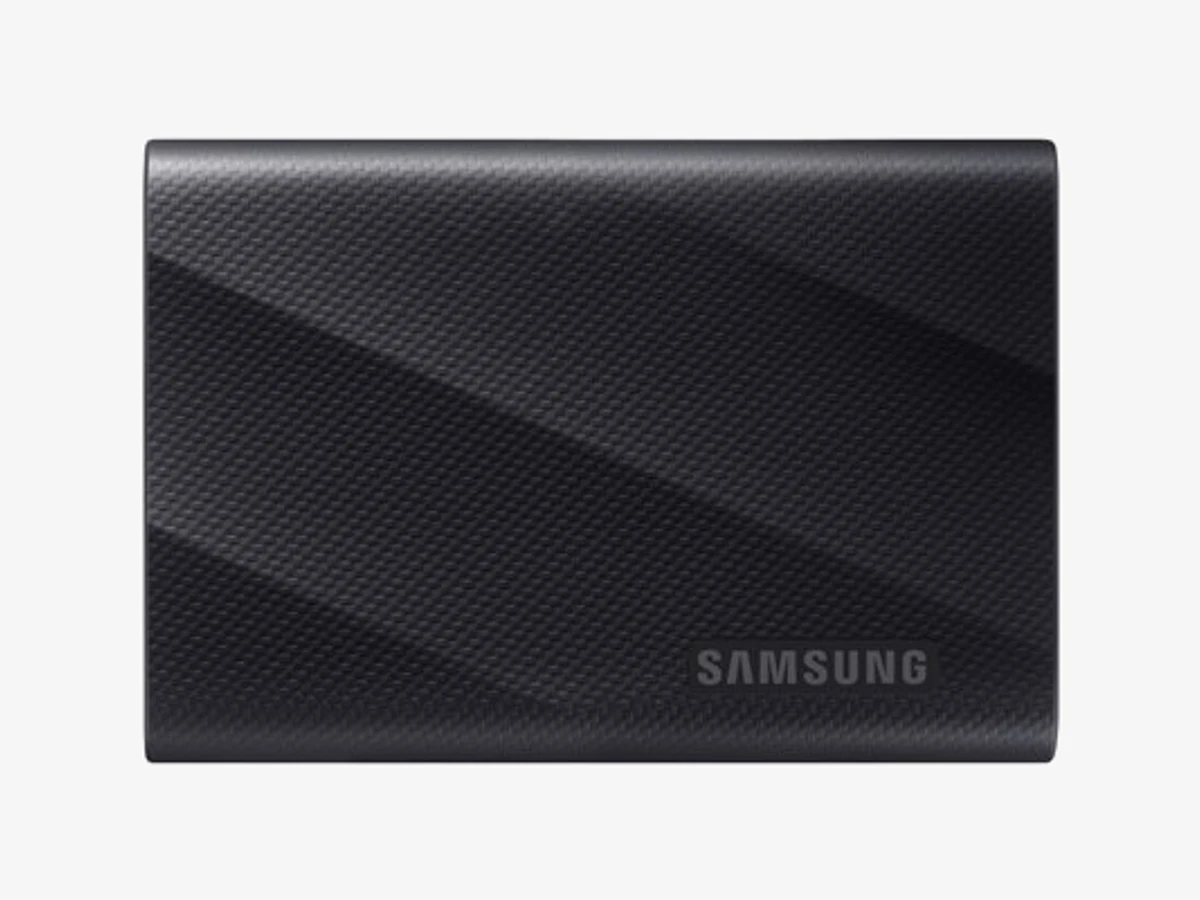
Photo: Samsung
Key specs
🏆 Best overall
1. Samsung Portable SSD T9
The T9 is the drive most editors should buy: up to 2,000 MB/s over USB 3.2 Gen 2×2, a thermal system designed to stop long transfers fading, and Samsung’s software and support behind it.
Editing punishes a drive in a specific way. It is not the first gigabyte that matters, it is the fortieth, when a card offload or a project copy is still running and a lesser drive has heated up and slowed down. Samsung’s Dynamic Thermal Guard is built for exactly that moment, managing heat so transfers hold their pace instead of sagging. Combined with sequential speeds of up to 2,000 MB/s read and 1,950 MB/s write on the 2TB model, the T9 keeps offloads short and 4K timelines responsive.
The catch is the interface, and it applies to every Gen 2×2 drive in this guide. Full speed needs a USB 3.2 Gen 2×2 port, common on Windows desktops and some Windows laptops. Macs do not support Gen 2×2 at all, so on any Mac the T9 runs at USB 3.2 Gen 2 speeds, around 1,000 MB/s. That is still plenty for editing 4K, but if you are Mac-only, the T7 Shield below gives you the same real-world speed for less. Samsung also validates the T9 for recording straight from cameras and iPhones, covered in the recording section below.
Technical features
- Interface: USB 3.2 Gen 2×2 (20Gbps), USB Type-C
- Sequential read: Up to 2,000 MB/s
- Sequential write: Up to 1,950 MB/s (1TB and 2TB), up to 2,000 MB/s (4TB)
- Capacities: 1TB, 2TB, 4TB
- Heat management: Dynamic Thermal Guard
- Drop resistance: Up to 3 meters
- Encryption: AES 256-bit hardware encryption
- Software: Samsung Portable SSD Software and Magician support
Pros
- Full 2,000 MB/s class speed on Gen 2×2 Windows machines
- Thermal guard targets the long-transfer slowdown editors actually hit
- Validated by Samsung for direct recording from cameras and iPhone Pro models
- Drop resistant to 3m despite the sleek metal shell
Cons
- Macs cap it at Gen 2 speeds, around 1,000 MB/s
- No IP water or dust rating
- Full speed depends on having the right port, which many laptops lack
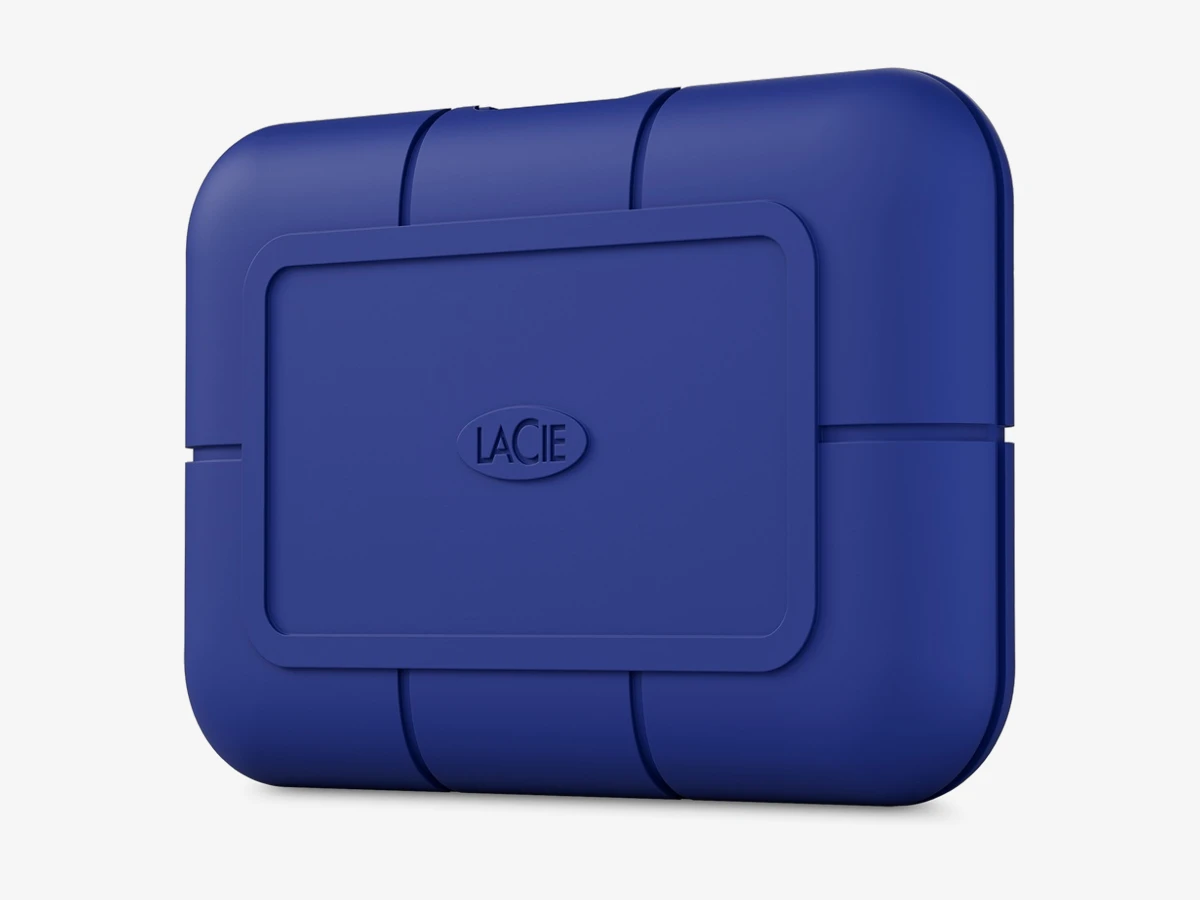
Photo: LaCie
Key specs
⚡ Thunderbolt 5 speed pick
2. LaCie Rugged SSD Pro5
The Pro5 is the fastest drive in this guide by a wide margin: up to 6,700 MB/s reads over Thunderbolt 5, in an IP68 Rugged shell with data recovery services in the warranty.
On a Thunderbolt 5 or Thunderbolt 4 machine, nothing else here is close. Multicam timelines, 6K and 8K footage, and huge project folders all move at internal-drive pace, and the drive still works over Thunderbolt 4 and USB-C hosts at reduced speed. The blue Rugged shell is sealed to IP68, shrugs off 3-meter drops, and Seagate rates it to survive being run over by a 2-ton vehicle. The 5-year warranty includes Rescue data recovery services, which no other pick matches.
Now the honest part, because LaCie prints it in its own datasheet and most roundups skip it. The headline write speed of up to 5,300 MB/s holds for the first 50GB of a transfer, the drive’s cache. After that, writes settle to up to 1,800 MB/s. That is still fast, and reads stay at up to 6,700 MB/s, but a 200GB card offload will spend most of its time at the lower figure. Know that before you buy, and the Pro5 is a superb drive. Expect the headline number all day, and you will be disappointed by any cached drive, not just this one.
Technical features
- Interface: Thunderbolt 5 (up to 80Gb/s), works with Thunderbolt 4 and USB-C hosts at reduced speed
- Sequential read: Up to 6,700 MB/s
- Sequential write: Up to 5,300 MB/s within the 50GB cache
- Write after cache: Up to 1,800 MB/s (maker’s datasheet)
- Protection: IP68 dust and water resistance
- Drop resistance: Up to 3 meters
- Capacities: 2TB (model STNA2000400), 4TB
- Warranty: 5 years, including Rescue data recovery services
Pros
- Fastest reads here by far on Thunderbolt 5 and 4 machines
- IP68 sealing, 3m drop rating, and a shell rated for a 2-ton vehicle
- Rescue data recovery included in the 5-year warranty
- Maker publishes the after-cache write speed instead of hiding it
Cons
- Writes fall to up to 1,800 MB/s after the 50GB cache fills
- Thunderbolt 5 computers are still uncommon
- No 1TB option, and overkill for single-camera 4K work
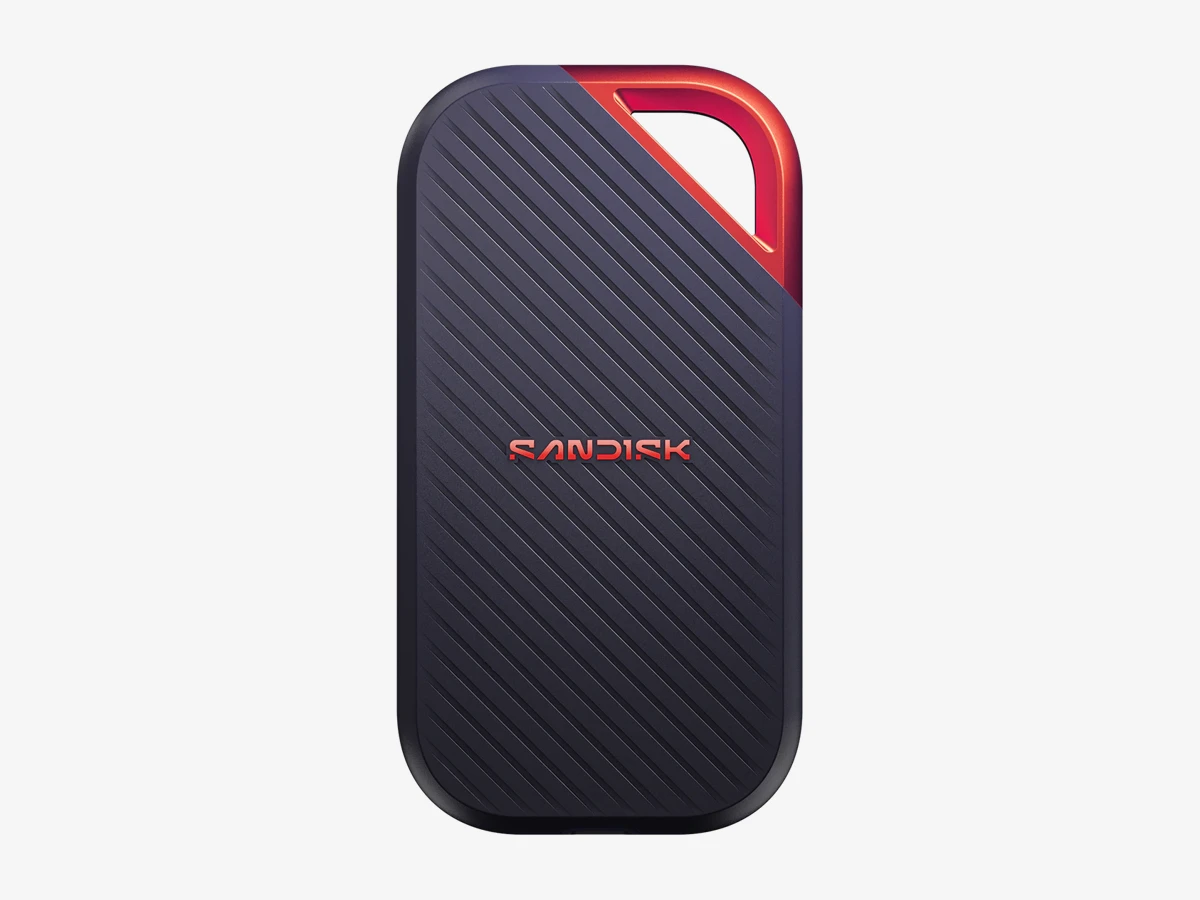
Photo: SanDisk
Key specs
💾 USB4 / capacity pick
3. SanDisk Extreme Professional PRO V3
The PRO V3 pairs USB4 burst speeds of up to 4,000 MB/s with the most useful number in this guide: SanDisk’s own stated average sustained write of 3,100 MB/s on the 2TB to 4TB models.
Most portable SSDs are sold on a burst figure measured over a short, flattering test. SanDisk does something rarer here and publishes the average sustained write speed for this drive, and 3,100 MB/s sustained is a serious number: it means long offloads and project copies keep most of their pace instead of collapsing once a cache fills. Add burst reads up to 4,000 MB/s over a USB4 host port, and timelines feel instant while transfers stay honest.
It is also the capacity pick. The V3 is the only drive in this guide offered at 8TB, which suits editors who keep a whole season of footage on the working drive. The shell carries IP65 sealing and a 3-meter drop rating, and the drive includes 256-bit AES hardware encryption. Two buying notes: full speed needs a USB4 host, and because SanDisk has sold several generations with similar names, check the model code when you buy. The current V3 is SDSSDE83.
Technical features
- Interface: USB4 (full speed needs a USB4 host)
- Burst sequential read: Up to 4,000 MB/s
- Burst sequential write: Up to 3,800 MB/s
- Average sustained write: 3,100 MB/s (2TB to 4TB models, maker’s figure)
- Protection: IP65 dust and water resistance
- Drop protection: Up to 3 meters
- Encryption: 256-bit AES hardware encryption
- Capacities: 2TB (SDSSDE83-2T00-G25), 4TB, 8TB
- Warranty: 5-year limited warranty
Pros
- Maker-stated sustained write figure, the strongest in this guide
- Only pick with an 8TB option for big working archives
- USB4 burst speeds up to 4,000 MB/s
- IP65 sealing plus 3m drop protection
Cons
- Full speed needs a USB4 host port
- On plain USB ports it falls back to that port’s speed
- Similar names across SanDisk generations make model checking essential
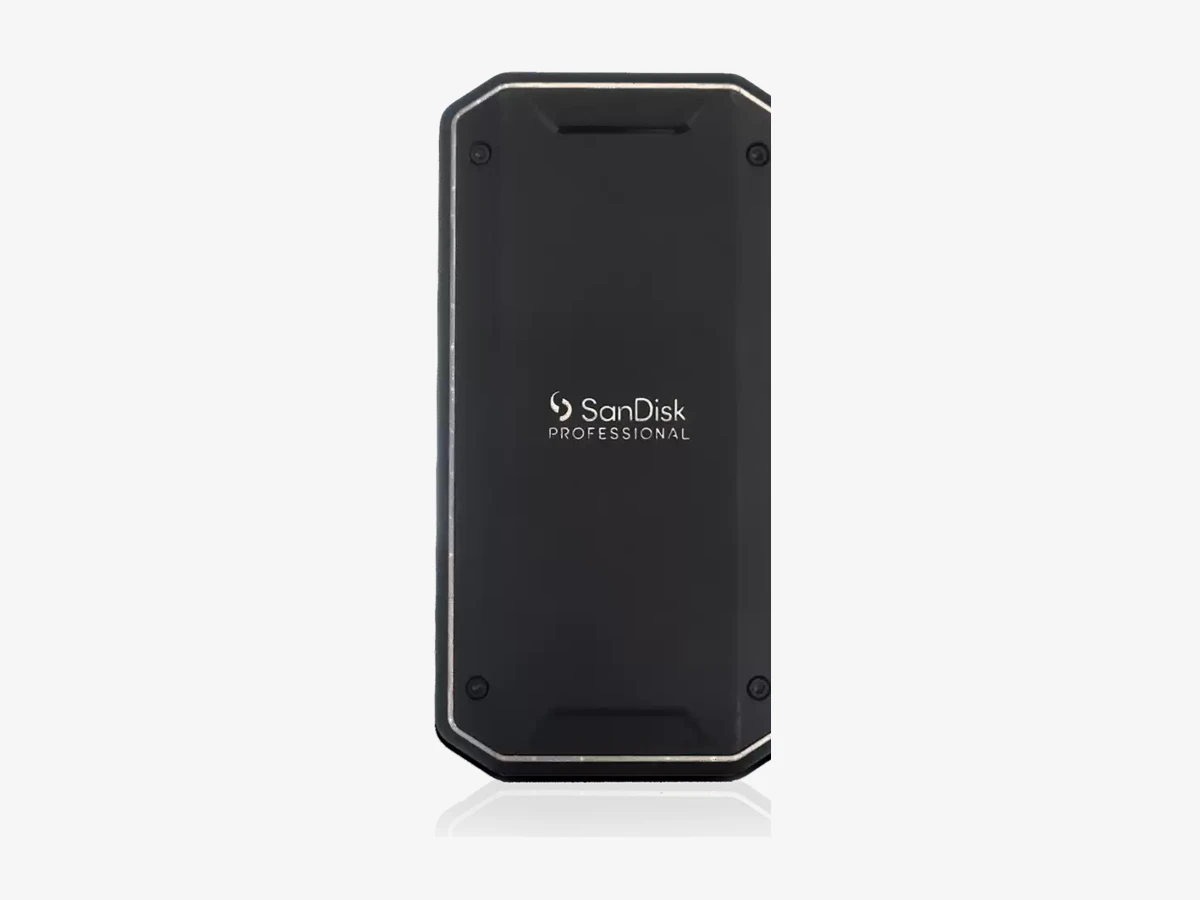
Photo: SanDisk
Key specs
🛡️ Strongest protection
4. SanDisk Professional PRO-G40
The PRO-G40 is the drive for bags that get thrown in car boots and shot in the rain: IP68 sealing, 3-meter drop and 4,000lb crush ratings, and dual-mode speed on Thunderbolt and USB.
Protection ratings are where this drive walks away from the field. IP68 is the highest sealing grade in this guide, matched only by the LaCie, and the 4,000lb crush figure is in a class of its own. An aluminum core doubles as a heatsink, pulling warmth away from the drive during long transfers, which is the quiet detail that keeps speeds steadier on a working day.
The dual-mode design is the other reason to buy it. Over Thunderbolt it reads at up to 3,000 MB/s and writes at up to 2,500 MB/s. Plug it into a plain USB 3.2 Gen 2 port, on a Mac or an older laptop, and it still runs at up to 1,050 MB/s read and 1,000 MB/s write. Some drives in this guide halve their speed the moment they meet the wrong port. The PRO-G40 never embarrasses itself on any machine, which is exactly what a drive that travels between your desk, a laptop and a client’s computer needs to do.
Technical features
- Interface: Dual-mode Thunderbolt 3 and USB Type-C
- Thunderbolt speeds: Up to 3,000 MB/s read, 2,500 MB/s write
- USB 3.2 Gen 2 speeds: Up to 1,050 MB/s read, 1,000 MB/s write
- Protection: IP68 dust and water resistance
- Drop protection: Up to 3 meters
- Crush resistance: Up to 4,000 lbs
- Cooling: Aluminum core acts as a heatsink
- Warranty: 5-year limited warranty
Pros
- Toughest rating set here: IP68, 3m drop, 4,000lb crush
- Fast on Thunderbolt and still full Gen 2 speed on plain USB
- Aluminum core helps long transfers stay cool
- 5-year warranty
Cons
- Thunderbolt 3 ceiling sits below the Thunderbolt 5 and USB4 picks
- Bulkier than the pocket drives here
- You pay for protection you may never test
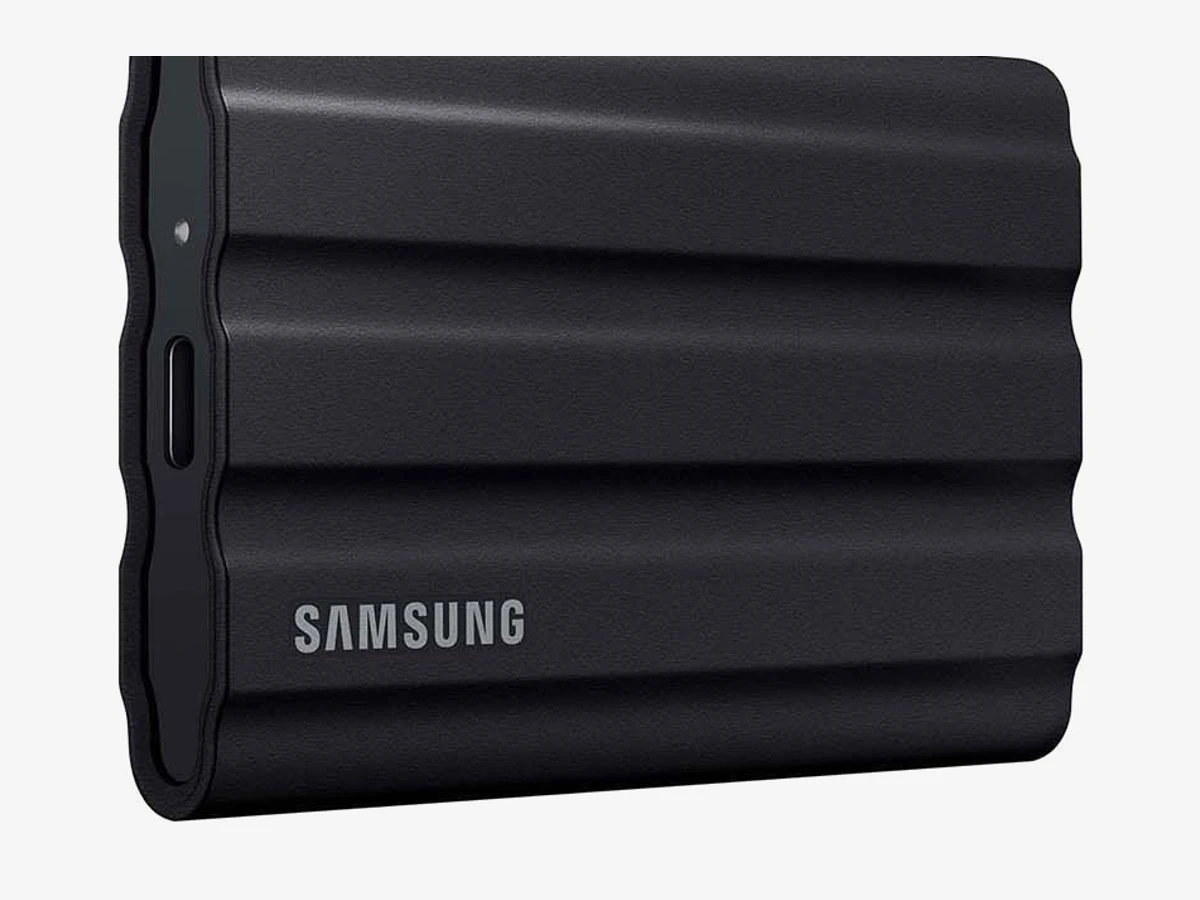
Photo: Samsung
Key specs
💰 Entry point that still edits 4K
5. Samsung Portable SSD T7 Shield
The T7 Shield is the sensible first editing drive: up to 1,050 MB/s on every USB-C laptop ever made, IP65 sealing, 3-meter drop protection, and no port lottery.
Its headline speeds are the lowest in this guide, and for most vloggers that will not matter. A single-camera 4K timeline needs a small fraction of 1,000 MB/s to scrub smoothly, and the T7 Shield delivers its full speed everywhere, because USB 3.2 Gen 2 is the one fast interface every modern laptop supports. This is the drive the faster picks fall back to matching when they meet a Mac. Buying it directly is not settling; on a Mac it is literally the same editing speed as the T9, with a tougher shell.
The rubberized Shield body is rated IP65 against dust and water jets and survives drops of up to 3 meters onto a metal plate in Samsung’s testing. Samsung also validates it for the direct-recording jobs covered below, including ProRes recording from iPhone Pro models and Blackmagic and Panasonic cameras, which makes it a genuine location drive rather than a desk-only one. The compromises are the 3-year warranty, the shortest here, and a hard speed ceiling: when you outgrow Gen 2, there is no faster mode to unlock.
Technical features
- Interface: USB 3.2 Gen 2 (10Gbps), USB Type-C
- Sequential read: Up to 1,050 MB/s
- Sequential write: Up to 1,000 MB/s
- Protection: IP65 dust and water resistance
- Drop resistance: Up to 3 meters
- Encryption: AES 256-bit hardware encryption
- Size and weight: 88 x 59 x 13mm, 98g
- Warranty: Limited 3-year
Pros
- Same full speed on every USB-C laptop, Macs included
- IP65 sealing and 3m drop protection in a 98g body
- Samsung-validated for direct recording from iPhones and cinema cameras
- The natural first drive before stepping up to Thunderbolt speeds
Cons
- Slowest headline speeds in this guide
- 3-year warranty is the shortest here
- No faster mode to grow into later
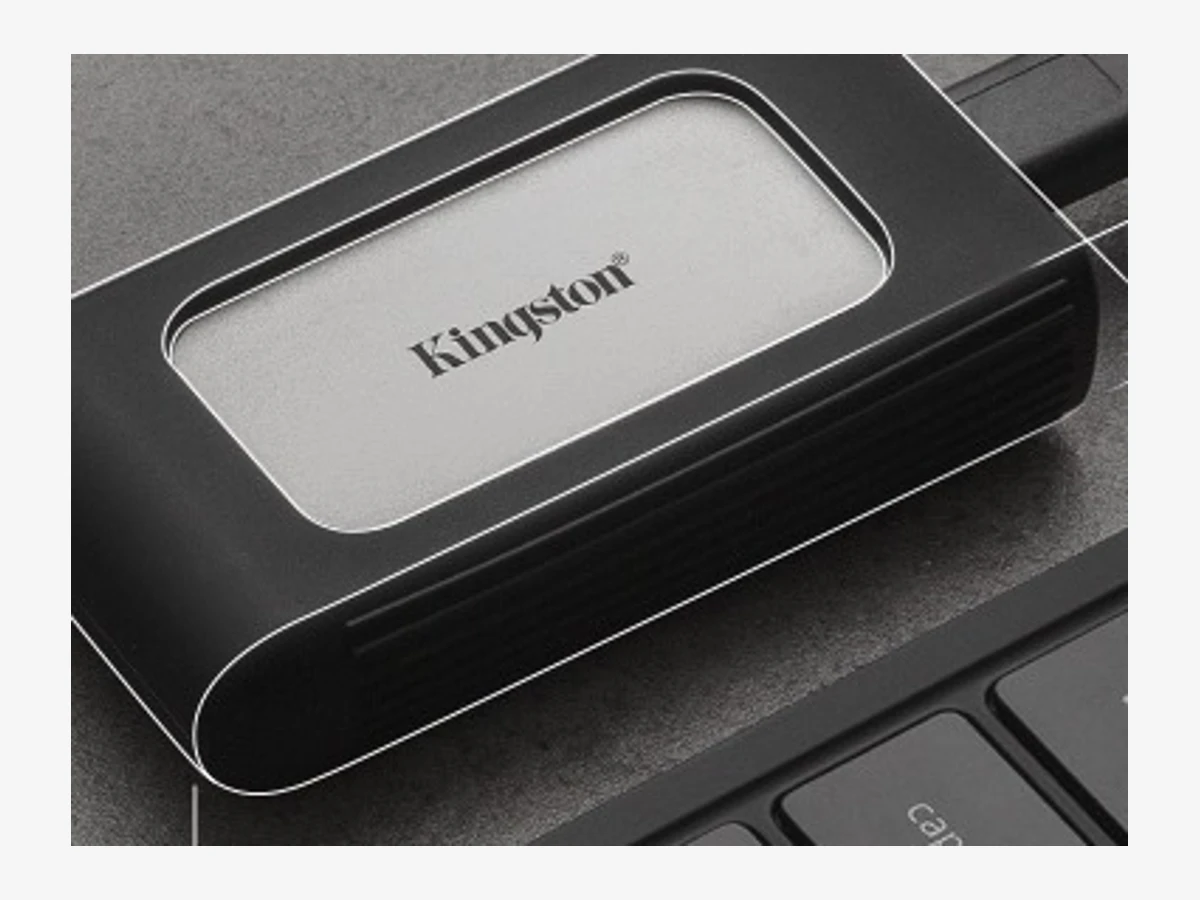
Photo: Kingston
Key specs
🪶 Lightest pocket drive
6. Kingston XS2000
At 28.9g, the XS2000 is less than a third of the weight of the next lightest drive here, and it still claims up to 2,000 MB/s in both directions over Gen 2×2.
This is the drive that lives in the small pocket of the camera bag and gets forgotten until it saves the day. It is the overflow drive when a card fills mid-trip, the shuttle drive that carries a project to a collaborator, and the second copy that travels in a different bag from the main drive, which matters for the backup routine below. Kingston includes a removable rubber sleeve in the box, and the ratings depend on it: with the sleeve fitted, the drive is IP55 rated against dust and water and drop tested to 6 feet. Bare, it carries no IP rating at all, so the sleeve is not packaging. Keep it on.
The interface caveat is the same Gen 2×2 story as the T9: full speed needs a Gen 2×2 port, and Macs will run it at Gen 2 speeds around 1,000 MB/s. At this size and price class that trade is easy to accept, because the XS2000’s job is to always be with you. A faster drive left at home edits nothing.
Technical features
- Interface: USB 3.2 Gen 2×2 (20Gbps), USB Type-C
- Sequential read: Up to 2,000 MB/s
- Sequential write: Up to 2,000 MB/s
- Capacities: 500GB, 1TB, 2TB, 4TB
- Size and weight: 69.54 x 32.58 x 13.5mm, 28.9g
- Protection: IP55 with the included rubber sleeve fitted
- Drop protection: Up to 6 feet (1.8m) with the sleeve fitted
- Warranty: 5-year limited warranty
Pros
- 28.9g: the lightest drive in this guide by a huge margin
- Up to 2,000 MB/s both ways on Gen 2×2 ports
- Perfect second drive for a two-bag backup routine
- Sleeve and cable included in the box
Cons
- IP55 and drop ratings only apply with the sleeve fitted
- Macs cap it at Gen 2 speeds, around 1,000 MB/s
- Tiny body is easy to misplace in a big bag
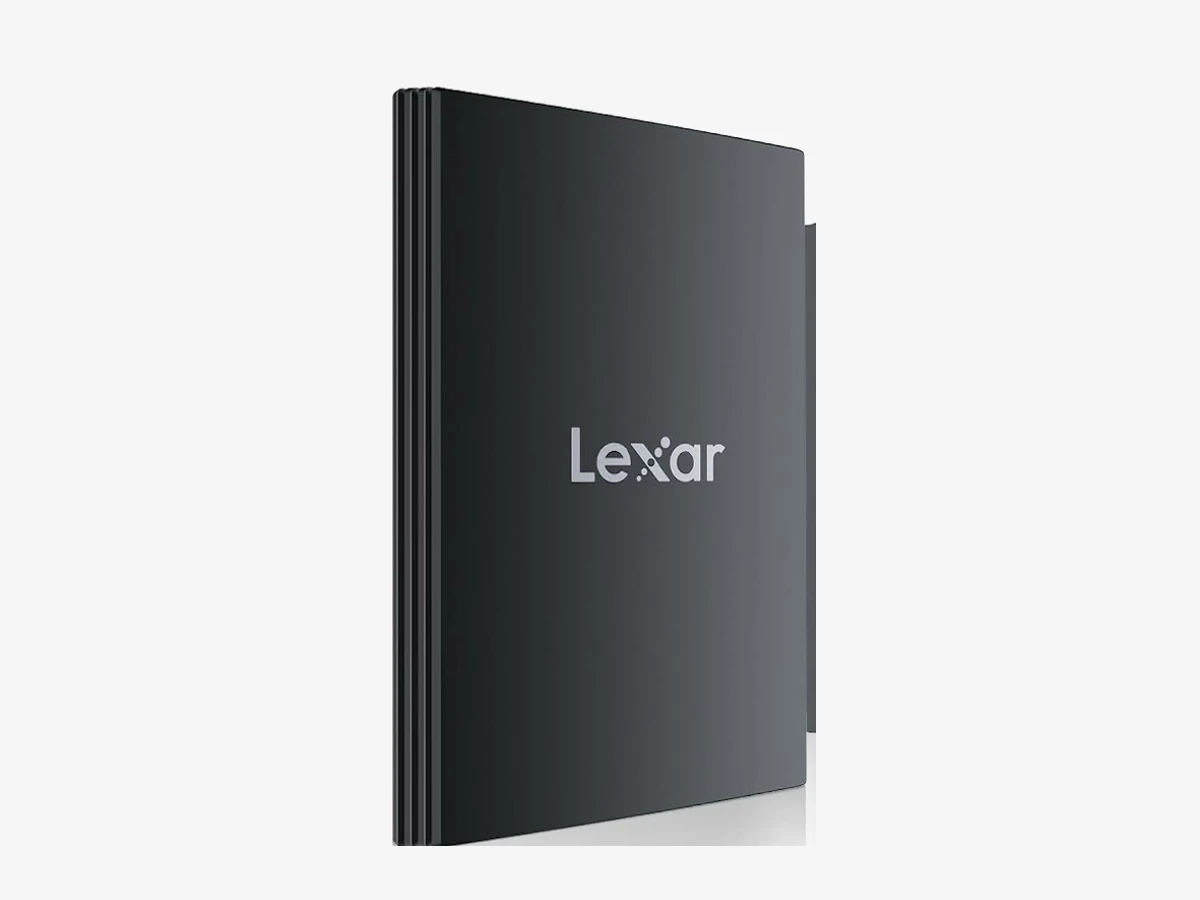
Photo: Lexar
Key specs
🎬 Direct-to-drive recording pick
7. Lexar Armor 700
The Armor 700 earns its place on one maker-confirmed feature: Lexar supports recording Apple ProRes straight to the drive at up to 4K 60 from an iPhone 15 Pro or Pro Max.
Recording to an external SSD changes how a phone shoots video. ProRes files are far too large for internal storage to be the plan, and a drive on a short cable turns an iPhone into a camera that can record high-quality footage for hours, then hand the same drive to the editing laptop with nothing to copy. Lexar states that support plainly for the Armor 700, and the flat, slim body, barely thicker than the phone itself, mounts neatly on a rig or slips into a shirt pocket between takes.
Around that headline it is a well-specced rugged drive: up to 2,000 MB/s read and write over Gen 2×2, IP66 sealing that sits between the T7 Shield’s IP65 and the IP68 pair, and 3-meter drop resistance at 80g. The familiar Gen 2×2 caveat applies for editing on Macs, where it runs at Gen 2 speeds, and Lexar’s portable SSD track record is shorter than Samsung’s or SanDisk’s. As a recording drive first and an editing drive second, it is the most interesting pick in this guide.
Technical features
- Interface: USB 3.2 Gen 2×2 (20Gbps), USB Type-C
- Sequential read: Up to 2,000 MB/s
- Sequential write: Up to 2,000 MB/s
- Direct recording: Supports Apple ProRes recording up to 4K 60 with iPhone 15 Pro and Pro Max
- Protection: IP66 dust and water resistance
- Drop resistance: Up to 3 meters
- Size and weight: 86.2 x 54.4 x 13.2mm, 80g
- Capacities: 1TB, 2TB, 4TB
- Warranty: 5-year limited warranty
Pros
- Maker-supported iPhone ProRes recording up to 4K 60
- IP66 sealing and 3m drop resistance in a slim body
- Up to 2,000 MB/s both ways on Gen 2×2 ports
- Flat shape mounts cleanly on a phone rig
Cons
- Macs cap it at Gen 2 speeds, around 1,000 MB/s
- Shorter track record than the Samsung and SanDisk drives
- Recording support is stated for iPhone Pro models, not every camera
USB and Thunderbolt speeds, explained plainly
Four connections matter. USB 3.2 Gen 2 runs at about 1,000 MB/s and works everywhere. USB 3.2 Gen 2×2 doubles that to about 2,000 MB/s but does not exist on Macs. USB4 reaches up to 4,000 MB/s class bursts. Thunderbolt 4 and 5 are the fastest options here, up to 3,000 MB/s and 6,700 MB/s respectively on the drives that use them.
Every drive in this guide uses the same USB-C plug shape, which is where the confusion starts. The plug tells you nothing. What matters is the speed standard of the port on your computer and the standard inside the drive, because the slower of the two wins. A 2,000 MB/s drive in a 1,000 MB/s port is a 1,000 MB/s drive.
USB 3.2 Gen 2 (10Gbps) is the universal baseline: real speeds around 1,000 MB/s, supported by every modern laptop. USB 3.2 Gen 2×2 (20Gbps) doubles the lanes and the speed, and appears on many Windows desktops and some Windows laptops, but Apple has never supported it, so every Gen 2×2 drive in this guide runs at Gen 2 speed on a Mac. USB4 (40Gbps) is the newer universal standard that carries drives like the SanDisk PRO V3 to 4,000 MB/s class bursts. Thunderbolt is the certified high-end route: Thunderbolt 3 and 4 drives such as the PRO-G40 reach up to 3,000 MB/s, and Thunderbolt 5 lifts the Pro5 to its 6,700 MB/s reads.
The buying rule is simple. List the fastest port on the machine you edit on, then buy the drive that matches it. Anything faster than your port is money spent on a number you will never see, and anything slower leaves your port wasted.
Headline speed vs sustained speed: the number that matters on a shoot day
Headline speeds are measured on short bursts. Editing work is long transfers, and many drives slow down once their cache fills or they heat up. Where a maker publishes a sustained figure, this guide prints it beside the headline, because the sustained number is the one your offload actually runs at.
Two drives in this guide show how differently brands handle this. LaCie’s own datasheet for the Pro5 states that its 5,300 MB/s write speed holds within a 50GB cache, and that writes settle to up to 1,800 MB/s afterwards. SanDisk publishes an average sustained write of 3,100 MB/s for the PRO V3, which is why the V3, not the Pro5, is this guide’s sustained-write pick despite the lower headline. Neither brand is cheating: caches are a legitimate design. The problem is only with roundups that print the burst figure and stop.
Heat is the second cause of slowdowns, and it is why Samsung’s Dynamic Thermal Guard on the T9 and the PRO-G40’s aluminum core get mentioned in their cards. A drive that manages heat holds its pace through a 200GB offload. A drive that cannot will start fast and finish slow, and you will feel it most on the biggest, most urgent transfers of the day.
Practical takeaway: for scrubbing a timeline, almost any drive here is fast enough, because playback needs far less than even Gen 2 speed. For offloading and copying, judge drives by sustained figures and thermal design, not by the biggest number on the box.
Why there is no Crucial drive in this guide
Because Crucial is leaving the consumer business. Micron, Crucial’s parent company, announced on 3 December 2025 that it is exiting the Crucial consumer business to focus on enterprise and data center customers.
Older roundups, including several of the top results for this topic, still recommend Crucial’s X9 Pro and X10 Pro as default picks. Those recommendations were reasonable when written. They are out of date now. Under Micron’s announcement, Crucial consumer product shipments continue through February 2026, and Micron states that it will provide continued warranty service and support for Crucial products.
That does not make a Crucial drive already on your desk a problem, and existing owners should hold Micron to the warranty commitment it has made. But a buying guide written in October 2026 should not send new buyers to a consumer line its maker is winding down, with stock thinning and no successor products coming. Every drive in this guide comes from a maker still building for this market.
Recording straight to an SSD: the workflow no older guide covers
Yes, several cameras and every recent iPhone Pro can record video directly to a USB-C SSD, skipping the card entirely. The Lexar Armor 700 is maker-supported for iPhone ProRes recording, and Samsung validates the T9 and T7 Shield against its own camera and iPhone compatibility table.
The workflow is simple: mount the drive on your rig, plug it into the camera or phone, and record. The footage lands on the drive, which then plugs straight into your editing machine. On a travel shoot that removes the two slowest steps of the day, card offloads and file copies, and it removes the capacity ceiling of memory cards for long ProRes or RAW recordings. Our guide to SD cards for vlogging covers when cards still make more sense.
Samsung’s published compatibility table is the most useful document here. It validates the T9 and T7 Shield for ProRes recording from iPhone 15 Pro models at 4K 60 and iPhone 16 Pro models at up to 4K 120, Blackmagic cameras including the Pocket Cinema Camera line recording Blackmagic RAW, Fujifilm’s GFX100 II recording ProRes, and Panasonic’s GH6, G9M2 and S5M2X recording ProRes 5.7K. Lexar states Armor 700 support for Apple ProRes up to 4K 60 from iPhone 15 Pro and Pro Max. Before relying on any drive for recording, check your camera maker’s own list: support is per camera and per format, and a drive that records from one body may not be validated for another.
One discipline matters more with direct recording than with cards: the drive holding the only copy of a take is also the drive riding around in your bag. Back it up the same day, using the routine in the next sections, before you format or reuse it.
How much footage fits on 2TB? The maths
At the 100 Mbps bitrate many vlogging cameras use for 4K, an hour of footage is about 45GB, so a 2TB drive holds roughly 44 hours. At 400 Mbps that drops to about 11 hours, and 4K ProRes fills 2TB in around 9 hours. Figures are approximate and based on the stated bitrates.
| Recording format (typical) | Data rate | Per hour | Hours on 2TB (approx) |
|---|---|---|---|
| 1080p vlog footage | 50 Mbps | About 22.5GB | About 88 hours |
| 4K H.264 or H.265, standard quality | 100 Mbps | About 45GB | About 44 hours |
| 4K high quality, 10-bit | 200 Mbps | About 90GB | About 22 hours |
| 4K All-I or high-bitrate modes | 400 Mbps | About 180GB | About 11 hours |
| 4K ProRes 422 HQ | About 220GB per hour | About 220GB | About 9 hours |
Two lessons hide in that table. First, bitrate, not resolution, decides how fast a drive fills: efficient 4K codecs are gentle, while ProRes and All-I modes eat a 2TB drive in a single long shoot day. Second, a working drive needs headroom beyond the footage itself: project files, exports, cache and a safety margin. That is why this guide judges drives at 2TB rather than 1TB. For most vloggers 2TB is the capacity where the drive stops being a shuttle and becomes the library.
An editing drive is not a backup
A fast editing drive holds one copy of your footage, and one copy is not a backup, no matter how rugged the drive is. Keep at least two copies of anything you cannot reshoot, on separate devices, before you format a card or a recording drive.
Portable SSDs feel safe because they survive drops that would kill a spinning hard drive, and the ratings in this guide are real. But drops are not the main way footage dies. Drives get lost, stolen, left in cafes and corrupted, and the footage editors mourn is almost always the footage that existed in exactly one place. Ruggedness protects against one risk on a long list.
The routine that works on location is simple. Offload or record to the editing drive, copy the day’s footage to a second drive before bed, and keep the two drives in different bags. A lightweight second drive like the Kingston XS2000 exists in this guide largely for that job. Our full guide to how to back up video footage covers the complete system, including what to do when you get home.
Formatting: exFAT, APFS or NTFS?
Choose exFAT if the drive moves between Mac and Windows or records from a camera or phone. Choose APFS for a Mac-only editing drive, and NTFS for a Windows-only one. Most portable SSDs arrive formatted as exFAT for exactly this reason.
exFAT is the universal option: both operating systems read and write it natively, it handles files far larger than the 4GB limit of old FAT32, and cameras and phones that record to external drives generally expect it. Its weakness is the lack of journaling, which makes it slightly less forgiving if a cable is pulled mid-write. APFS adds snapshots, encryption and better crash protection on Macs, and NTFS does the same job on Windows, but each locks the drive to one side of the fence without extra software. Rule of thumb: a drive that travels or records gets exFAT; a drive that never leaves one desk gets that system’s own format.
Frequently asked questions
Can I edit 4K video directly from an external SSD?
Yes. Even the slowest interface here, USB 3.2 Gen 2 at around 1,000 MB/s, is many times faster than a 4K video stream needs for smooth playback and scrubbing. Faster drives pay off in offloads, exports and multicam work rather than basic timeline playback, which is why the T7 Shield still edits 4K happily.
Why is my 2,000 MB/s SSD only reaching about 1,000 MB/s on my Mac?
Because that speed comes from USB 3.2 Gen 2×2, which Apple has never supported on Macs. The drive falls back to USB 3.2 Gen 2 at around 1,000 MB/s. The drive is not faulty. Mac editors who want more than Gen 2 speed should look at the Thunderbolt and USB4 picks in this guide instead.
How much 4K footage fits on a 2TB SSD?
It depends on bitrate. At 100 Mbps, about 44 hours. At 200 Mbps, about 22 hours. At 400 Mbps, about 11 hours. ProRes 422 HQ at 4K fills 2TB in roughly 9 hours. The full table is in the capacity section above, and all figures are approximate.
Can I record video straight to an external SSD from my camera or phone?
Often, yes. Recent iPhone Pro models record ProRes to USB-C drives, and many Blackmagic, Panasonic and Fujifilm cameras record to SSD over USB. Support is specific to each camera and format, so check the maker’s compatibility list. Lexar states Armor 700 support for iPhone ProRes up to 4K 60, and Samsung validates the T9 and T7 Shield against its published camera table.
Should I format my SSD as exFAT, APFS or NTFS?
exFAT if the drive moves between Mac and Windows or records from a camera or phone. APFS if it only ever works with Macs. NTFS if it only ever works with Windows. Most drives in this guide arrive as exFAT, which is the right default for a travelling editing drive.
Is it safe to buy a Crucial SSD in 2026?
Buy with your eyes open. Micron announced on 3 December 2025 that it is exiting the Crucial consumer business, with consumer shipments continuing through February 2026 and warranty service continuing for existing products. A Crucial drive is not suddenly a bad drive, but this guide recommends brands that are staying in the consumer market.
Can my editing SSD double as my backup?
No. If the footage exists only on the editing drive, it exists in one place, and one place is not a backup. Keep a second copy on a separate device, ideally travelling in a different bag, before you format cards or recording drives. Rugged ratings protect against drops, not against loss or theft.
Is a DIY NVMe enclosure as good as a finished portable SSD?
It can be fast, and it can work out cheaper per terabyte, but the result depends on the enclosure’s chipset, its cooling and the drive you pair with it. Finished portable SSDs carry tested IP and drop ratings, tuned thermal behavior and a single warranty. For a desk drive an enclosure is a fair project. For location work, the finished drives in this guide are the safer buy.
What is the difference between Thunderbolt and USB4?
Both use the same USB-C plug. USB4 is the USB standard itself, with speeds up to 40Gbps in the drives here. Thunderbolt is Intel and Apple’s certified standard built on it, with guaranteed minimum performance. In practice, what matters is the rated speed of your computer’s port and the drive, not which logo is printed on the box.
Should I buy 1TB or 2TB for video editing?
2TB for anyone editing regularly. A 1TB drive fills quickly once a few shoots, project files and exports pile up, and SSDs are happiest with free headroom. This guide judges every pick at 2TB for that reason. A 1TB or smaller drive still makes sense as a second shuttle or backup drive, which is the Kingston XS2000’s best role.
Can one SSD be both my recording drive and my editing drive?
Yes, and that is the appeal of direct recording: footage lands on the drive you then edit from, with no copying step. Just treat backup as a separate job. At the end of the shoot day, copy the drive to a second device before you record over or format anything.
Do I really need an IP68 rated drive?
Only if your shooting demands it. IP65, on the PRO V3 and T7 Shield, already covers dust and rain. IP68, on the PRO-G40 and Pro5, adds full immersion protection. For most creators the drop rating matters more day to day than the difference between IP65 and IP68, and every drive in this guide is drop rated to at least 1.8 meters.
The bottom line
Buy the Samsung T9 for the best balance of speed, thermals and support. Buy the T7 Shield if you edit on a Mac or want the toughest simple drive. Step up to the LaCie Pro5 or SanDisk PRO V3 only if your machine has the Thunderbolt 5 or USB4 port to feed them.
Every drive in this guide will edit 4K. They split on the work around the edit: how fast a card offload finishes, whether the drive can record the footage in the first place, how it behaves on your specific laptop, and whether it survives the bag it travels in. Match the drive to your port, judge it by sustained figures rather than box headlines, and keep a second copy of everything on something else.
Start with the Samsung Portable SSD T9 if you edit on Windows, the Samsung Portable SSD T7 Shield if you edit on a Mac, and the Lexar Armor 700 if recording ProRes from an iPhone is your main job.
This guide is research-based curation: we compared manufacturer specifications, published reviews, and current prices. Read how we choose.