
Last updated: October 2026
Recording sound on a separate recorder is the easiest quality upgrade a vlogger can make, and syncing it back to the picture is the price of admission. This guide covers the job in order: the reference track that makes sync possible, the clap method, auto sync by waveform, the manual nudge, the two problems that defeat beginners, drift and variable frame rate phone footage, and the timecode setup that makes most of it disappear.
The short version
- Always record scratch audio in the camera. Every auto sync tool works by matching your good recording to that rough camera sound.
- Clap once at the start of every take, and at the end of long ones; the spike is your sync point and your drift measurement.
- Let the editor sync by waveform first. Premiere Pro and DaVinci Resolve both align clips automatically; merge or link the result so it stays together.
- Starts in sync and ends out means drift, not a bad sync. Fix the rate, or convert phone footage to constant frame rate before syncing.
- Check the head and the tail before you cut; two minutes of checking beats an hour of chasing frames.
On this page
- Why separately recorded audio never lines up on its own
- First, diagnose: a fixed offset or drift?
- Scratch audio: the reference track every sync method needs
- The clap method: syncing by eye and ear
- Let the editor do it: automatic sync by waveform
- Manual sync and the subframe nudge
- Fixing drift: when the start matches and the end does not
- Phone footage and variable frame rate: the drift you cannot nudge away
- Timecode: the upgrade that skips syncing almost entirely
- Two cameras and a recorder: syncing a multicam vlog
- Shoot the next one so it syncs itself: prevention habits
- Frequently asked questions
Why separately recorded audio never lines up on its own
Because the camera and the recorder have two separate clocks and two separate start times, so the editor receives two files that share no common reference, and lining them up is a job someone or something has to do deliberately.
Separate recording survives because it works: a recorder near your mouth hears a better voice than a camera across the room. The vlogger version is simpler: one camera and one recorder, the recorder near your mouth or a lavalier on the speaker feeding it, while the camera hears the room. Either way you trade a few minutes of sync work for sound no camera microphone can match.
Three separate problems hide inside the word sync. The files start at different moments, which is an offset. The devices run at microscopically different speeds, which becomes drift on long takes. And phone footage may not even keep a steady frame rate, which bends time inside a single clip. Diagnose first: the wrong fix wastes an evening.
First, diagnose: a fixed offset or drift?
Play the start of the take, then the end. If the sound is wrong by the same amount in both places, it is a fixed offset, and one alignment fixes the whole clip. If the start is right and the end has wandered, it is drift, and no single alignment will save it.
Watch a hard consonant or a laugh near the head of the take, then jump to the last minute and watch again. A fixed offset usually comes from the two devices starting at different times. Drift means the two clocks disagree about how long a second is, or that the video advances at no constant pace.
| What you see | What it means | Where the fix lives |
|---|---|---|
| Wrong at the start, wrong by the same amount at the end | Fixed offset | Clap sync, auto sync, or one nudge |
| Right at the start, late or early by the end | Drift | Rate adjustment, or constant frame rate conversion first |
| Right in some stretches, wrong in others, no pattern | Variable frame rate footage | Convert the clip before syncing anything |
Scratch audio: the reference track every sync method needs
Scratch audio is the rough sound your camera records for itself while the real recorder captures the good version. It exists for one purpose: automatic sync tools compare waveforms and slide the good recording into place, so a camera track that is switched off or too quiet makes every later step harder.
Treat the camera microphone as a witness, not a performer. It does not need to sound pleasant; it needs to hear the same events as the recorder, clearly enough for software to recognise the shape. Leave it on for every take, at a sensible level rather than pinned or silent, and never delete the camera track until the good audio is synced, checked and locked. After that, mute or remove it.
Distance is the enemy: a camera across a noisy street may hear mostly traffic, and waveform matching struggles when the two recordings share too little. Get the camera as close as the shot allows, and give both devices one loud, sharp event; that event is the next section’s subject. Capture craft itself lives in our guide to recording better vlog audio; this article starts where that one ends.
The clap method: syncing by eye and ear
Clap once, sharply, in view of the camera after both devices are rolling. In the editor, find the spike that clap leaves in both waveforms, slide the recorder’s spike onto the camera’s spike, and the take is synced. A clapperboard does the same job with a cleaner spike and a visible contact frame.
It asks nothing of the gear: any camera, any recorder, any editor with visible waveforms can do it.
- Roll everything first, clap second; a clap before the recorder starts is not a sync point.
- Clap in frame, close to the lens, once. Three casual claps blur together on the waveform; one decisive clap, or the snap of a slate, makes one spike.
- Say the take out loud as you clap; it rescues you when ten similar takes sit in a row.
- On long takes, clap again at the end; a tail clap turns drift from a suspicion into a measurement.
- In the editor, zoom right in. Find the spike in each waveform and drag until the spikes share a frame. Then listen: played together, synced tracks sound like one louder voice; a frame or two out, they echo like a canyon.
If you forgot to clap, hunt for a substitute event: a door closing, a mug set down hard, the first explosive consonant of a sentence. Anything short, loud and visible will do; aligning file starts will not.
Let the editor do it: automatic sync by waveform
Every major editor can align a video clip and a separate audio recording automatically by comparing waveforms, as long as the camera recorded scratch audio of the same event. Premiere Pro does it with Synchronize or Merge Clips; DaVinci Resolve with Auto Sync Audio in the Media Pool. Run it first, then verify head and tail yourself.
Premiere Pro. Put the camera clip and the recorder file on separate timeline tracks, select both, then use Clip, Synchronize and choose Audio as the synchronize point, telling it which channel carries the camera sound. The same dialog also syncs by Clip Start, Clip End or Timecode. For a tidier workflow, select the clips in the Project panel instead and use Clip, Merge Clips: the merged clip behaves like a single source clip, can carry the video plus up to 16 audio channels, and leaves your originals untouched.
DaVinci Resolve. Keep each clip’s video and audio in the same Media Pool bin, select them, right click and choose Auto Sync Audio, Based on Waveform. If your camera and recorder share timecode, Based on Timecode does it from the numbers instead of the sound. The Append Tracks variants add the recorder audio alongside the camera audio instead of replacing it, the safer choice while checking. Resolve’s manual suggests syncing in small batches, a day or a scene at a time.
CapCut and the rest. Recent desktop versions of CapCut offer the same waveform based auto sync for selected timeline clips; if your build does not show one, the clap and manual methods work in any editor with waveforms.
Auto sync fails in predictable ways. It needs scratch audio that resembles the recording, so a camera that heard mostly wind or a different room defeats it. It struggles when several clips sound alike, so work in small batches. And it aligns the start while saying nothing about drift, so verify anyway: head, middle and tail, before cutting.
Manual sync and the subframe nudge
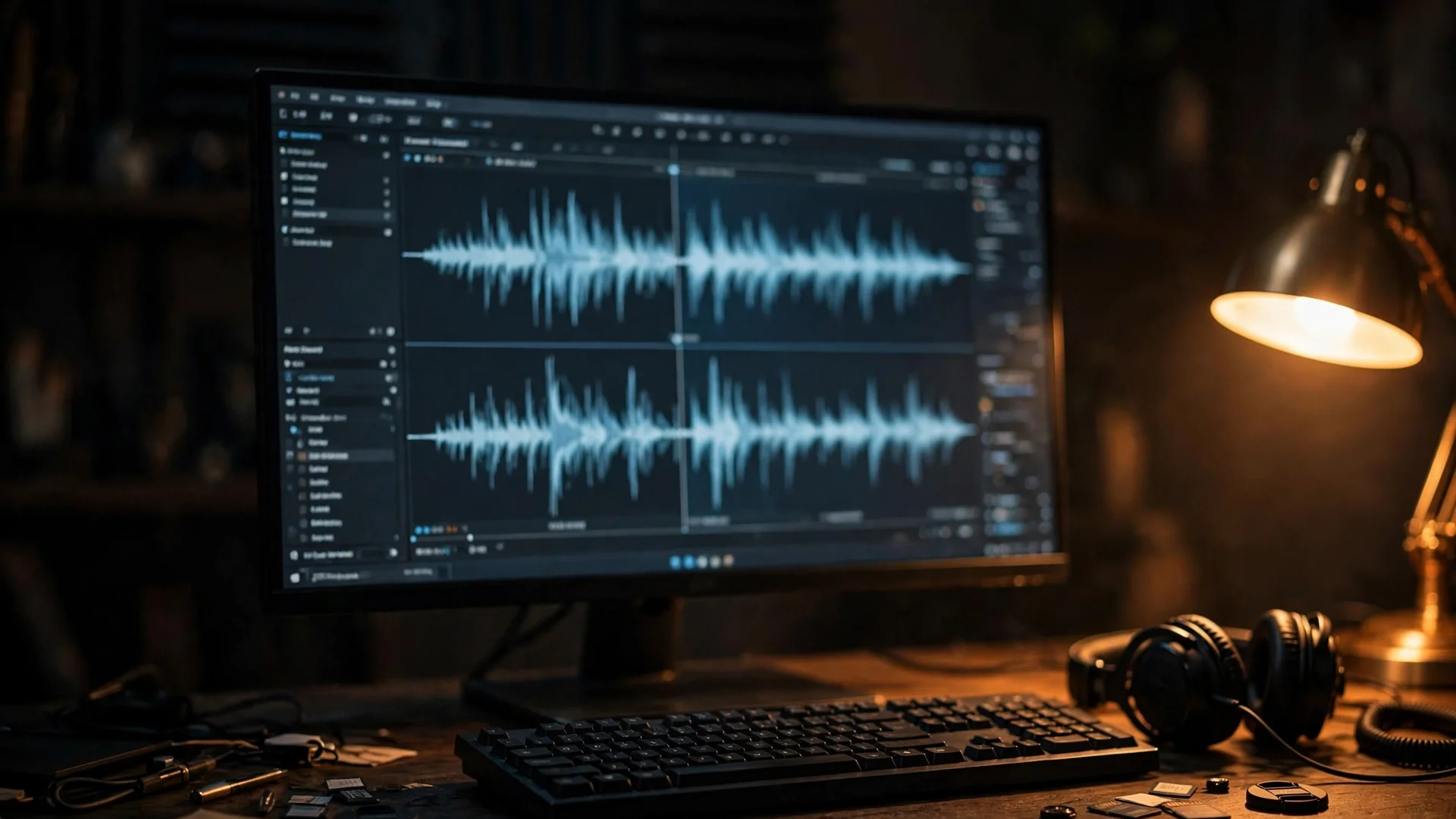
When auto sync misses or your editor has none, stack the recorder track under the camera track, zoom into a sharp event, and drag the audio until the waveforms peak together. If that is close but not exact, nudge in steps smaller than a frame: at 30 frames per second a frame is about 33 milliseconds, and speech can sit visibly wrong inside that gap.
Editors normally move clips a whole frame at a time. Premiere Pro’s Timeline panel menu offers Show Audio Time Units, which switches the ruler to samples and lets you slip audio by tiny increments. The pattern is simple: unlink the audio, nudge while listening for the echo to collapse into a single voice, then link the pair so later edits move them together. Judge by consonants and knocks, not vowels, which smear across several frames.
Manual sync takes a different shape when the camera recorded nothing at all. With no waveform to match, you align the recorder’s spike from a visible clap against the frame where the hands meet, then fine tune on lip movement. Slower, and the strongest argument for the habits in the final section.
Fixing drift: when the start matches and the end does not
Drift means the recorder and the camera disagree about the length of the take, so syncing the start guarantees a wrong ending. Measure it with a clap at each end, then stretch or squeeze the audio by the measured percentage, usually a few hundredths of one percent, until the tail clap lands on its frame.
No two consumer clocks tick at exactly the same rate. Over a two minute clip the difference hides inside a frame; over a forty minute interview it can grow to several frames. The tail clap is the measuring instrument: sync the head clap, jump to the tail, and count how far the recorder’s spike sits from the camera’s. That distance, divided by the length of the take, is your correction. A tail spike 0.2 seconds late in a 30 minute take is an error of about 0.011 percent.
Apply the correction to the audio, not the picture. In Premiere Pro, select the audio clip, open Clip, Speed/Duration, enter the adjusted percentage, and tick Maintain Audio Pitch so voices stay natural; the Rate Stretch tool does it by dragging the clip’s end to the tail clap. Resolve offers Change Clip Speed for the same small percentages. If the tail is late, the audio is running long: set its speed a hair above 100 percent by your measured figure, then recheck both ends. If percentages fight you, the honest fallback is to cut the audio at a natural pause every few minutes and nudge each segment back into place.
One more suspect deserves a check before you stretch anything: the sample rate. Video projects run at 48 kHz; some recorders default to the music world’s 44.1 kHz. A wrong rate does not cause slow wander, though: audio played at the wrong rate runs about nine percent fast or slow, an obvious speed and pitch error, not a drift that creeps in over a long take. Set every recorder to 48 kHz for video work; if a file turns out to be 44.1, convert a copy to 48 kHz before syncing so the project rate matches.
Phone footage and variable frame rate: the drift you cannot nudge away
Phones and screen recorders often save video at a variable frame rate, varying the spacing between frames to save space. Editors build timelines at a constant rate, so a variable rate clip plays at slightly the wrong speed in stretches, and good sync dissolves unevenly. Convert the clip to constant frame rate first, then sync.
This is the drift with no clean pattern: right here, wrong there, right again later, because the phone changed its pacing as it recorded. No rate adjustment fixes an error that is not constant. The reliable cure happens before the edit: run the phone clip through a converter such as HandBrake with Constant Framerate chosen and the frame rate set to the rate the phone was set to shoot; HandBrake’s own documentation describes that mode as making the output constant rate at the rate you set. Then sync the converted copy, never the original.
Better still, stop the problem at the lens: several phone camera apps can lock a constant frame rate while recording, and a phone B camera behaves far better in the edit when it does. The frame rate you shoot is its own decision, covered in our guide to vlogging frame rates, explained, and the settings that keep the finished video sharp live in our export settings guide. For footage already shot: convert first, sync second, every time.
Timecode: the upgrade that skips syncing almost entirely
Timecode stamps every frame and every audio sample with the same clock, so files from different devices line up by their numbers instead of by their sound. Feed the same timecode to the camera and the recorder from one shared timecode source, and the editor’s sync by timecode command aligns a whole shoot in seconds.
The vlogger scale version is a pair of pocket timecode boxes, from makers such as Tentacle Sync or Deity. Sync the boxes to each other, plug one into the recorder and one into the camera, and record. Tentacle’s own support pages describe the two ways a device accepts the signal: gear with a dedicated timecode input takes a line level signal and writes the timecode into the file, while a camera without one records the timecode as a sound signal on a spare audio track, which the maker’s software converts. They also warn that not every editor can read timecode carried on an audio track, so test the workflow on a throwaway clip first. Some recorders and cameras generate timecode themselves and can be jam synced from one source at the start of the day.
Honest limits: timecode aligns starts to the frame, but two devices with disagreeing clocks can still drift apart over a very long take, so the tail check from the drift section stays worth doing. For a solo vlogger, waveform sync is free and fast; timecode earns its money when devices multiply: two cameras, event work, or a weekly podcast setup. Below that scale it is a luxury; above it, syncing becomes merely checking.
Two cameras and a recorder: syncing a multicam vlog
Sync every angle to the one recorder track, not to each other. Auto sync each camera clip against the master audio in the Media Pool or as merged clips, check each angle at the head and tail, and only then build the multicam clip.
The recorder is the sun everything orbits, because it holds the voice the audience will hear. Each camera needs its own scratch audio for waveform matching, so leave both camera mics on, even on a wide angle. Once each angle is synced, both editors can assemble the angles into a multicam clip you cut like a single take, while the master audio runs untouched underneath. Keep the order strict: sync first, verify second, multicam third; building the multicam clip from unsynced angles bakes the error into every cut. The wider workflow that keeps a project moving is covered in our guide to editing vlogs faster.
Shoot the next one so it syncs itself: prevention habits
Six habits remove all sync pain: scratch audio always on, a clap at the head of every take and the tail of long ones, every recorder set to 48 kHz, phone footage locked to constant frame rate or converted before editing, file names that pair each video clip with its audio, and a sync check at head, middle and tail before cutting.
- Scratch audio is not optional. Camera mic on, sensible level, every take, however good the recorder is.
- Clap head and tail. One sharp clap after everything rolls, another before you stop on anything longer than a few minutes; four seconds that buy you a drift measurement.
- Set 48 kHz everywhere. Recorders, camera audio and the editor project on the same number, set once and checked when gear changes.
- Tame the phone. Use a camera app that locks constant frame rate for B roll and long takes, or convert phone files the same day you shoot them.
- Name files as pairs. A shared take number in both names keeps each video findable with its audio, and the same discipline feeds the backup routine.
- Sync before you cut, and check three points: head, middle, tail, every clip, before a single edit. Sync discovered late is archaeology.
Frequently asked questions
Why does my audio drift out of sync over time?
Because the camera and the recorder run on separate clocks that tick at slightly different rates, so a tiny speed difference grows with the length of the take. Variable frame rate phone footage causes the same symptom. Measure it with a clap at each end of the take, then fix the rate or convert the footage.
Do I need a clapperboard, or is a hand clap enough?
A hand clap is enough. A clapperboard adds two small things: a sharper spike, because the sticks snap harder than palms, and a visible frame where the sticks meet, which helps when you sync by eye. One firm clap close to the lens gives you both.
How do I sync audio with video if I forgot to clap?
Use automatic sync by waveform first; it matches the whole soundtrack, not one event. If that fails, find any sharp shared event, a door closing, a mug set down, a hard consonant, and align the waveform spikes by hand. Aligning file starts never works, because the devices never started together.
Can I sync audio if my camera recorded no sound?
Not automatically: waveform sync needs camera audio to match against. Manually, yes, if a clap or another sharp event is visible in the picture and audible on the recorder: line the spike up with the clap frame, then refine against lip movement. Failing that, timecode captured during the shoot is the only route that needs no camera sound.
Why did automatic sync fail on my clips?
Usually because the camera audio does not resemble the recording closely enough: too much wind or traffic, the camera too far from the voice, or several clips that sound alike. Get the camera closer, sync in smaller batches by scene, and give it a strong event like a clap. If it still fails, sync manually.
Should I record audio at 44.1 kHz or 48 kHz for video?
48 kHz. It is the rate video projects run at, so files drop in without conversion. If a recorder was left at 44.1 kHz, convert a copy to 48 kHz and sync the copy.
How much drift is normal on a long recording?
There is no standard figure; it depends on the two clocks. A few frames over a half hour take is common between consumer devices, and even two or three frames shows on a talking face. Measure rather than guess: clap at both ends and count the error at the tail.
Does converting phone footage to constant frame rate fix drift?
Yes, when variable frame rate is the cause, which it usually is with phones and screen recorders. Convert first, then sync the converted clip; syncing first and converting afterwards undoes the alignment. If drift survives, the cause is clock drift.
Is timecode worth it for a solo vlogger?
Only once your setup grows. With one camera and one recorder, waveform sync is free and takes seconds. With two cameras, separate recorders or regular event shoots, timecode pays for itself the first time a whole day’s files align by their numbers in one pass.
Keep exploring
The rest of the audio chain, from capture to finished file.