
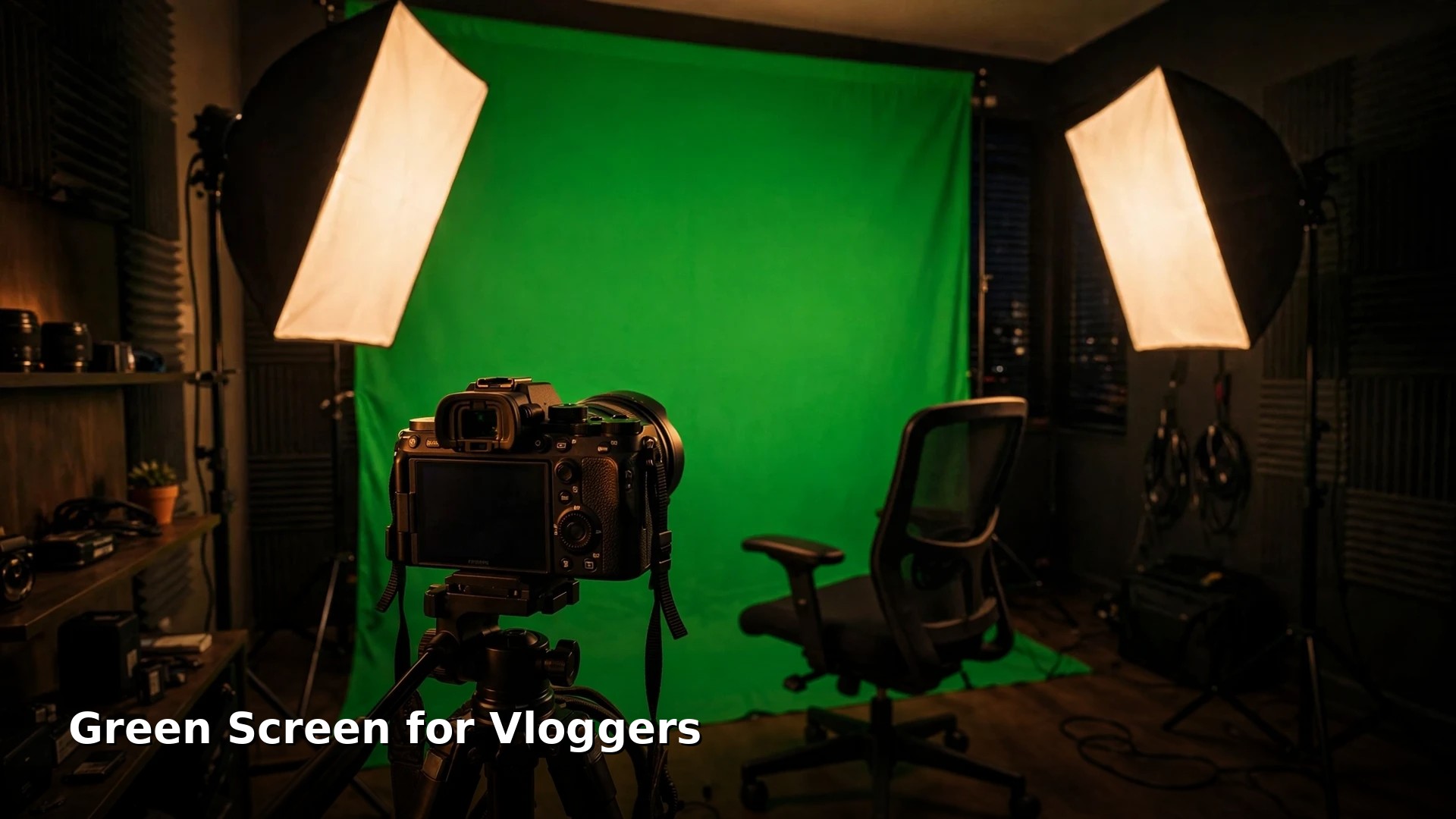
Last updated: October 2026
Every vlogger with a green screen knows the first week. The unboxing feels like a superpower, the key looks like a weather forecast from 1997, and the screen spends a month folded in a corner. The part nobody puts on the box: the screen itself is the simplest piece of the setup. Clean keying comes from the lighting, the distance, and how honestly you check the matte.
The short version
- Light the screen separately, and light it evenly. Two matched lights, one from each side, aimed only at the backdrop: one flat green, no hot center, no dark corners.
- Stand a few feet in front of the screen. Distance stops green light bouncing onto your hair and shoulders, and it is the cheapest fix in this guide.
- Lock the camera down. Manual focus, exposure and white balance, your camera’s highest quality recording, and a ten second test key before every shoot.
- Judge the matte, not the composite. Solid white subject, solid black background in the matte view: get that right and the picture takes care of itself.
On this page
- What chroma keying does, and why the screen is green
- Pick your backdrop: fabric, pop up, paint or paper
- Light the screen like it is the whole job
- Light yourself separately, and light for the plate
- Distance and spill: distance is the cure
- Camera settings that keep your edges clean
- Pulling the key: five moves that work in every editor
- When the key goes wrong: a field guide
- When to skip the green screen entirely
- Frequently asked questions
- Keep exploring
What chroma keying does, and why the screen is green
Chroma keying tells your editing software to find one specific color and turn every pixel of that color transparent, so a different background shows through underneath you. Green is the standard screen color because camera sensors record more detail in green than in any other channel, which hands the software cleaner edges to cut along, and because almost nothing in skin, hair or ordinary clothing is that shade.
The software is not really removing a background. It is building a matte, a black and white map where white means keep, black means discard and gray means partly transparent. Every keying slider exists to make that map cleaner. When a key looks bad, the matte is bad, and the matte is a faithful report on how the footage was shot.
Most camera sensors use a pattern with twice as many green photosites as red or blue ones, so the green channel carries the sharpest information for the keyer. Blue screens still have their moments: choose blue when your wardrobe runs green, when the plate is a dark night scene, or when fair, fine hair keeps catching green spill.
Pick your backdrop: fabric, pop up, paint or paper
All four backdrop types key well once they are matte, saturated and smooth, so choose on your room. Fabric on a stand is the flexible default, a collapsible pop up wins in small rooms, chroma paint is the cleanest permanent option, and seamless paper gives the smoothest surface of all in exchange for being slowly consumed.
Fabric backdrops, usually muslin or a matte synthetic weave on a crossbar stand, cover the most area for the money and pack away between shoots. Their weakness is wrinkles: fabric remembers every fold from storage, and each crease shades the green differently. Tension is the cure: clamp the sides, let the bottom sweep forward if you ever shoot standing, and steam the surface before a session rather than hoping the keyer forgives it.
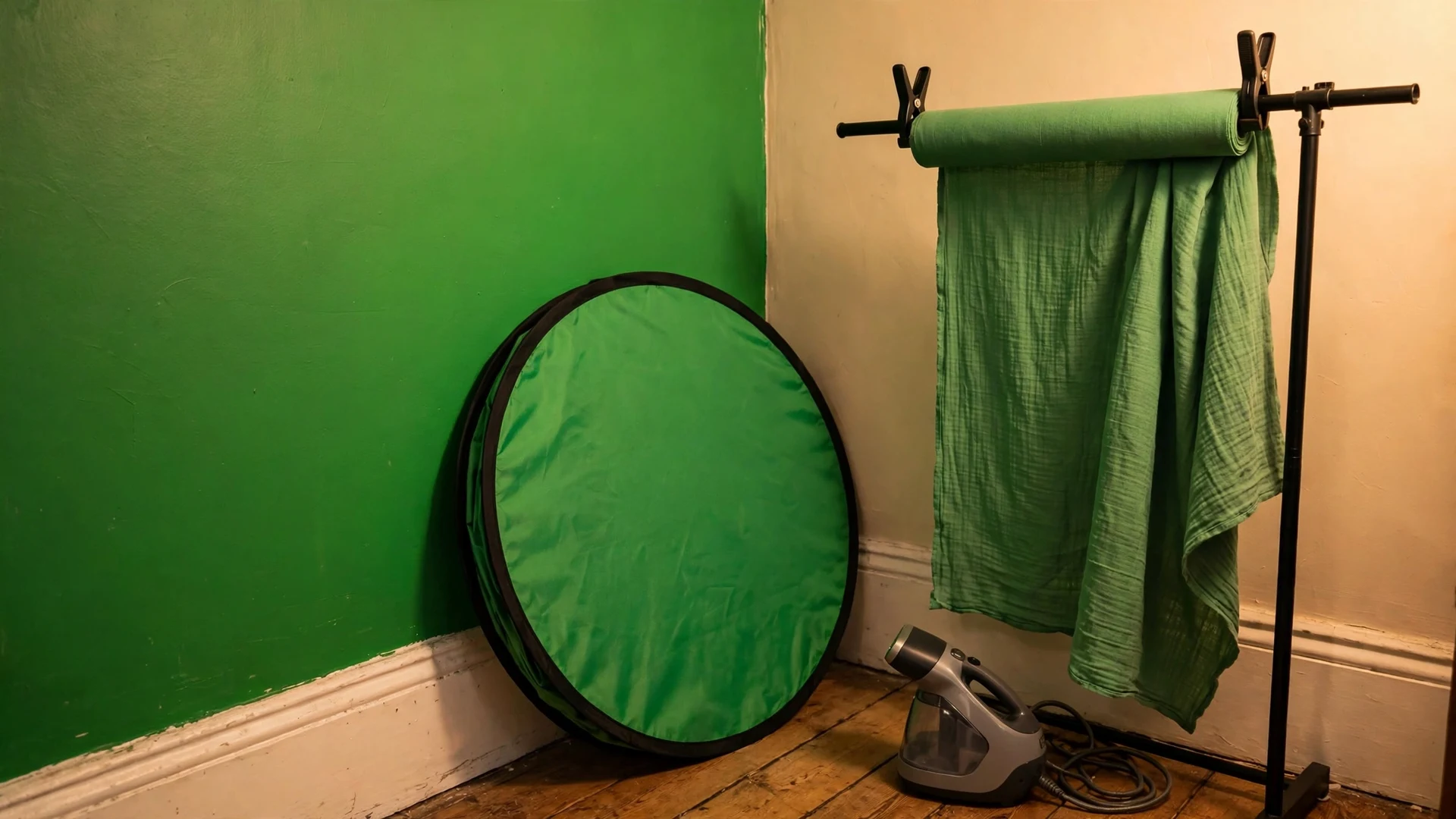
Pop up screens twist open from a sprung frame and stay drum tight by design: no wrinkles, up in seconds, gone behind a door just as fast. The trade is size. Most suit seated upper body framing, and chair mounted versions put the screen very close behind you, handing the spill problem to the keyer. Painted walls are the opposite bargain: matte chroma paint gives a permanent, smooth screen that never sags, at the cost of a green wall and zero portability. Seamless paper hangs dead flat and can sweep under your feet for full length shots; the used section gets binned, which is the running cost.
Size the backdrop from the framing, not from ambition: a seated talking head shot needs the green to fill the frame behind you with a little margin for movement, and nothing more. Gloss is one major enemy, since shiny fabric and satin paint throw hot spots no keyer reads as green.
Light the screen like it is the whole job
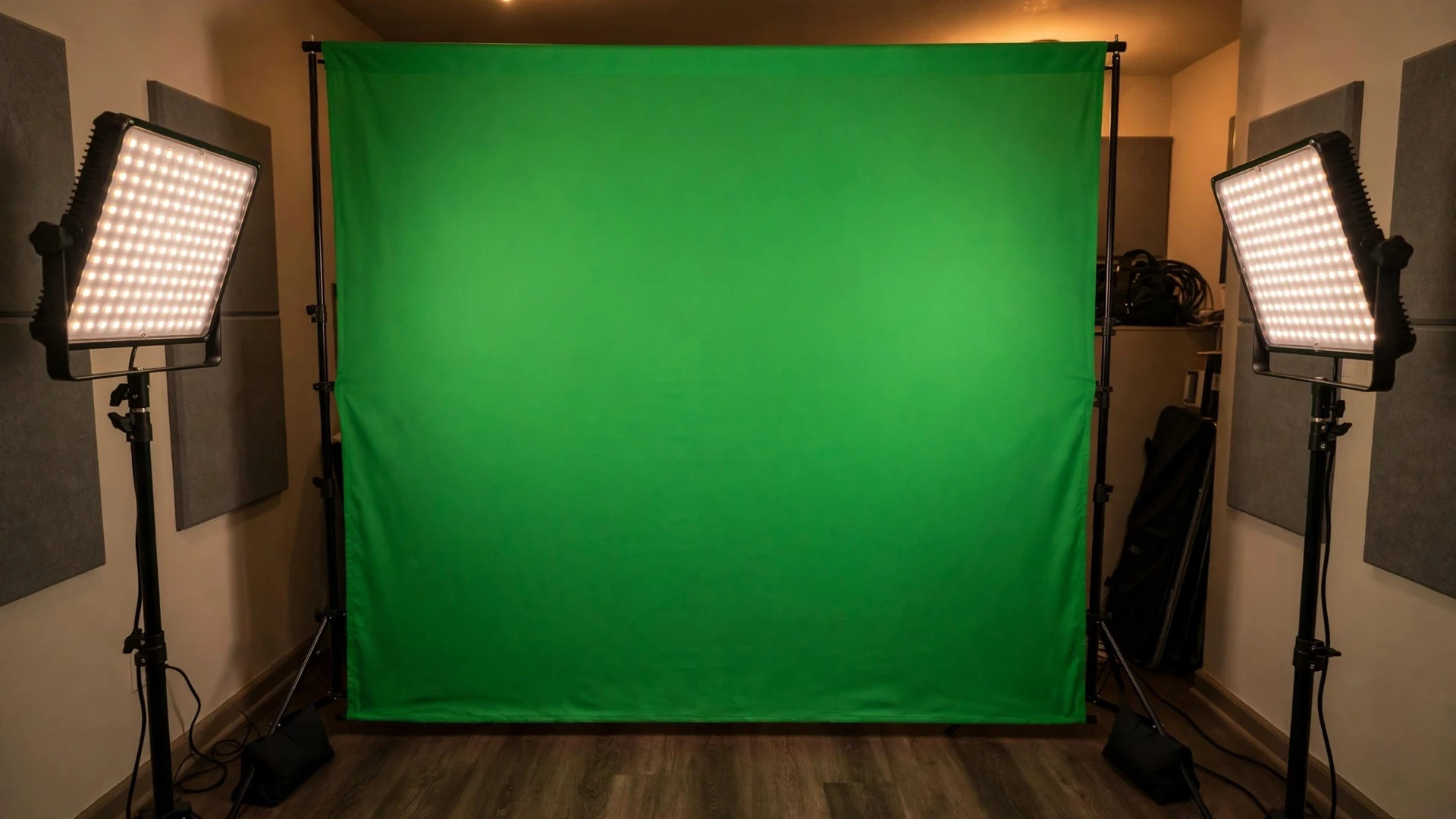
Give the screen its own two lights. Place one on each side at roughly 45 degrees, each aimed across the far half of the backdrop, matched in model, brightness and color temperature. The screen is correctly lit when it reads as one flat, even green, bright but never blown out to white.
Cross aiming is the detail that makes this work. Point each light at its own half and the pools pile up in the middle, leaving dark corners. Aiming each across the backdrop, left washing right and right washing left, overlaps the falloff and flattens the result. Matched lights matter because two color temperatures tint one half toward yellow and the other toward blue, and the keyer sees two greens where you see one.
Check evenness with the camera, not your eyes. Zebras and false color show the screen as exposure values instead of impressions, and our guide to exposure tools for vloggers explains how to read both. You want one tight band of values across the green. Resist blasting the screen brighter: overexposed, it loses saturation, slides toward pale yellow white, and keys worse, not better. It should sit a little under your subject exposure, and window daylight mixing with your lamps shifts it hour by hour, so close the curtains.
Light yourself separately, and light for the plate
Your lights and the screen lights are separate crews doing separate jobs. Key your face as for any talking head video, add a rim or back light to draw a bright line between you and the green, and match the direction and warmth of the background plate.
The face lighting itself is the usual craft, and our guide to how to light your face for videos covers the setups in full. The green screen additions are two. First, the rim light: a small light behind you, aimed at hair and shoulders, buys separation that reads as a clean edge to the keyer and masks minor spill. Second, believability. If the plate is a bright window lit room, your face needs bright, soft, daylight flavored light; if it is a moody evening studio, warm light from one side sells the composite. Viewers cannot name the mismatch, but they feel it.
Keep the screen lights off your back and your key light off the screen: a key light washing the backdrop reintroduces the unevenness you just removed, usually as a bright patch behind your head. If one light must do double duty in a tiny room, the screen loses: light yourself properly and accept a longer session with the keyer. The best lights for vlogging guide covers the panel and softbox types for both crews.
Distance and spill: distance is the cure
Spill is green light bouncing off the screen onto your hair, shoulders and glasses, tinting the edges the keyer most needs to judge. Distance is the main cure. Start a few feet in front of the screen and test: more space if the room allows it, and where it does not, gentler screen light, a rim light and despill carry the rest.
There is no magic number here, whatever the kit listings promise, because spill depends on screen brightness, backdrop gloss and room size. Treat any figure you read as a starting point for a test: record ten seconds, pull a quick key, and look at your hair against a bright plate. If the fringe glows green, add distance or take brightness off the screen. If it is clean, you have your number.
Wardrobe is the other half of spill control. Green clothing is the famous blunder, since the keyer will happily remove your torso, but near greens and teals can go translucent at the edges, and white or shiny fabrics catch spill like a mirror. Flyaway hair is the hardest edge in keying: each strand is partly hair, partly background, and no setting fully resolves it. Tie it back or accept a softer edge. A close pop up screen behind a streaming chair is the toughest spill situation of all; there the fix order is dimmer screen light, rim light, then despill.
Camera settings that keep your edges clean
Lock everything the camera would otherwise wander through mid take: manual focus, manual exposure and a fixed white balance, so the green the keyer sampled in second one is still the green in minute ten. Record at the highest quality your camera offers, and choose your shutter deliberately, because it decides how motion blur treats your edges.
Automatic settings are quiet saboteurs. Auto white balance drifts as you gesture, auto exposure breathes when a bright sleeve crosses the frame, and both change the screen’s value between test key and take. Autofocus hunting softens edges in bursts. Lock all three and the footage becomes boring in exactly the way a keyer loves.
Compression is the invisible half of edge quality. Most cameras record color at a lower resolution than brightness, a shortcut called chroma subsampling, and heavy compression adds blocky artifacts on top. Around hair and shoulders, the color edge the keyer must follow is already a staircase before you touch a slider. Recording at your highest bitrate softens the problem; if the camera offers a 10 bit mode, green screen days are what it is for, since the extra color steps keep edges smoother. Turn off aggressive noise reduction and extra sharpening too: one smears detail, the other draws halos.
The shutter is your one creative trade. A conventional shutter speed blurs fast gestures, and blurred edges are semi transparent, so the keyer shows the background faintly through them. That is natural and often fine. A faster shutter freezes the gesture and gives a hard, honest edge, at the cost of choppier motion. Choose per video. Finally, build the cheapest habit in this guide: before every session, record the empty screen as a clean plate, then ten seconds of yourself waving and turning, and pull a test key. A problem found now costs a minute; later, it costs the shoot.
Pulling the key: five moves that work in every editor
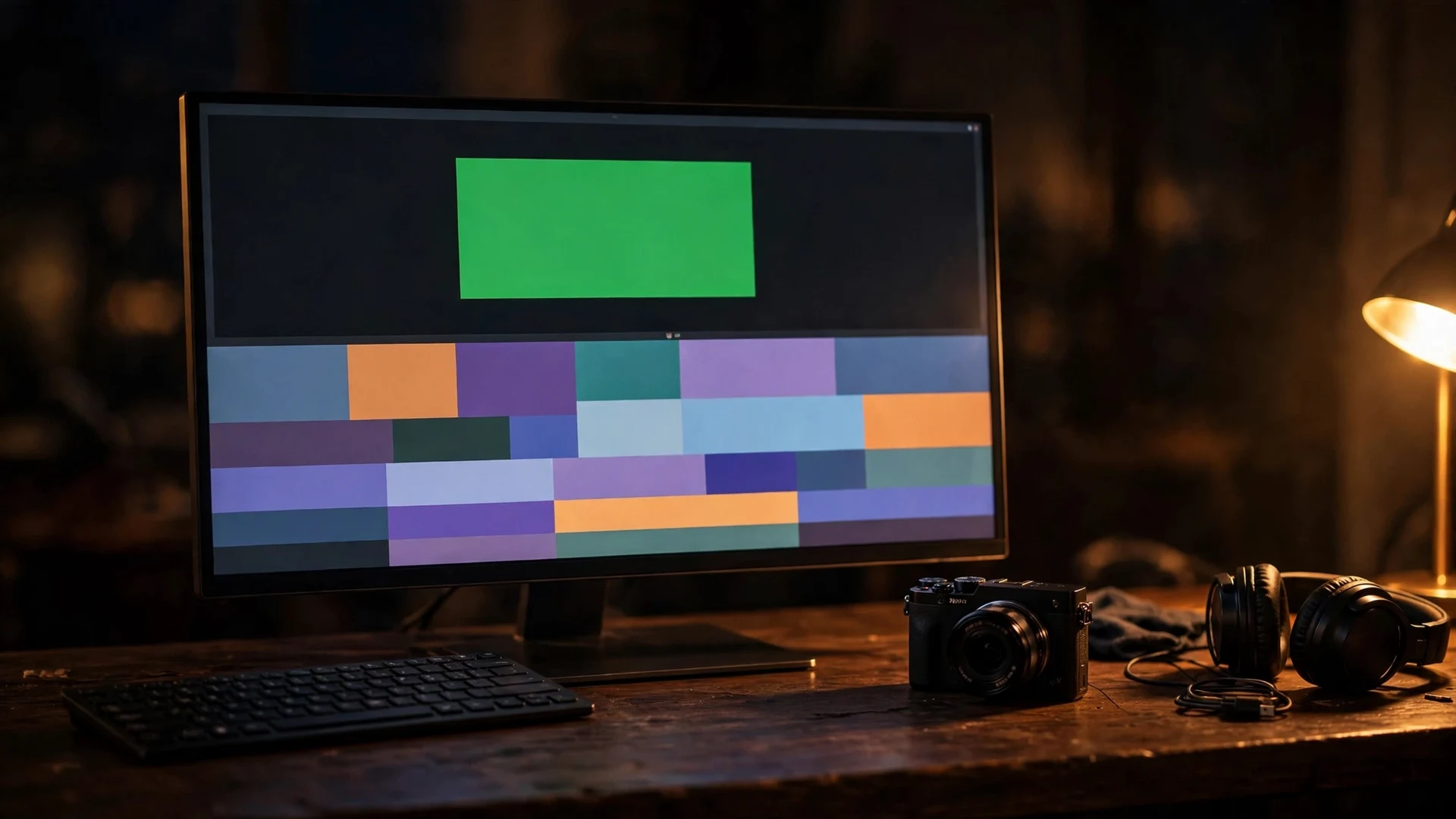
Every keyer rewards the same five moves in the same order. Crop away everything outside the screen, sample the green, widen the selection only until the screen fully disappears, judge the result in the matte view instead of the composite, then finish with despill and a touch of edge softening.
In practice: the garbage matte crops the shot to the screen area so stands and ceilings never enter the calculation. Sample from a mid tone area rather than the brightest patch, and widen only until the last green corner goes, since every extra step is paid for in hair and wardrobe. Judge in the matte view, then despill with minimal choke (shrinking the matte edge slightly) and softening. Here is how the tools vloggers use handle those moves.
OBS Studio, for keying live
Add a Chroma Key filter to your camera source and OBS keys in real time. Its own documentation lists the defaults: Similarity at 400, Smoothness at 80 and Key Color Spill Reduction at 100. Raise Similarity slowly until the screen goes, use Smoothness to calm edges, and treat Spill Reduction as the trim, not the engine. Beyond small adjustments, the filter is reporting a lighting problem, and the fix is in the room.
Premiere Pro and the Ultra Key effect
Ultra Key lives in the Keying effects, and Adobe’s own help walks the same five moves: sample with the Key Color eyedropper, then work the sections in order, Matte Generation for how aggressively the background is removed, Matte Cleanup to refine edges and remove spill, and Spill Suppression for green reflected onto you, checking the alpha channel in its Output menu as you go.
DaVinci Resolve and the 3D Keyer
On the Edit page, the 3D Keyer from the Resolve FX Key library drops straight onto your clip. Draw a line across the green with the Pick tool and most of the screen vanishes; add strokes for stubborn shades. Judge the matte in the Alpha Highlight view, clean it with Clean Black and Clean White in Matte Finesse, and finish with Despill. Our DaVinci Resolve for Vloggers walkthrough teaches it inside a first edit.
CapCut, the one sitting already on your phone
CapCut puts the tool under Remove BG, then Chroma key (not Auto removal): pick the green with the color picker, raise Intensity until the backdrop goes, and use the Shadow and edge cleanup controls to settle the outline. Names and layout shift a little between versions, and some background tools vary by version and plan, so check your copy before a big shoot. Our CapCut tutorial for vloggers covers its keying tools in full.
Keying live, with no second take
Live streaming uses the OBS route above, with the plate as a source under your camera and two extra checks. Rehearse at your actual stream output: edges that look clean in a 4K preview get judged at streaming bitrates, where compression chews outlines harder, so watch a test recording rather than the preview window. And move around during it, because leaning changes your distance from the screen. Our YouTube livestreaming guide covers the streaming side end to end, and the best cameras for streaming guide covers cameras that feed it a clean signal.
When the key goes wrong: a field guide
Nearly every bad key is one of a handful of failures, each with a usual cause and a first fix to try before a second slider. Find your symptom, fix the cause in the room where you can, and only then refine in the editor.
| What you see | What usually causes it | The fix to try first |
|---|---|---|
| Green fringe around hair and shoulders | Spill from a bright screen or too little distance | More distance, a rim light, then raise despill |
| Patches of screen still visible | Uneven screen light, or the selection is too narrow | Relight for evenness, sample the leftover patch itself, widen slightly |
| Parts of you turn transparent | Selection too wide, or clothing close to the screen color | Narrow the selection, change the wardrobe, reshoot |
| Edges crawl and buzz | Low light forcing camera gain up, plus heavy compression | More light, highest quality recording, clean the matte blacks |
| A shadow lives on the screen behind you | You or your gear block a screen light | More distance, move the screen lights wider apart |
| Wrinkle shadows across the fabric | Creased, slack fabric catching raking light | Steam it, tension it, or move to paper or paint |
| Fast hand gestures smear and vanish | Motion blur from a conventional shutter speed | Accept it as natural, or raise the shutter speed next take |
| The composite looks pasted on | Your light direction or warmth disagrees with the plate | Relight to match the plate, soften the edge a touch |
Notice how few of those fixes are software: exposure, distance and wrinkles are decided in the room. When a take is truly lost, reshooting one segment beats an evening of matte surgery.
When to skip the green screen entirely
Skip the screen when a real set would look better, when your room is too small to separate you from the backdrop, or when the video is a one off that needs to ship today. A tidy real background, a designed set, or AI background removal will each beat a badly lit key.
A real set is the strongest alternative and the one viewers trust most, because light, depth and shadows are genuinely shared between you and the room. Our guide to designing a vlogging background and home studio set covers that route.
AI background removal is the fast lane: CapCut’s Auto removal and similar tools find the person in the frame and lift them off any background, no green required, which is remarkable for quick clips, vertical shorts and rescue jobs. The honest tradeoffs are flyaway hair, fast motion, low light and busy rooms, where the cutout edge still flickers in ways a well lit chroma key does not. Availability varies by app version and plan, and meeting app virtual backgrounds belong to calls, not content. The green screen still wins when you want one consistent branded set across years of videos, or when a fake location is the whole point.
Frequently asked questions
Is green or blue better for a vlogging setup?
Green is the better default: sensors record the most detail in green, it needs less light than blue, and it clashes with almost no wardrobe. Choose blue when you regularly wear green, when the plate is a dark night scene, or when fine fair hair keeps catching green spill.
Can I just use a green bedsheet?
Yes, if you treat it like a real backdrop: pull it drum tight with clamps, steam out the folds, choose matte cotton over anything shiny, and light it evenly. A well lit bedsheet keys better than an expensive screen lit badly. The cost is convenience: the full steam routine, every time.
How far should I stand from the green screen?
There is no single right distance, because spill depends on the room and the backdrop’s brightness. Start a few feet in front of the screen, record a ten second test, and pull a key to check your hair against a bright background. Add distance if you see a green fringe; if the room gives no more, dim the screen lights slightly and lean on a rim light and despill.
Do I need a 4K camera for clean keys?
No. A well lit 1080p recording keys more cleanly than a badly lit 4K one, because the keyer cares more about even color and low noise than pixel count. Higher resolution and bitrate do help edges, especially hair, but lighting and distance buy far more than a camera upgrade.
Why is there still a green outline around me?
That outline is spill: green light bouncing off the screen onto your edges. More distance and a rim light fix most of it in the room; slightly dimmer screen lighting helps once the screen is even. In the editor, raise despill gently, since aggressive despill drains natural color from skin too.
Why do parts of my body disappear in the key?
Usually the color selection is set too wide, swallowing colors near the screen green, or your clothing sits close to that green. Narrow the selection until the subject comes back, then recover leftover screen patches by sampling the leftover patch itself rather than widening further. If the missing piece is a shirt, reshoot in another color.
What lights do I actually need for a green screen?
Two matched lights for the screen, plus your usual subject light. Evenness matters more than power: two modest panels aimed across the backdrop beat one bright light every time. Match the pair’s color temperature and check the result with zebra or false color.
Why does my key look noisy and crawl around the edges?
Edge noise usually means the footage itself is noisy: low light, heavy compression, or both. Add light so the camera works at a calmer sensitivity, record at your highest quality setting, and use matte cleanup to crush gray freckles in the matte. Noise has to be prevented more than removed.
Does green screen work for livestreaming?
Yes, and it is standard practice: OBS keys your camera in real time with a Chroma Key filter. Because there is no edit later, rehearse properly: check a test recording at your real stream resolution and bitrate, and move around during the test, since leaning and gesturing change your distance and can break a key that looked perfect sitting still.
Keep exploring
Face lighting, screen lights, and the live rigs that key it in real time.