Last updated: October 2026
Phone footage usually gives itself away in the first three seconds: the brightness breathes, the shutter is so fast that every movement stutters, and the camera drifts like it is being carried by a distracted tourist. None of that is the sensor’s fault. Cinematic phone video is a stack of small disciplines, and most of them are free. This guide covers the stack in order: frame rate and shutter discipline, locking the camera down, pro apps, log profiles graded lightly, ND filters, movement, the honest limits of a small sensor, and audio.
The short version
- 24 fps and a shutter near double the frame rate is where the film look starts. Motion blur sells cinema more than resolution does.
- Lock exposure, focus, and white balance before every take. A camera that hunts is a camera that looks cheap.
- A variable ND filter is the one accessory that makes daylight obey the shutter rule on a phone.
- Log helps only if you grade it lightly. A conversion and two small moves beat an hour of slider pushing.
- Feed the small sensor light and get the microphone close. Those two habits hide most of a phone’s limits.
On this page
- Cinematic is a set of choices, not a sensor size
- Frame rate and shutter: the 180 degree rule on a phone
- Lock exposure, focus, and white balance
- Pro camera apps and the controls that actually matter
- Phone log profiles, graded with a light hand
- ND filters: the small accessory that unlocks daylight
- Stabilization and camera movement
- Working around a small sensor: light and depth of field
- Audio: the half of cinematic nobody sees
- The pre-roll routine: settings in the right order
- Smartphone cinematography questions, answered
- Keep exploring
Cinematic is a set of choices, not a sensor size
Viewers read “cinematic” as a bundle of habits: smooth natural motion blur, stable or deliberately moving shots, controlled light, consistent color, and clean sound. A phone can do every one of those. What it cannot survive is auto everything, because auto settings change mid shot and the changes are what look amateur.
Watch any film scene next to a typical phone clip and list the differences honestly. The film shot is rarely sharper. It is steadier, its motion smears a little the way eyes expect, its colors sit in a narrow deliberate range, and nobody’s face pulses brighter when a cloud moves. Your phone already records more detail than a 1080p upload needs. The gap is discipline, not megapixels.
So the rest of this guide is technique only. Which phones offer log recording, 10-bit color, and proper manual modes is a buying question, and it has its own home in our guide to the best phones for vlogging. Here we assume the phone in your pocket is the camera, and the job is to shoot with it like a camera.
Frame rate and shutter: the 180 degree rule on a phone
Shoot your main footage at 24 frames per second, 25 in regions with 50 Hz mains power, and set the shutter speed to about double the frame rate: near 1/48 or 1/50 at 24 fps, 1/60 at 30 fps, 1/120 at 60 fps. That ratio is the 180 degree shutter rule, and it produces the motion blur viewers associate with film.
Frame rate sets the rhythm. At 24 fps, movement has a slight, familiar softness. At 30 fps the same pan looks crisper and more like a news broadcast. At 60 fps it looks like live sport, which is great for sport and wrong for a moody travel sequence. Reserve the high rates for shots you plan to slow down: 60 fps conformed to a 24 fps timeline gives smooth half speed, and 120 fps gives you graceful slow motion for B-roll details.
The shutter half matters just as much. A phone in auto will happily shoot a sunny scene at 1/1000 of a second, freezing every frame knife sharp. Stitched together, that reads as stutter, the classic video look. Doubling the frame rate as a shutter denominator restores the blur streak between frames, and the same scene suddenly feels filmed. One caution for indoor shooting: artificial lights pulse with the mains. A shutter of 1/50 in 50 Hz countries, or 1/60 in 60 Hz countries, avoids the rolling flicker that ruins takes under cheap LEDs.
Lock exposure, focus, and white balance
Before every take, tap to set focus and exposure, then lock both, and set white balance to a fixed value that matches the light instead of auto. Locked settings keep brightness, sharpness, and color constant from the first frame to the last, which is half of the professional look.
Auto exposure reacts to everything: a white shirt entering frame, a pan past a window, your own hand. Each reaction is a visible pulse. Locking exposure after metering for your subject’s face ends the pulsing. Focus gets the same treatment. Tap to focus on the subject, lock it, and let depth of field do the rest. A locked focus cannot go hunting for a face mid sentence, which is the single most common reason phone talking shots get deleted.
White balance is the quiet one. On auto, a phone rebalances whenever the scene’s color mix changes, so a slow push in can drift from warm to blue. Pick the preset that matches your light, daylight, shade, or tungsten, or dial a Kelvin value in a pro app and leave it there. The same discipline applies on a dedicated camera, and our vlogging camera settings guide walks through it control by control if you shoot on both.
Pro camera apps and the controls that actually matter
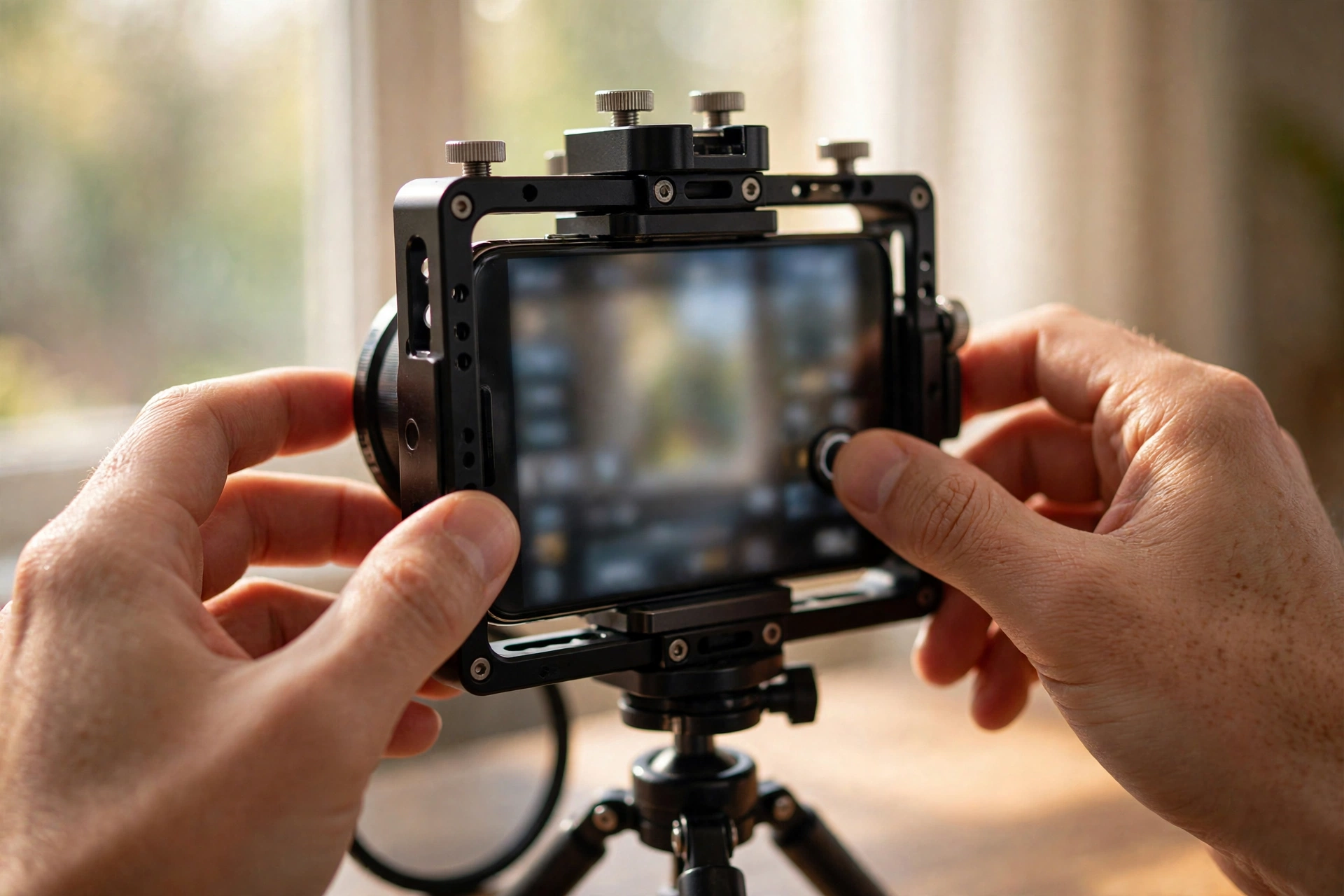
A pro camera app earns its place with five things: manual shutter and ISO, lockable focus with peaking, a histogram or zebras for exposure, white balance in Kelvin, and a high quality codec. Blackmagic Camera, FiLMiC Pro, and Apple’s Final Cut Camera all cover that list, and the stock app on many flagships covers most of it in its pro mode.
You do not need every dial the app offers. The controls that change your footage are the shutter speed and ISO pair, because together they set exposure once the frame rate is fixed; manual focus with peaking, which paints a colored outline on whatever is sharp and makes focus pulls deliberate; and the exposure tools. A histogram tells you if highlights are clipping before you record. Zebras stripe the parts of the image that pass a brightness threshold, which is how you keep a face from blowing out in hard sun.
Codec choice is a storage decision disguised as a quality one. ProRes on an iPhone Pro records beautiful, huge files and pairs with log recording, sometimes only to an external drive. HEVC at a high bitrate is the sane default for vlog work: a fraction of the size, and still 10-bit color on phones that support it. Whatever you choose, set it once and check it per lens. Some apps save settings separately for each camera module, so the wide lens can be in log while the main lens is not, and you only find out in the edit.
Phone log profiles, graded with a light hand
Phone log profiles such as Apple Log and Samsung Log record a flat, low contrast image that holds more highlight and shadow detail for grading. They earn their keep in harsh or mixed light. Grade them lightly: a conversion LUT or your editor’s transform first, then small contrast and saturation moves, and stop.
Log is not a look, it is headroom. In bright sun with deep shade in the same frame, a standard profile chooses for you and often chooses wrong, clipping the sky or crushing the shadows. Log keeps both ends and lets you decide later. The price is that every clip needs processing, and ungraded log looks worse than the standard profile, not better. If your videos go out the same day with no edit time, standard profiles with locked settings will beat log you never grade.
When you do grade, keep the hand light. Apply the maker’s conversion for your profile, or the equivalent transform built into editors like DaVinci Resolve, then trim exposure, add contrast until faces look like faces, and add saturation in small steps. Phone sensors are small, and their log files fall apart faster than camera log when pushed: shadows get noisy and skin goes waxy. We go through the full correction and grading order in our color grading for vloggers guide. The working rule for phone log is simple. If a clip needs rescuing, reshoot it in better light; log is for polish, not miracles.
ND filters: the small accessory that unlocks daylight
Outdoors in daylight, a phone at 24 fps with a 1/50 shutter is massively overexposed, and because phone apertures are fixed, you cannot stop down. A neutral density filter is dark glass that cuts the light for you. A variable ND covering 2 to 5 stops handles most daylight situations and makes the shutter rule usable outside.
Without an ND filter you face a bad trade: keep the cinematic shutter and blow out the sky, or let the shutter race to 1/1000 and accept the stutter. The filter removes the trade. Variable NDs twist to change strength, which suits run and gun vlogging where light changes as you walk. Fixed strength filters are cleaner optically but mean swapping glass between sun and shade. Most phone NDs attach through a case, a clip, or a magnetic mount, so check that the mount does not vignette on your widest lens.
Two warnings from experience with the format. Cheap variable NDs add a color cast, usually green or magenta, and show a dark cross pattern at their strongest settings, especially on wide lenses; a fixed white balance makes the cast correctable, but the cross pattern is baked in, so stay a stop short of maximum. And a combined ND and polarizer can help with reflections on water and glass, but it eats more light than you expect. We cover strengths, stacking, and what each stop does in our ND filters for video explained guide.
Stabilization and camera movement
Modern phone stabilization is strong, but the cinematic move is a slow, deliberate one: a gentle push in, a patient pan, a walking shot with bent knees and the phone held close to the body. Turn off the extra aggressive stabilization modes for filmed work, since their heavy crop and warping can make edges swim.
Know what each layer does. Optical stabilization steadies the lens or sensor and costs you nothing in quality. Electronic stabilization crops the image and counter moves the frame, which works but can turn straight lines rubbery on fast moves. The ultra steady modes crop hardest of all and are built for action sports, not for a cafe scene. For vlogging, standard stabilization plus good body technique beats the maximum setting.
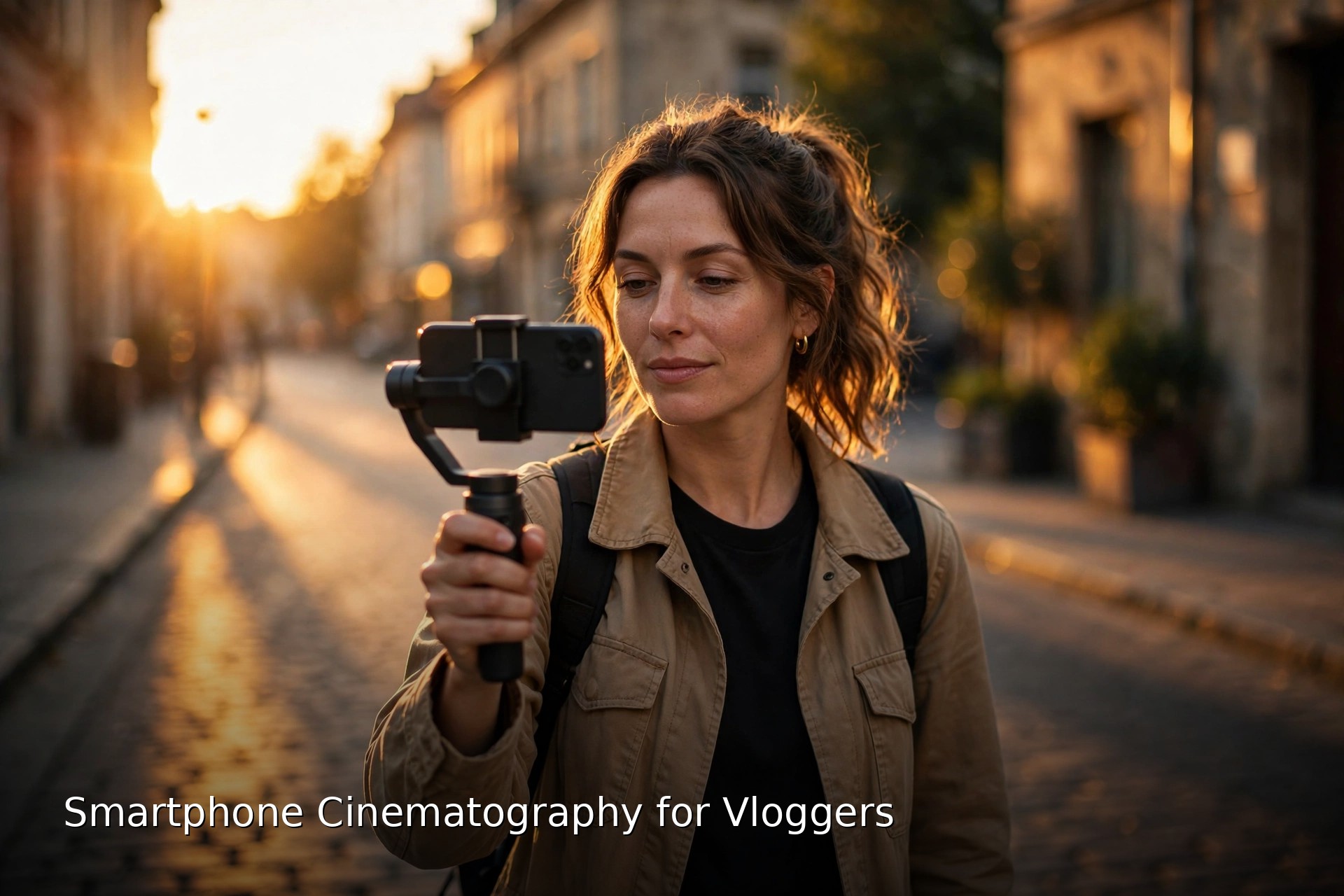
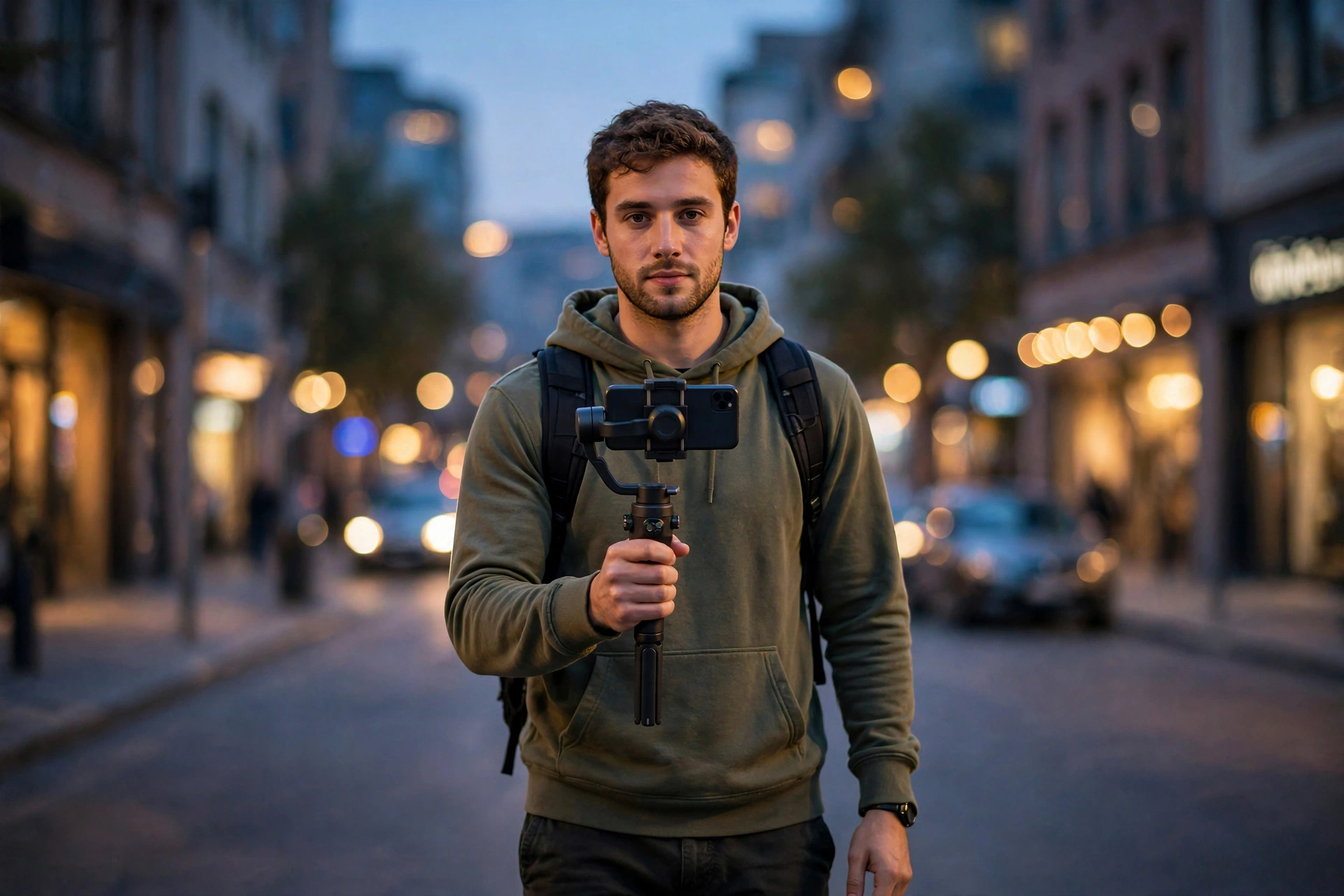
Technique is mostly about speed. Everything slower than feels natural: pans at half the pace you first try, walks with soft knees and heel to toe steps, the phone gripped in both hands with elbows tucked. A small gimbal earns its space in the bag when you want long walking takes or orbit moves, and a mini tripod doubles as a handle for the rest. The grip, tripod, and light combination that travels well is covered in our mobile vlogging kit guide. When in doubt, lock the shot off entirely. A static frame with life moving inside it is a film habit, not a compromise.
Working around a small sensor: light and depth of field
A phone sensor is tiny, so it gathers little light and focuses deeply. Work with both facts: give it more light than you think it needs and keep ISO low, and create depth with distance and lens choice instead of expecting blur. Subject separation comes from putting space behind your subject and using the 2x or 3x camera, not from a portrait mode.
Light first. Small sensors get noisy fast as ISO climbs, and noise reduction then smears detail into watercolor. Indoors, that means shooting near windows, turning to face the light, and adding a small LED panel for talking shots rather than trusting a ceiling bulb. Outdoors it means respecting the soft hours and using shade at midday, where the light is bright but even. Expose for the face, lock it, and let backgrounds go bright if they must; viewers forgive a hot window and never forgive a noisy face.
Depth of field is the physics you cannot cheat. A short lens at a fixed wide aperture keeps nearly everything sharp, which is why phone footage can look flat. Real separation comes from geometry: move your subject away from the background, shoot on the telephoto module from farther back, or place something soft and out of focus in the near foreground. Computational portrait modes blur the background in software and do a decent job on stills, but in video they flicker around hair, glasses, and microphone edges. Use them for casual clips, not for the take you care about, and never pinch to zoom between lenses. Walk closer, or cut to the other lens properly.
Audio: the half of cinematic nobody sees
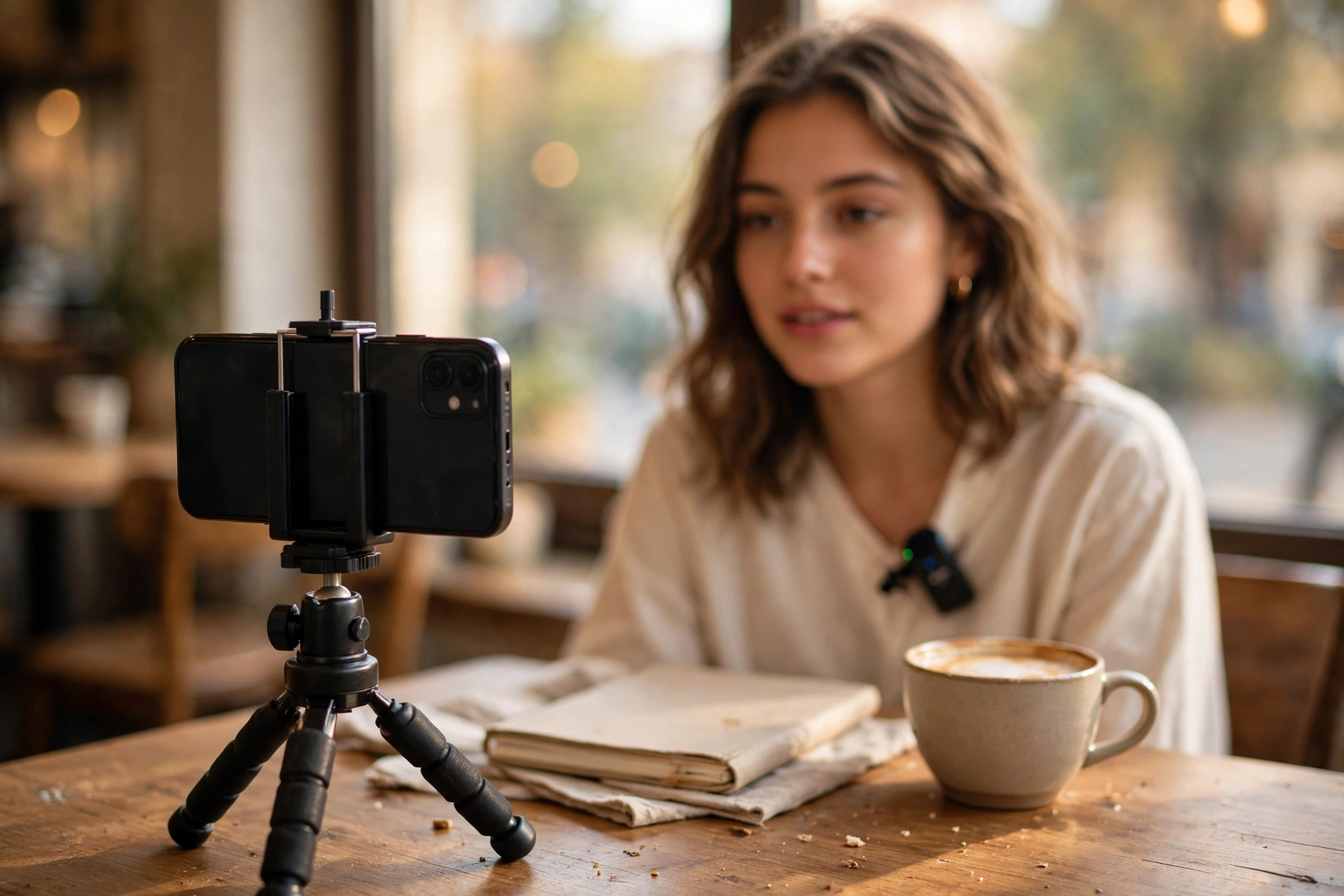
Viewers will watch slightly soft footage with great sound and abandon sharp footage with bad sound. A phone’s built in microphones favor whoever holds the phone, so the rule is distance: get a microphone close to the mouth, whether that is a wireless lav paired to the phone, a wired mic, or a second device recording beside the subject with a clap to sync.
For talking shots, the simplest upgrade is moving yourself closer to the phone and the phone closer to you, well inside arm’s length, before you spend anything. For walk and talk pieces, a wireless microphone transmitter clipped at the chest with the receiver on the phone removes the distance problem entirely and keeps levels steady as you move. Whatever records, monitor it: plug in earbuds for a test take and listen for wind, clothing rustle, and room echo, the three sounds phones happily record at full volume.
Record a few seconds of room tone in every location as well. Editors use it to smooth cuts, and future you will be grateful. Mic placement, wind protection, and cleanup get their own full treatment in our guide to how to record better vlog audio.
The pre-roll routine: settings in the right order
Run the same sixty second routine before every shoot and the settings stop being decisions: clean the lens, set frame rate, set shutter to double, fit the ND, lock white balance, set focus and exposure, check the histogram, test the audio. Order matters because each step assumes the one before it.
- Clean the lens. A shirt wipe removes the fingerprint haze that no setting can fix.
- Set resolution and frame rate. 4K at 24 fps for main footage, higher rates only for planned slow motion.
- Set the shutter to double the frame rate. Near 1/50 at 24 fps, or 1/60 in 60 Hz lighting.
- Fit the ND filter outdoors. Twist the variable ND until the histogram sits safely off the right edge at your lowest ISO.
- Lock white balance. Match the preset or Kelvin value to the light and leave it.
- Set focus and exposure on the subject, then lock both.
- Choose the profile. Log if the light is harsh and you will grade; standard if the video ships today.
- Test ten seconds of audio through earbuds before the real take.
That routine is the whole article in miniature. None of it needs a new phone, and all of it compounds: locked settings make grading trivial, the ND makes daylight usable, and the audio check saves the takes that settings cannot.
Smartphone cinematography questions, answered
Quick answers to the questions vloggers ask most about filming cinematic video on a phone.
How do you film cinematic video on a phone?
Start with the settings: 24 fps, a shutter speed near double the frame rate, and exposure, focus, and white balance locked. Add an ND filter outdoors so the shutter rule survives daylight, shoot in soft light, move the camera slowly and deliberately, and record audio close to the subject. Those habits, not the phone model, create most of the film look.
What frame rate is best for a cinematic look?
24 fps is the classic film rate and the right default for vlogs that want a cinematic feel. Use 25 fps in regions with 50 Hz mains power if flicker is a problem. Keep 60 fps and above for footage you intend to slow down, because played at full speed they read as live and video like.
What shutter speed should I use at 24 fps on a phone?
About 1/48 of a second, which most phones and apps round to 1/50. That follows the 180 degree shutter rule of doubling the frame rate. Under artificial light, matching the local mains frequency matters too: 1/50 in 50 Hz regions and 1/60 in 60 Hz regions keeps flicker out of the shot.
Do I need an ND filter for my phone?
For outdoor filming at a cinematic shutter speed, yes. Phone apertures are fixed, so in daylight the only ways to cut exposure are a faster shutter, which breaks the motion blur, or an ND filter, which darkens the lens without changing the look. A variable ND of 2 to 5 stops covers most daylight. Indoors and after dark you can leave it off.
Should I shoot in log on my phone?
Shoot log when the light is harsh or mixed and you plan to grade, because it holds highlight and shadow detail a standard profile throws away. Skip it when the video has to publish fast, since ungraded log looks flat and dull. If you shoot it, grade lightly: conversion first, then small contrast and saturation moves.
Which app is best for cinematic phone video?
The app matters less than the controls it unlocks: manual shutter and ISO, focus peaking, a histogram or zebras, and Kelvin white balance. Blackmagic Camera is a strong free option on iPhone and Android, FiLMiC Pro is a long standing paid choice, and Apple’s Final Cut Camera is free for iPhone. Many flagship stock apps now include a pro mode with the same controls.
Why does my phone video still look shaky with stabilization on?
Usually because the movement itself is the problem, not the stabilization. Fast pans, straight legged walking, and holding the phone at arm’s length all defeat electronic stabilization, and the aggressive ultra steady modes can add warping that reads as shake. Slow down, tuck your elbows, bend your knees, and let standard stabilization do a smaller job.
How do I get a blurry background on a phone?
With distance, not settings. Put real space between your subject and the background, step back and use the 2x or 3x camera if your phone has one, or frame through a soft foreground object. Computational portrait modes blur in software but can flicker around hair and glasses in video, so treat them as a casual option.
Why does my phone footage flicker under indoor lights?
Most artificial lights pulse with the mains frequency, and a shutter speed that clashes with that pulse records bands or flicker. Set the shutter to 1/50 in countries with 50 Hz power or 1/60 where power is 60 Hz, and keep it there for the whole scene. Pro apps remember the setting; auto mode forgets it between shots.
How do I record good audio when filming on a phone?
Get a microphone close to the mouth. Sit nearer the phone for talking shots, use a wireless or wired lav for anything mobile, or record on a second device placed by the subject and sync with a clap. Always test with earbuds before the take: wind, clothing rustle, and echo are easy to fix before recording and miserable after.
Keep exploring
Technique is half the phone story. These guides cover the hardware side and the settings discipline in more depth.