
TikTok Live rewards a vlogger who treats a live stream like a show with a format, not a camera switched on by accident. This guide covers who can go live, five formats built for vlogs, a first month plan, gift and subscription tactics that respect the viewer, and the rules that keep your access safe.
On this page
- Who can go live on TikTok right now
- Your first live from your phone
- Five live formats built for vloggers
- How to hold viewers past the first minute
- Gifts and subscriptions without begging
- Your first month of TikTok Lives
- How to keep your LIVE access
- Turning one live into a week of clips
- TikTok Live questions vloggers actually ask
Who can go live on TikTok right now
TikTok lets you host a live stream when you are 18 or older, meet a local minimum follower threshold that is commonly around 1,000, and hold an account in good standing. If any one of those checks fails, the LIVE option does not appear.
Start with the age rule, because it is the one most guides still get wrong. TikTok’s own Help Center states plainly that you must be aged 18 or older to go LIVE, and that TikTok may ask you to confirm your age before you go live. Older guides that say 16 are out of date: TikTok raised the hosting age from 16 to 18 in November 2022. If a guide tells you 16 is enough, do not trust its other numbers.
The follower rule is less exact than most guides pretend. TikTok describes a local minimum follower threshold that can vary by region, so 1,000 is the commonly reported figure rather than a universal promise. The practical check is inside the app: tap the plus button and swipe to LIVE. If the option is there, your account qualifies.
| Check | What TikTok requires | What to do if it fails |
|---|---|---|
| Age | 18 or older, confirmed from the birthday on your account | Complete TikTok’s in-app age confirmation; a wrong birthday needs proof of age to fix |
| Followers | A local minimum, commonly around 1,000 | Keep posting short clips; a profile showing 1K may still sit just under the line, so check the exact count in your analytics |
| Standing | No recent Community Guidelines violations | Wait out the restriction and keep later posts clean; a recent violation is the cause most people miss |
| Region and app | LIVE switched on for your region, latest app version | Update the app, then check again a day or two later; rollout timing differs by market |
One more case: some accounts receive live access as a trial with conditions attached. If yours did, meet those conditions in week one; the keeping-access section spells them out.
Age confirmation can surprise people. Depending on your location, TikTok may ask for an ID check with selfies, a credit card authorization, or facial age estimation. If TikTok cannot confirm you are 18 or older, you cannot go live at all.
One warning belongs here too. Videos that promise a trick to open LIVE early do not work, and some ask for your login. Never hand your password to anyone for this. The honest routes under the follower threshold are growing to it, or appearing as a guest on another creator’s live. Guesting solves the follower problem only; it does not change the age rule.
Your first live from your phone
Your phone is enough for your first lives. Open TikTok, tap the plus button, swipe to LIVE, add a short title and a cover, pick a topic, and tap Go LIVE. A PC setup only earns its place once you want scenes, overlays, or a second camera.
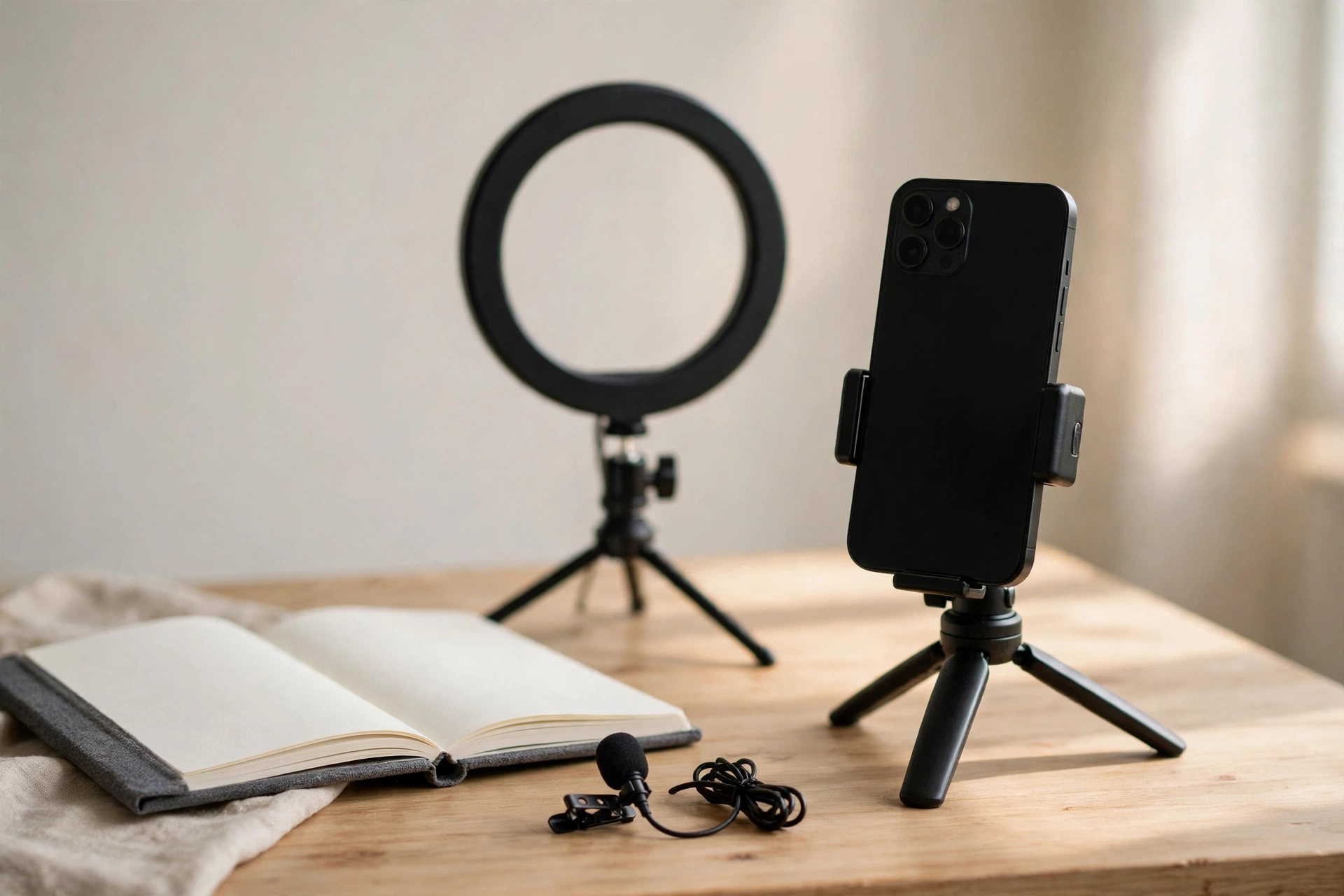
Set up before you tap anything. Face a window or a lamp, never put the light behind you, and prop the phone on a tripod rather than holding it when you are not moving. A quiet room and a clip-on mic beat a noisy room and a good camera. Keep the frame vertical, since that is how almost every viewer watches.
The steps themselves are short:
- Tap the plus button at the bottom of the app.
- Swipe the bottom menu to LIVE. If you only see photo and video options, your account does not qualify yet.
- Add a title that says what viewers will get, in as few words as you can. Titles are short, so put the promise first.
- Choose a cover image and a topic category, then set comment and filter preferences before you start.
- Tap Go LIVE, greet the first viewers by name, and say in one sentence what the stream is about.
A PC route exists for later. TikTok LIVE Studio is TikTok’s own desktop app and needs no stream key, while OBS needs a stream key from TikTok’s dashboard and gives full scene and overlay control. The live production guide covers OBS and encoders in depth, and the same vertical framing rules from the vertical video guide still apply to the TikTok side of the picture. Streaming vertical and horizontal at once means feeding a vertical phone audience and a horizontal desktop audience from one session, a separate setup with its own gear and layout choices, worth learning only after your phone lives run smoothly.
End every live the same way: thank viewers by name where you can, say when the next live happens, and ask for a follow in one sentence. That closing habit turns a one-time viewer into a repeat viewer.
Five live formats built for vloggers
A vlogger’s best TikTok lives are formats that already live inside a vlog: a day in the life, a series question session, a behind the scenes work session, a location stream, and a pack or gear session. Each gives viewers a reason to stay that a bare question session never gives a small account.
Generic advice tells every creator to run a question session. That advice fails small vloggers: new viewers do not know what to ask yet, so a bare ask me anything session with twelve viewers goes quiet, and quiet rooms lose people. Formats work when the stream has its own activity, so viewers can watch even before they comment.
1. The live day in the life
Take viewers through one real slice of a filming day: a morning market walk, a shoot setup, or an edit afternoon. Announce the slice in the title, not the whole day. A good run of show is five minutes of arrival and setup, twenty of the activity with narration, and five of questions at the end.
2. The series question session
Tie the session to one vlog series, and say so in the title. “Questions about the Morocco series, episode three” beats “ask me anything” because it tells a stranger what the room is about. Open with three questions prepared from real comments, answer those first, then take live questions. Prepared questions solve the empty room problem: the stream has content even if nobody types for the first ten minutes.
3. The behind the scenes work session
Film or edit on camera while viewers watch and ask. This is the easiest format to run well, because the work gives you something to do and explain. Narrate choices as you make them: why this cut, why this light, why this thumbnail idea failed. Viewers who watch you work learn your taste, and that is what makes them follow.
4. The location stream
Stream from one place with a clear job: show a market, a trailhead, a cafe, or a viewpoint, and answer questions about being there. Pick the spot before you go live, check the connection on arrival, and stay in one location. Location streams convert well into clips, because the place itself supplies the thumbnail moment.
5. The pack, gear, or prep session
Pack a bag, prep gear, or plan a shoot on camera. Every item is a talking point and every choice invites a question. Lay the gear out before you start, handle one item at a time, and say why each earns its place. Say what you actually use and why, and skip anything you have not used.
Pick one format for your first three lives, not all five. Repeating one format teaches you its rhythm, and viewers learn when to show up. Variety comes after the habit exists.
How to hold viewers past the first minute
Viewers decide in seconds whether a room is alive. Say what the stream is about in the first thirty seconds, greet people by name, and give the room something to do every few minutes. A live with no job for the viewer empties fast.
Open with a promise, not a wait. “We are packing for the desert shoot, and I will show the one bag mistake I made last time” holds people better than “hey guys, welcome, we will start soon.” Then run a simple thirty minute skeleton: three minutes of welcome and promise, ten of the main activity, ten of questions, five of recap and a teaser, and two of closing with the next live date.
Give the room jobs. Ask one easy question at a time, not three at once. “Where are you watching from” gets answers; “any questions” gets silence. Pin a comment stating the topic so late joiners catch up without asking.
Set moderation before you start, not after the first troll. Add a trusted moderator, turn on keyword filters for words you never want to see, and know how to mute and block without breaking your flow. A clean chat keeps you focused on the stream instead of the worst comment. If a session goes wrong, end it calmly and review it after, rather than arguing live.
Gifts and subscriptions without begging
Gifts and subscriptions work for a small vlogger when they are tied to visible milestones, not to pleading. Set one goal per stream, name what it funds in vlog terms, thank givers by name, and never pressure a small room.
Viewers buy Coins, send virtual gifts during a live, and those gifts convert to Diamonds in your account, which you can cash out. Creators report the cash value lands at roughly half of what viewers paid, after TikTok’s share. Treat any exact payout figure from a third party guide as a report, not a promise: your numbers depend on your audience and region. You must be 18 or older to send or receive gifts, or 19 in South Korea.
Gift goals work when they are concrete and vlog-shaped. “If we hit the goal, the next episode films at the sunrise market” beats “please send gifts” because the viewer buys a vlog moment, not a vague tip. Set one goal per stream, state it at the start, and celebrate it the moment it lands. Pressure kills small rooms faster than silence does.
Subscriptions are a later step, not a first week step. They give fans monthly perks like badges, custom emotes, and subscriber-only lives or chats, and they open at higher thresholds than basic live access. Build the habit first: a viewer subscribes to a room they already return to, not to a stranger’s first stream. The current requirements are shown inside the app, so check there; guides that quote a fixed number go stale fast. When you do open subscriptions, give subscribers one real perk tied to your vlogs, such as a monthly behind the scenes live.
A Battle is a head-to-head live between two creators, with viewers sending gifts to back their side. Battles and gift contests can spike a session, but they train a room to expect a contest every time. Use them rarely while your audience is small. A steady room built on formats and habit is worth more than one loud night.
Your first month of TikTok Lives
Go live twice a week for four weeks, repeat one format for the first two weeks, and review three numbers after every stream: peak viewers, new followers, and average watch time. That rhythm builds a habit before it chases growth.
Week one is for learning the controls. Run the same format twice, keep both streams to about thirty minutes, and note what went wrong each time: light, sound, pacing, or chat. Short clips between lives keep the account growing, and also give you titles and questions for the next live. If your access came with trial conditions, two thirty-minute streams in week one also cover the reported first-week trial condition.
| Week | Lives | Focus |
|---|---|---|
| 1 | 2, same format | Controls, light, sound, the opening thirty seconds, and any trial conditions |
| 2 | 2, same format | Comment loops, a moderator, and a pinned topic comment |
| 3 | 2, second format added | One gift goal tied to a vlog moment, and a promo clip before each live |
| 4 | 2, best format repeated | Review the month, keep the format that held viewers longest, and set next month’s schedule |
Promote each live with one short clip posted beforehand, stating what the live will do and the exact time. Do not promote a live you have not planned: an announced stream with no format disappoints the viewers you want back. After each stream, note the three numbers above. Judge the month by the trend across eight streams, not by any single night: one quiet stream usually means a weak title or a bad time slot, not a dead account.
Pick time slots from your own follower activity in the app analytics and hold them for the whole month. Test a new slot only after the first month, and change one variable at a time.
How to keep your LIVE access
Access is easy to gain and easy to lose. Follow the Community Guidelines on every stream, run a clean chat, and treat any trial conditions as hard rules. One careless stream can cost you the button for a long time.
Some accounts receive live access as a trial. Trial guidance reported by creator sources describes a condition of at least 25 minutes live twice during the first week, or the trial ends. Conditions shown on your own account are the ones that count: meet those exactly and note the dates, lengths, and topics of each stream.
Violations usually come from avoidable choices. Do not stream copyrighted music as the main event, redirect viewers off the platform with tricks, or run a static or empty stream to farm watch time. Keep the camera on a real activity, the chat moderated, and gift talk free of pressure. If a guest joins your live, you still own the room: set the topic and rules before they speak, and end the guest segment if it drifts into risky territory.
If access disappears, work the checklist before assuming a ban: update the app, confirm your age and follower count, review recent violations, and check whether the feature rolled back in your region. Then report the problem through the app’s own route with dates and facts. Third party services that promise to restore it are not worth handing your login details to.
Turning one live into a week of clips
Record your own copy of every live, then cut the three strongest moments into short clips, reuse the strongest as a longer vertical video for YouTube, and reuse one as a segment in a vlog episode. A live that only exists as a memory paid you once; a live cut into clips pays all week.
Do not depend on a replay staying available. Record the stream yourself while you go live, with the phone’s own screen recording or a local recording from a PC, so you hold the footage. After the stream, watch it once and mark timecodes for the three moments that made the room react: the best answer, the funniest exchange, and the clearest point.
Cut each moment as its own clip with a hook in the first two seconds, captions that work with the sound off, and a title that states the payoff. Post one clip a day for three days after the live, and point each at the next live date. Then take the strongest of the three moments and cut it as a longer vertical video for YouTube, where live works differently, as the YouTube livestream guide explains, and reuse one of the three moments as a segment in a vlog episode so the live feeds the main channel too. If a guest or a bystander appears in a clip, check consent before posting: a face that was fine on a live is not automatically fine in a permanent clip, and a location stream should never expose a stranger’s private moment.
TikTok Live questions vloggers actually ask
How many followers do you need to go live on TikTok?
TikTok applies a local minimum follower threshold commonly reported as around 1,000, and it can vary by region. The sure check is inside the app: if the LIVE option appears when you swipe the camera modes, your account qualifies.
How old do you have to be to go live on TikTok?
You must be 18 or older to host a live stream, according to TikTok’s own Help Center. Older guides that say 16 are out of date, since TikTok raised the hosting age from 16 to 18 in November 2022. Gifts also require 18, or 19 in South Korea.
Why is there no LIVE button on my account?
Check in order: update the app, confirm you are 18 or older, recount followers exactly, review recent Community Guidelines violations, and check whether LIVE is switched on for your region. Access can also take a day or two to appear after you cross the threshold.
Can you go live on TikTok without 1,000 followers?
You cannot host your own live stream without meeting the eligibility rules, and no trick changes that. You can appear as a guest on another creator’s live without hosting eligibility, which is a legitimate way to reach a live audience while you grow.
How long should a TikTok Live last?
Around thirty minutes is a strong length for a small vlogger’s first lives, with sixty minutes as a comfortable stretch once the format runs smoothly. Trial accounts should note the reported condition of at least 25 minutes live twice in the first week.
How often should a small vlogger go live?
Twice a week is a rhythm most small vloggers can hold without burning out, and it gives viewers a schedule they can predict. Daily lives help only when every session has a planned format; unplanned daily lives tire you out and thin the room.
Can you make money from TikTok Live with a small audience?
Gifts and subscriptions can bring income, but only in proportion to a loyal, returning audience. Set one concrete gift goal per stream, thank givers by name, and treat early earnings as a bonus rather than a plan.
Do you need a PC or LIVE Studio to go live?
No. Your phone is enough, and it is the right place to start. A PC setup with LIVE Studio or OBS earns its place when you want scenes, overlays, or a second camera, not before your first streams run well.
What happens to a TikTok Live after it ends?
Record your own copy while you stream, because you should not depend on a replay staying available. With your own recording, you can cut the best moments into clips and reuse them for YouTube and a vlog segment on your schedule.
What gets a TikTok Live taken down or access removed?
Breaking the Community Guidelines, repeated violations, and streams that exist only to farm watch time are the common causes. Keep the camera on a real activity, moderate the chat, keep gift talk free of pressure, and own the rules for any guest.
This guide is research-based: we compared published guidance and creator resources.